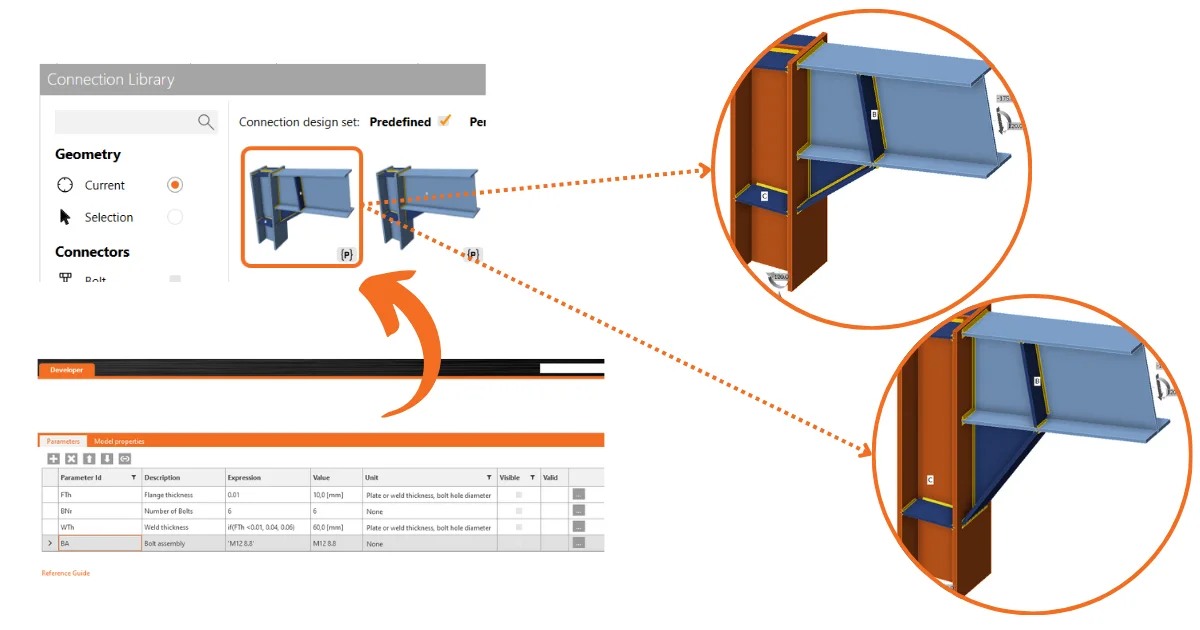
Idea Statica
  • Steel
  • Concrete
  • BIM & Workflows
  • Support & Learning
  • Pricing
  • Company
  • Steel overview
  • Connection design
  • Member design
  • Parametric design
  • Steel case studies
  • Concrete overview
  • Walls and D-regions
  • Anchoring design
  • Concrete case studies
  • BIM Overview
  • Supported integrations
  • Checkbot
  • Viewer
  • APIs
  • Support Center
  • E-learning & certification
  • Blog
  • Downloads & Licensing
  • Plans
  • Free community tool
  • Enterprise customers
  • Students & educators
  • How much will you save?
  • About us
  • Contact
  • Research & development
  • Authorized resellers
  • Meet our customers
  • Career
  • Steel
    Steel overviewConnection designMember designParametric designSteel case studies
  • Concrete
    Concrete overviewWalls and D-regionsAnchoring designConcrete case studies
  • BIM & Workflows
    BIM OverviewSupported integrationsCheckbotViewerAPIs
  • Support & Learning
    Support CenterE-learning & certificationBlogDownloads & Licensing
  • Pricing
    PlansFree community toolEnterprise customersStudents & educatorsHow much will you save?
  • Company
    About usContactResearch & developmentAuthorized resellersMeet our customersCareer
14-Day Trial
14-Day Trial
  • Steel
  • Concrete
  • BIM & Workflows
  • Support & Learning
  • Pricing
  • Company

Subscribe to our newsletter

Company

  • About us
  • Partners
  • Careers
  • Patent

Resources

  • Customer projects
  • Case studies
  • Connection Library
  • Verification books

Legal

  • EULA
  • Privacy policy
  • California Privacy
  • TOS Viewer
  • Licensing

Help

  • Contact
  • Quote request
  • Resellers
  • Downloads
FacebookInstagramLinkedInYouTube

© IDEA StatiCa 2009-2026

Trusted and used worldwide by engineers, fabricators & consultants.

Support CenterTutorialsStructural design leveraging the Connection Library (EN)
Structural design leveraging the Connection Library (EN)
SteelConnection designTutorialsEN (Eurocode)Connection

Structural design leveraging the Connection Library (EN)

This article is also available in
ENCZDEESFRITPTNLHUROKRPLTHTRVIZH

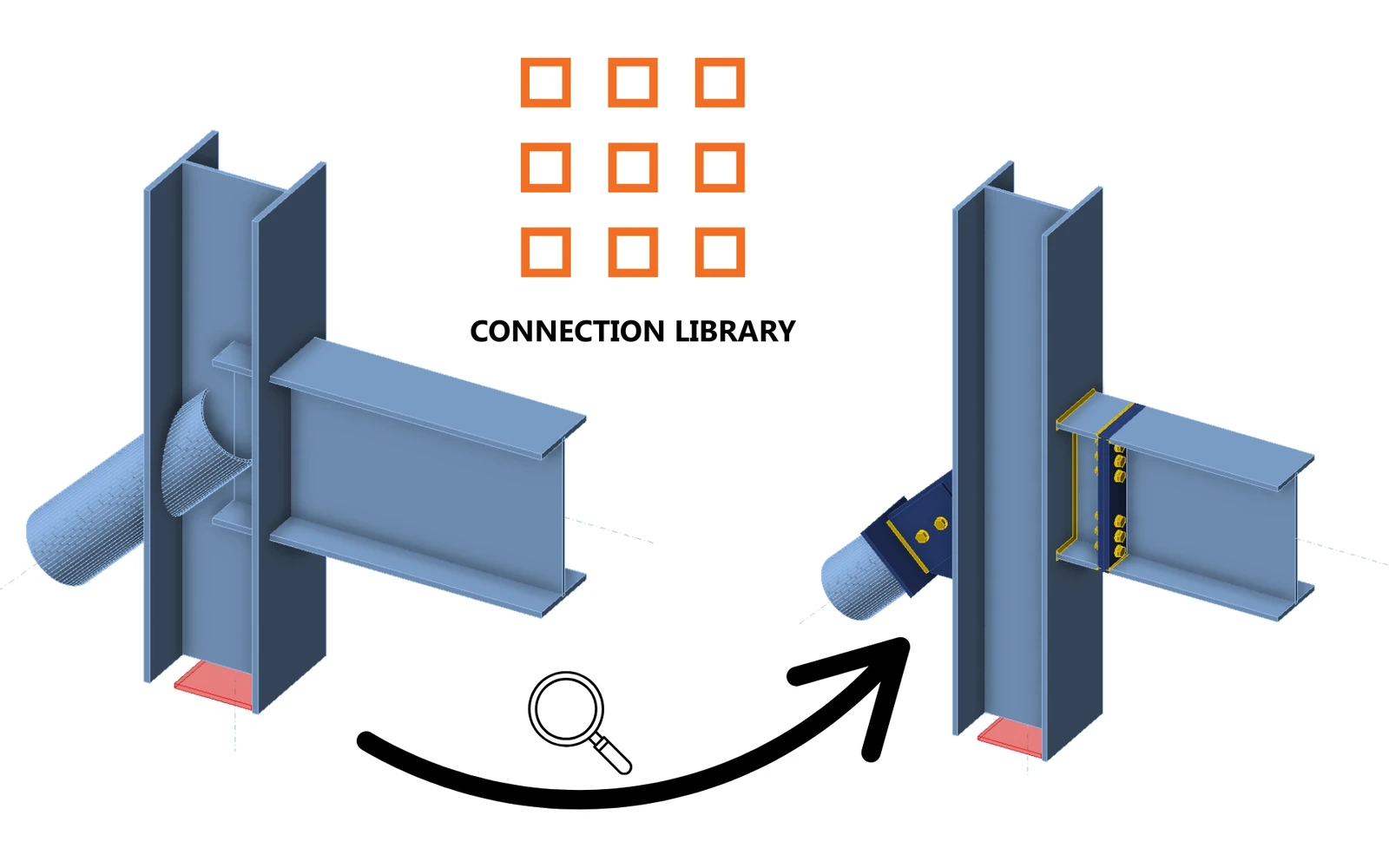
Learn how to use the Connection Library feature to design a structural steel connection in a smarter and quicker way for repetitive designs. We'll also show you the standard manual operations for non-limited design arrangements.

1 New project

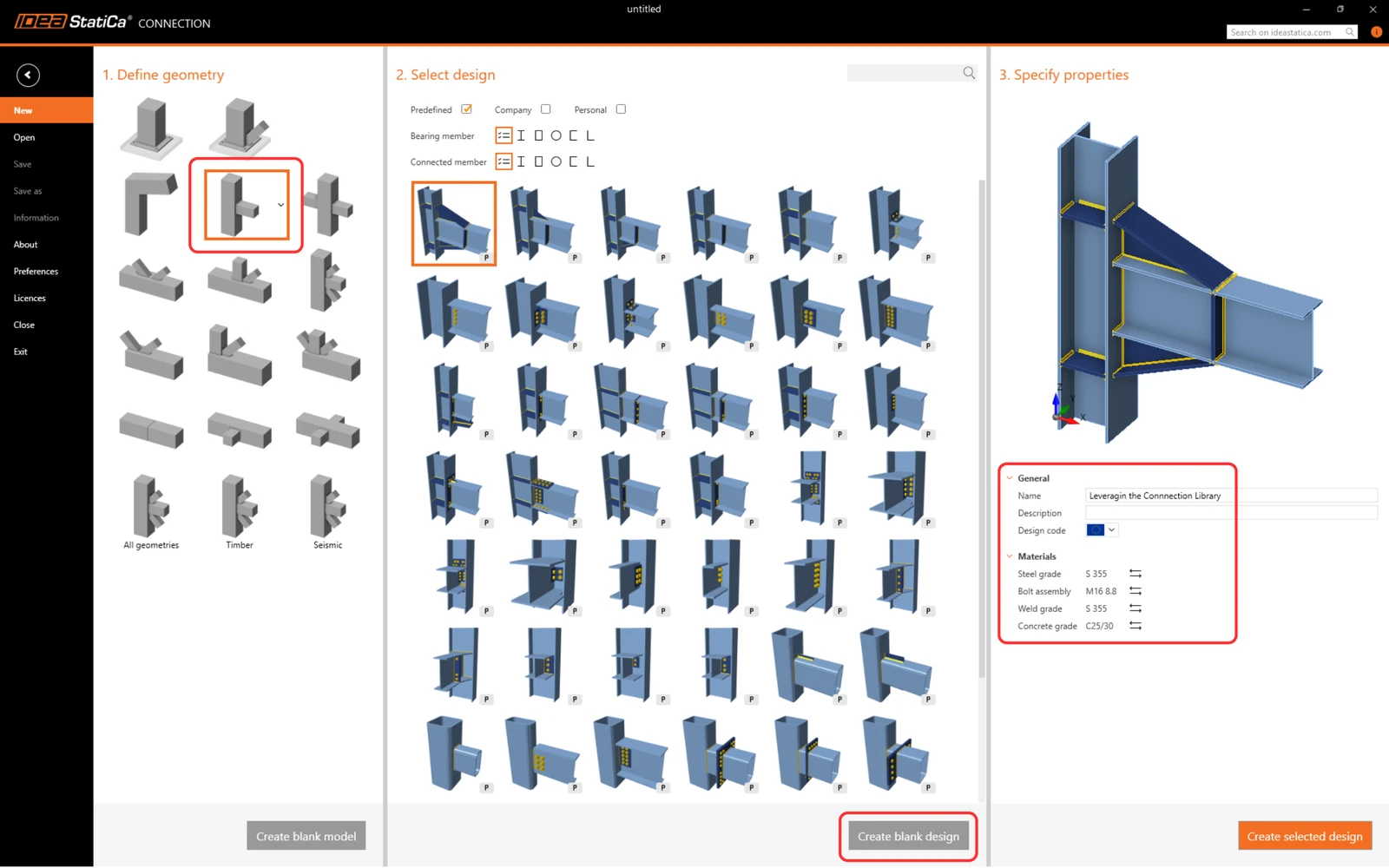
Let’s launch IDEA StatiCa and select the application Connection (download the newest version). Create a new blank design by selecting the desired geometry. Fill in the name, and choose the design code and default material properties. 
2 Creating a new template

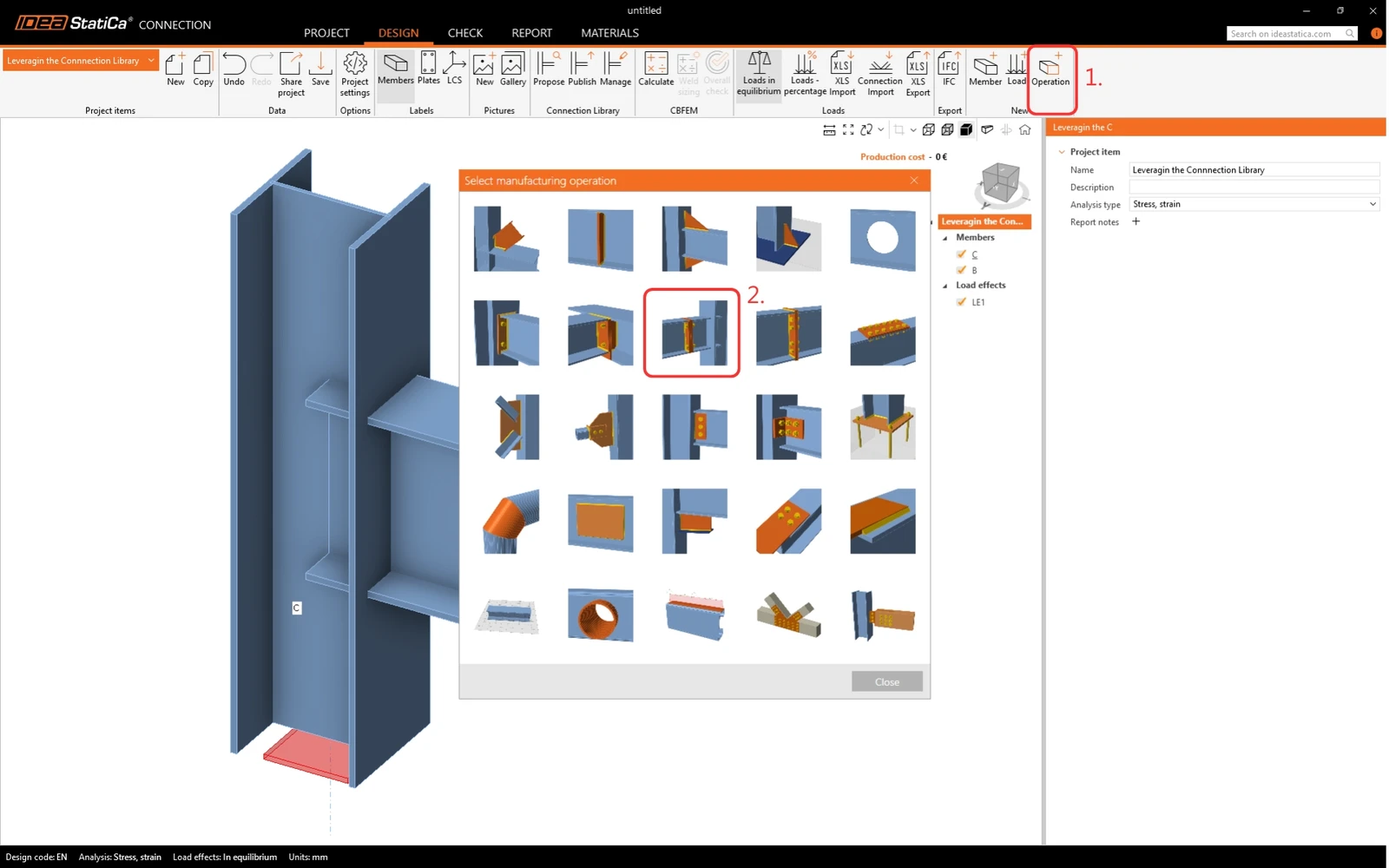
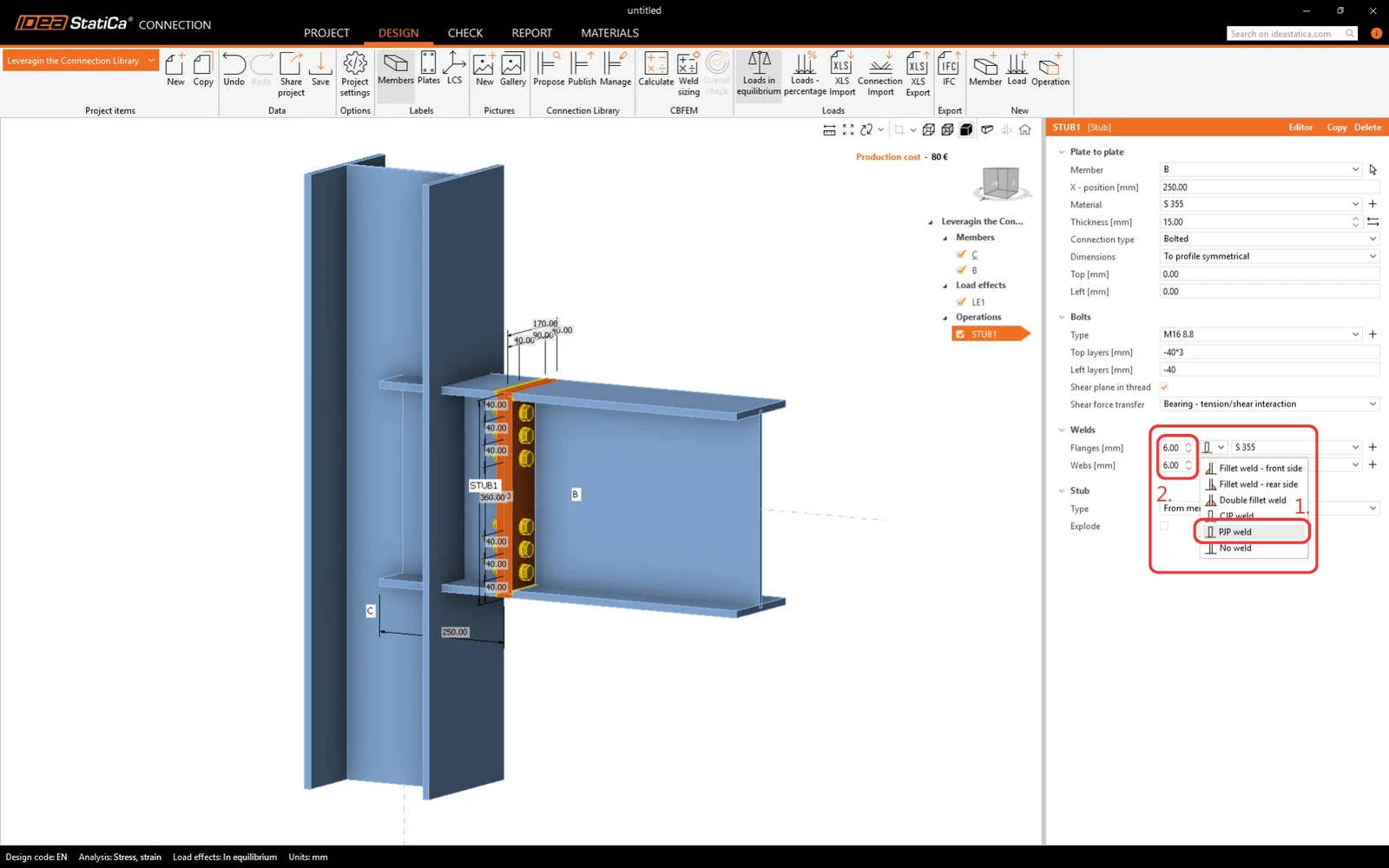
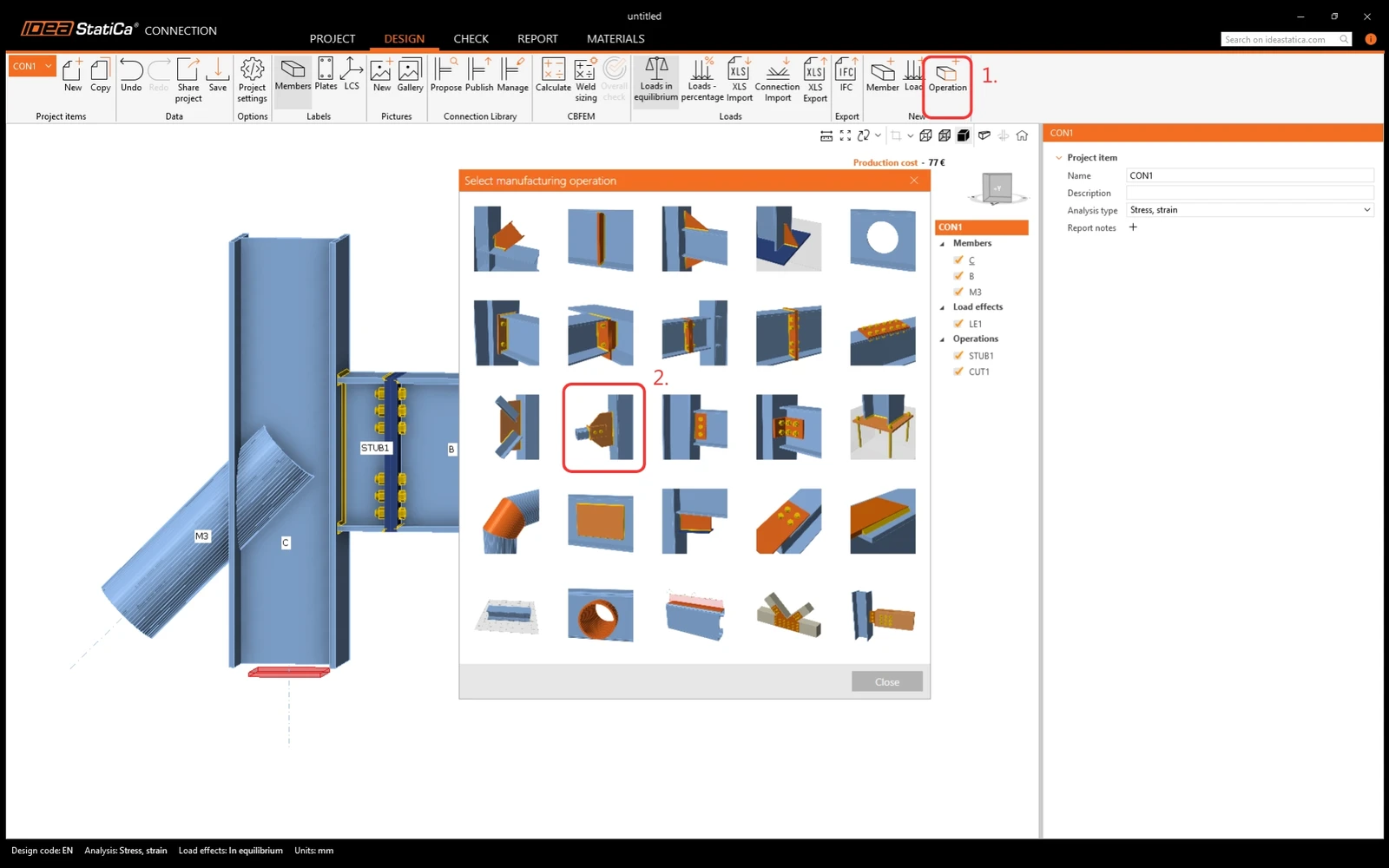
Let's create a design that can be saved as a template. Click on Operation in the Ribbon and find the manufacturing operation Stub - plate to plate.
Modify the welds in the operation. Select the Partial Joint Penetration welds (PJP) and edit the size.
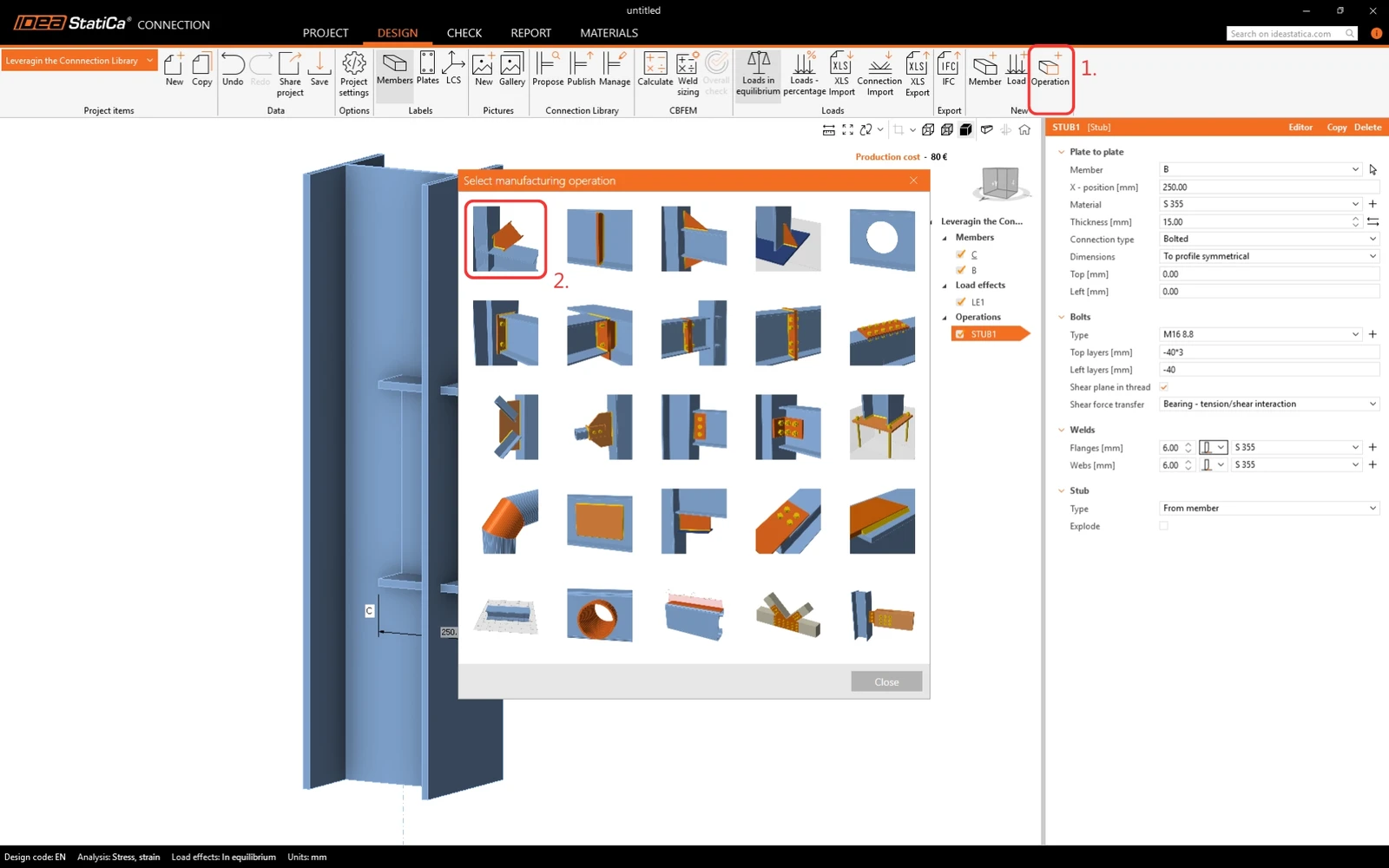
Add another operation - Cut. 
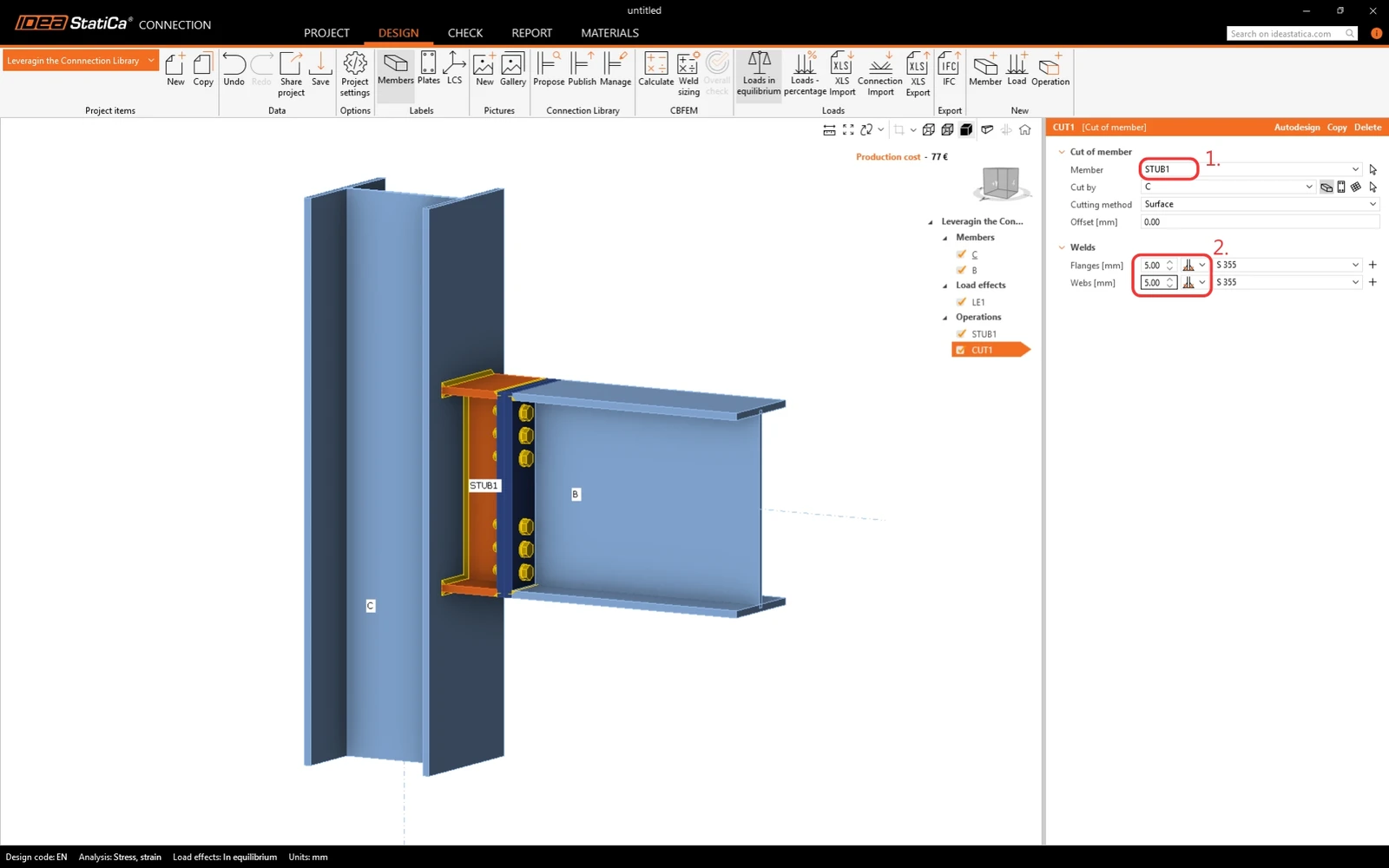
Modify the member to be cut to STUB1 and welds. 
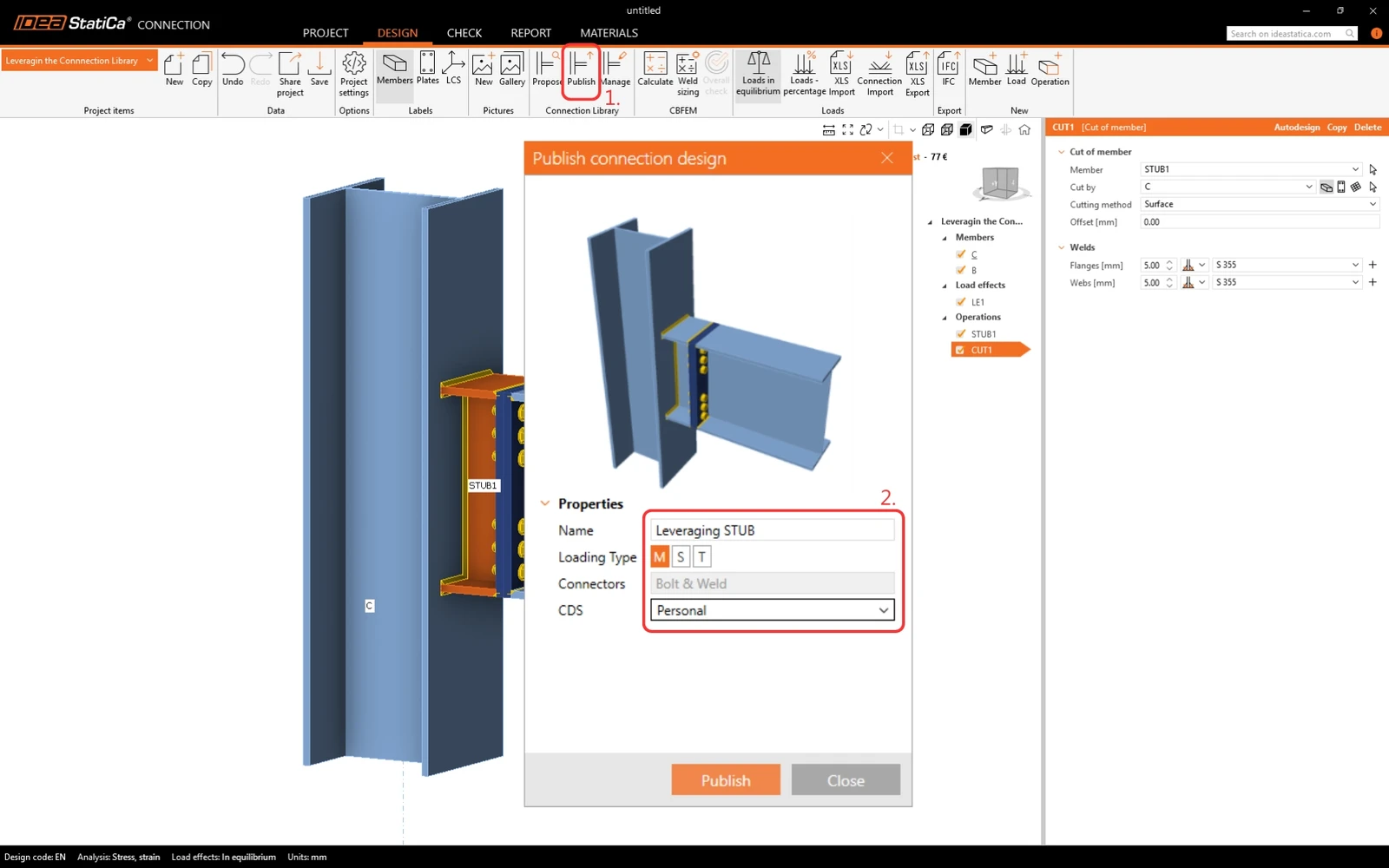
This design is used often; therefore, it can be saved to the Connection Library. Click on the Publish button in the ribbon. Define the Name, Loading type, and Connection design set (CDC) in which the template will be stored. Types of CDC: 

  • Company - every user with the company license will be able to access them, while a user from a different company cannot see, use or access these design items.
  • Personal - available only for the author of the design. 
2 Applying a template from the Connection Library

Start by deleting the operations in the model. 
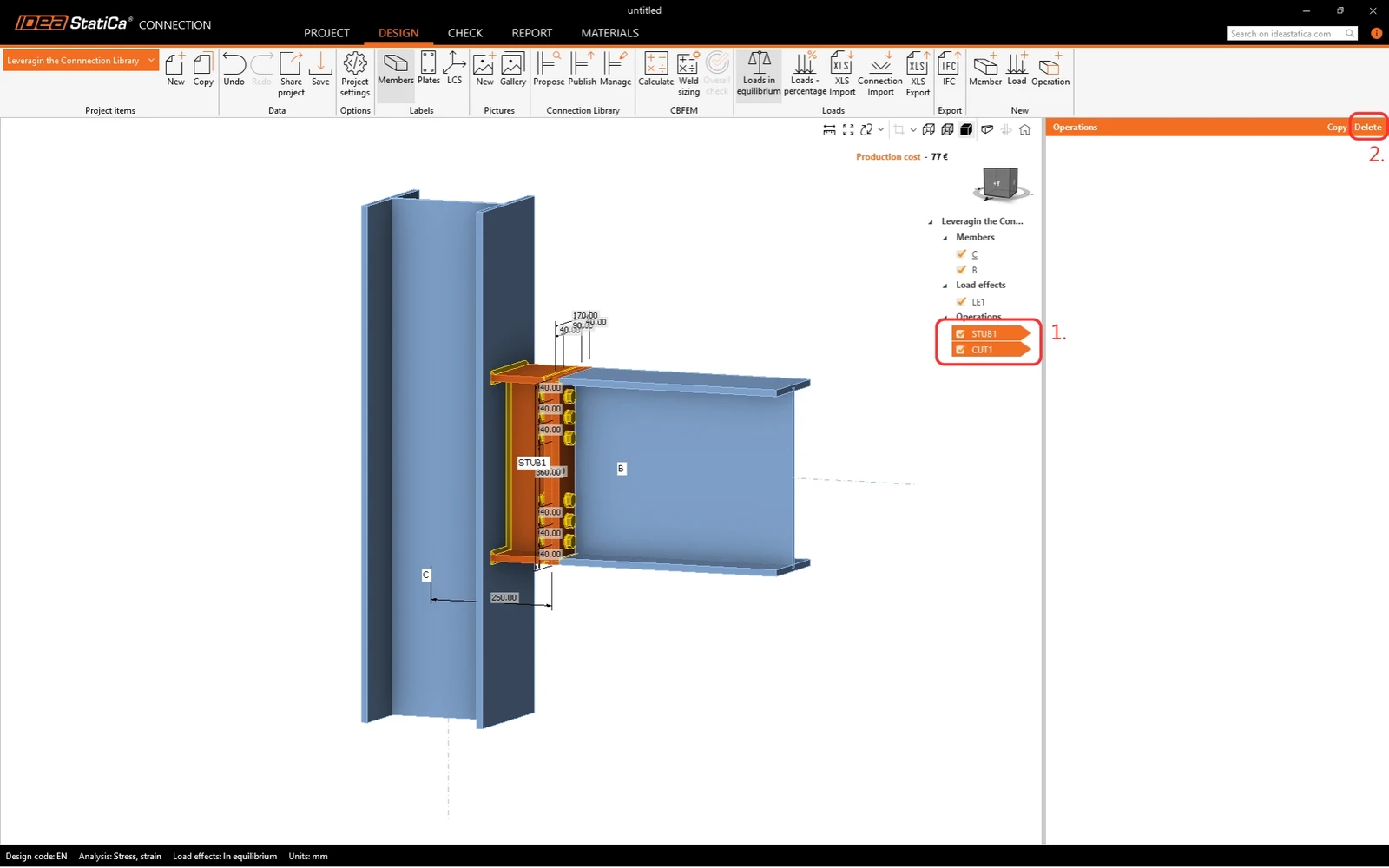
Add an additional member to the design. 
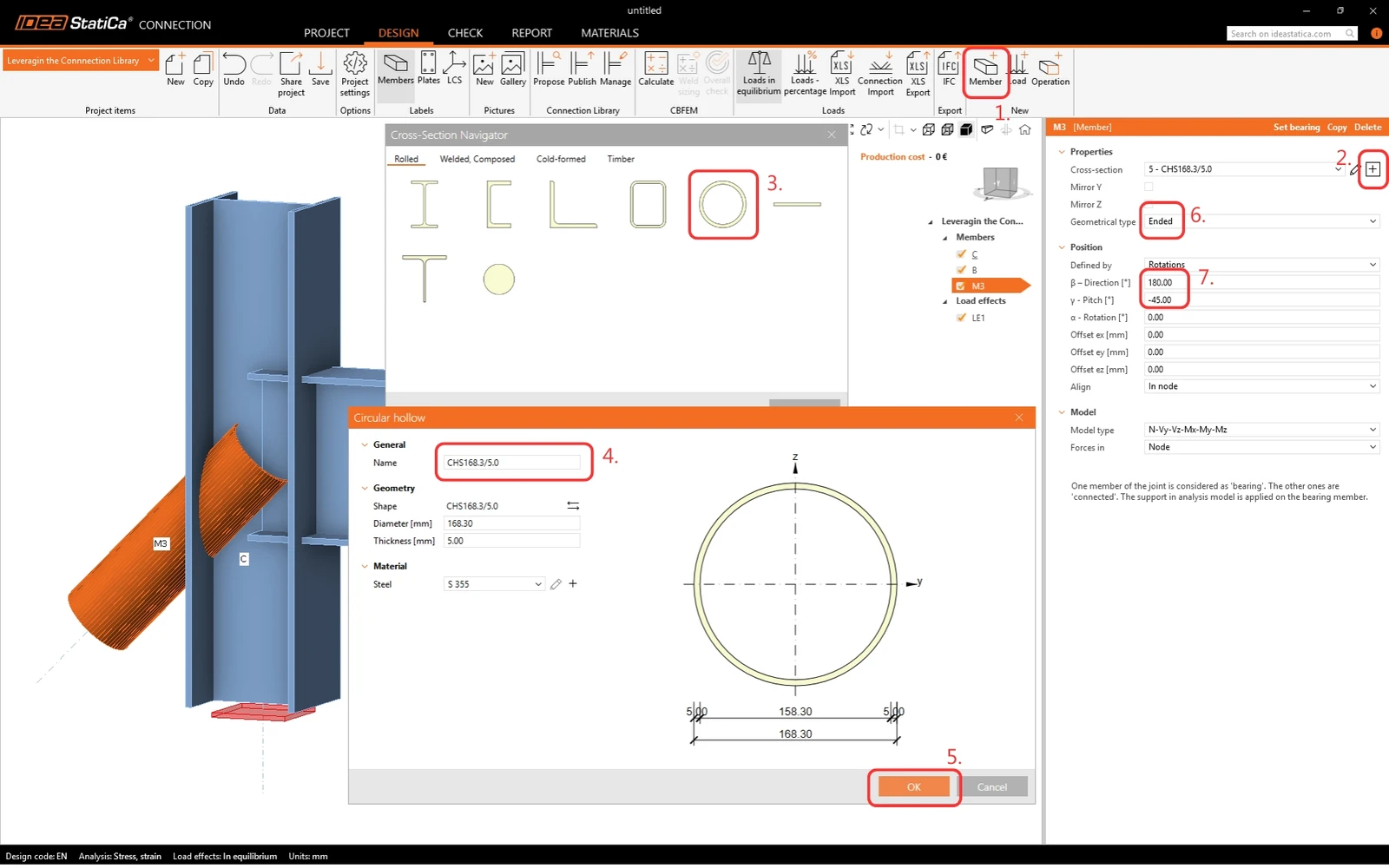
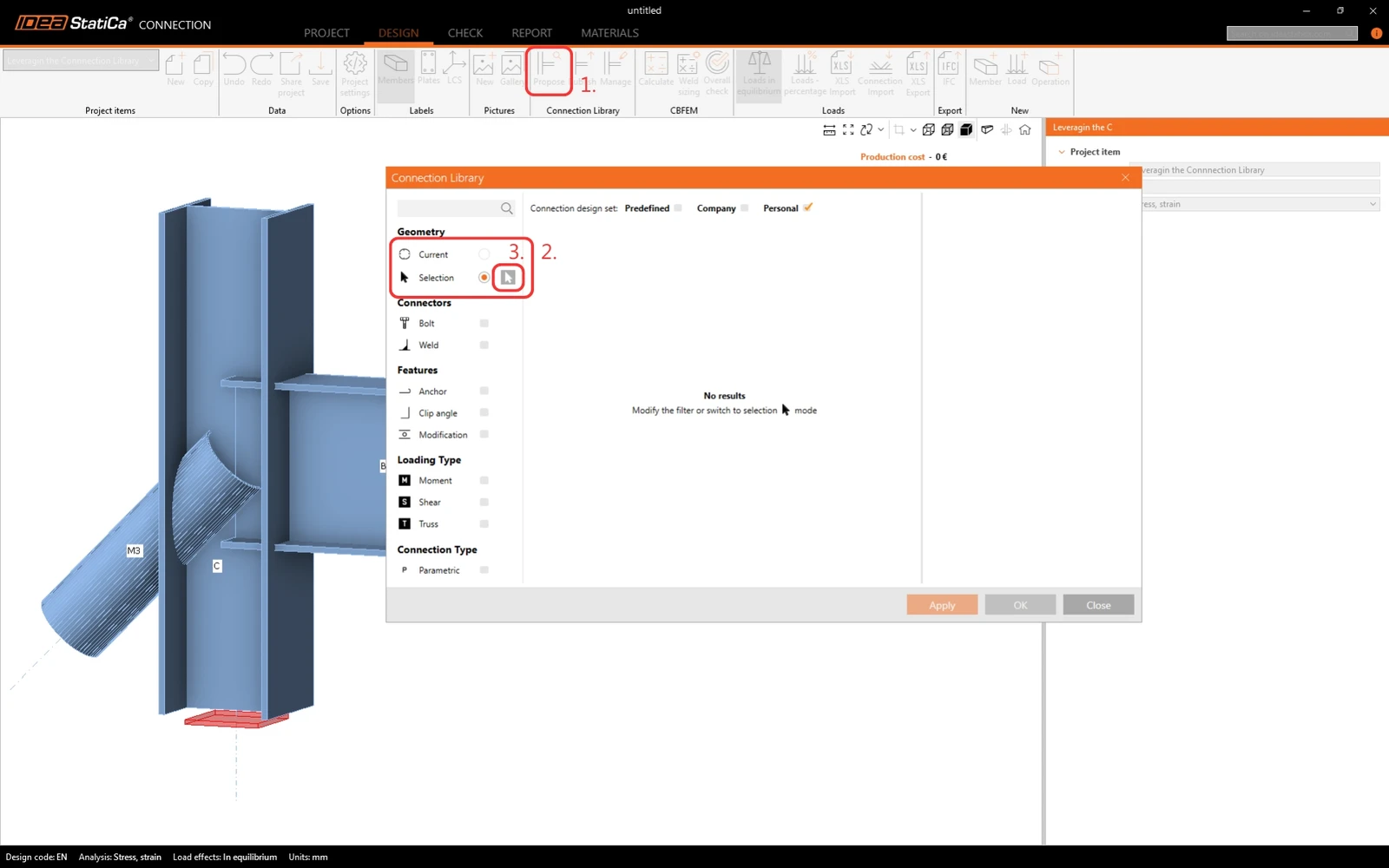
Now, let's utilize the Connection Library instead of using the individual operations again. Click on the Propose button in the Ribbon. No design is available for the current geometry. Switch to Selection and click on the Arrow. 
While holding the Control button on your keyboard, select members B and C. Confirm the selection by clicking on the Tick button. Suitable design templates are showcased for the selected geometry. Narrow down the selection of templates by only selecting the Personal connection design set. Apply the template. 
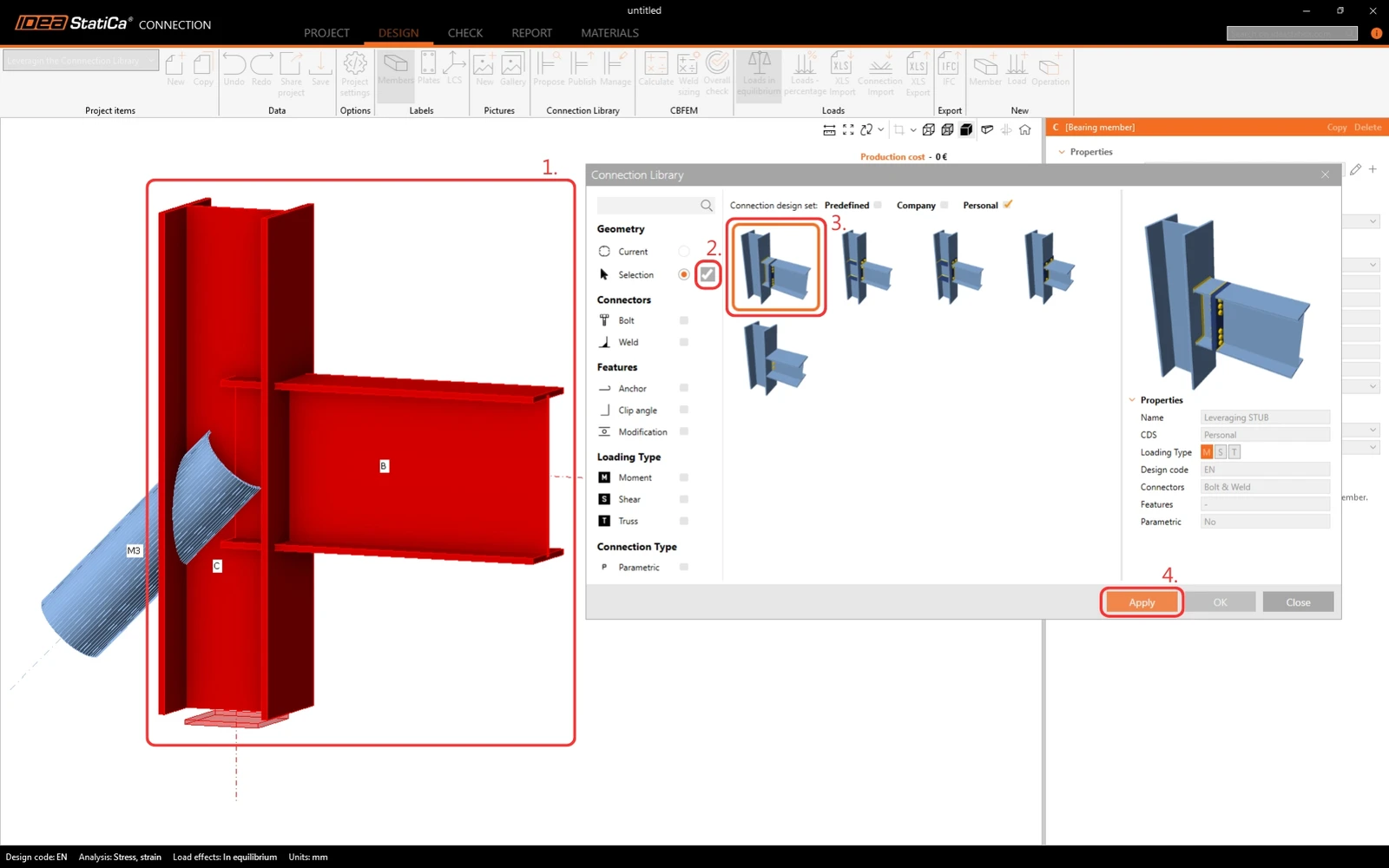
The design is applied to the model exactly as it was saved into the Connection Library. To finish the design, add an individual operation for the diagonal member since it is not included in the template.
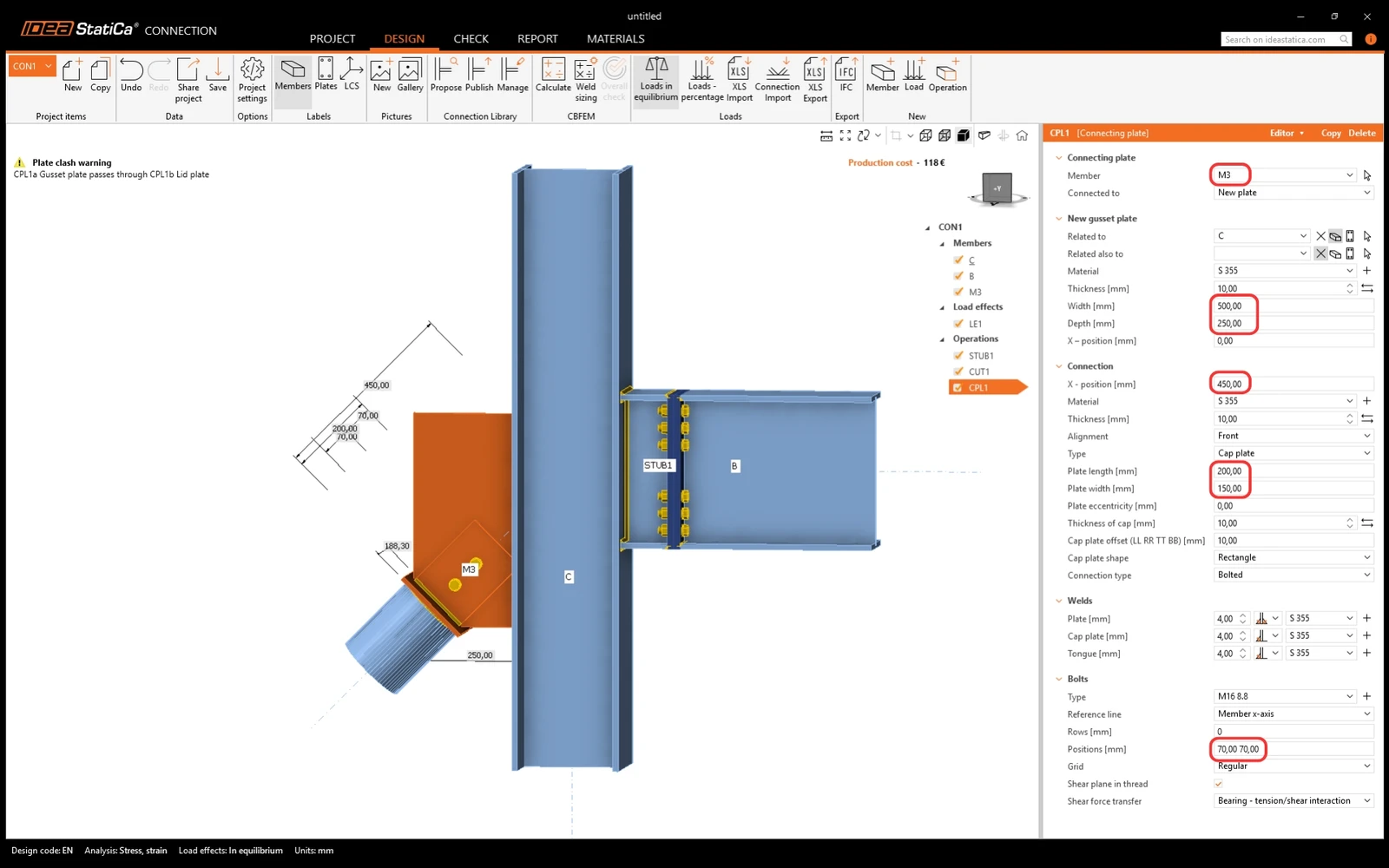
Modify the operation according to the picture below. 
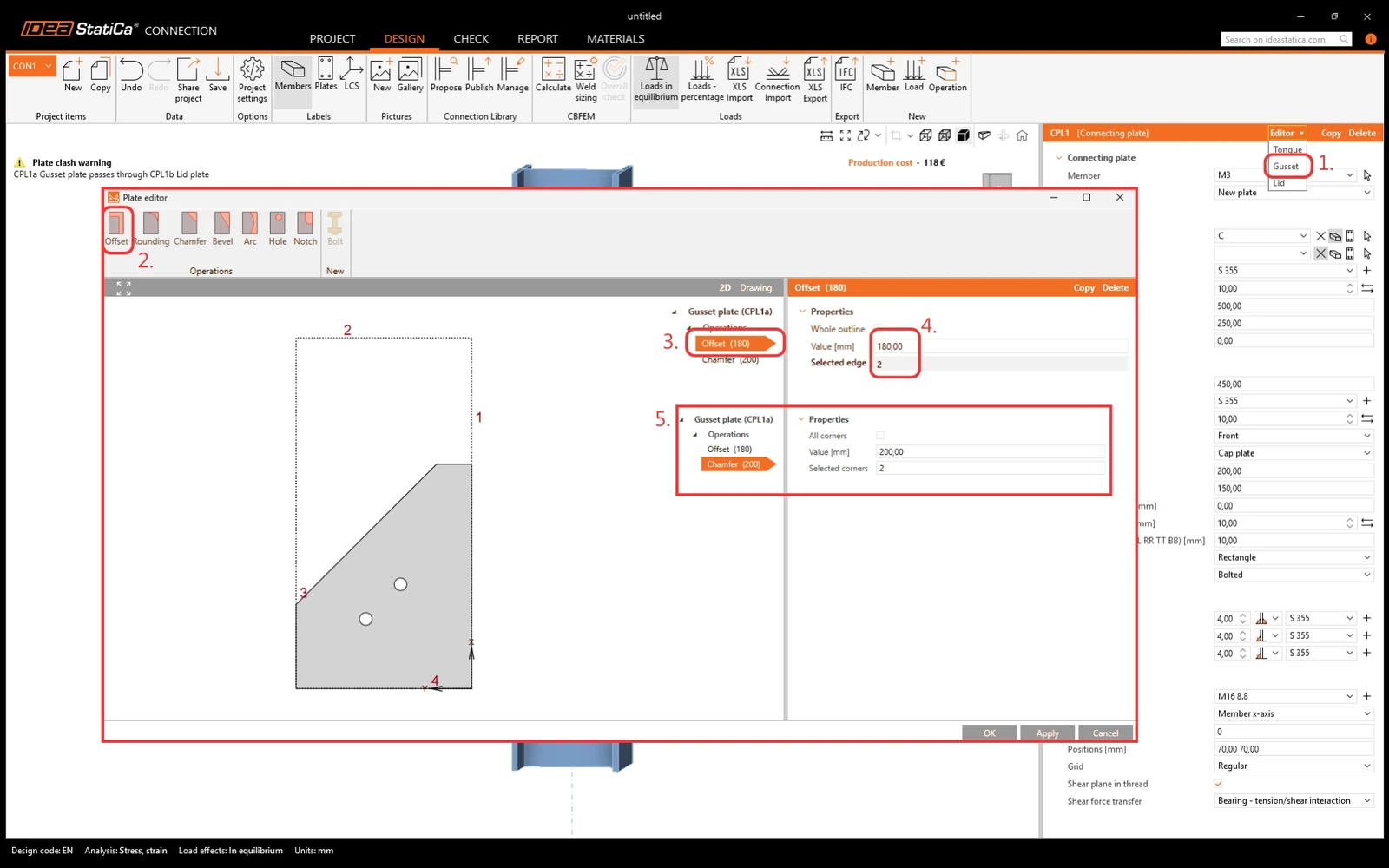
Edit the Gusset plate to a suitable shape in the Plate editor. 
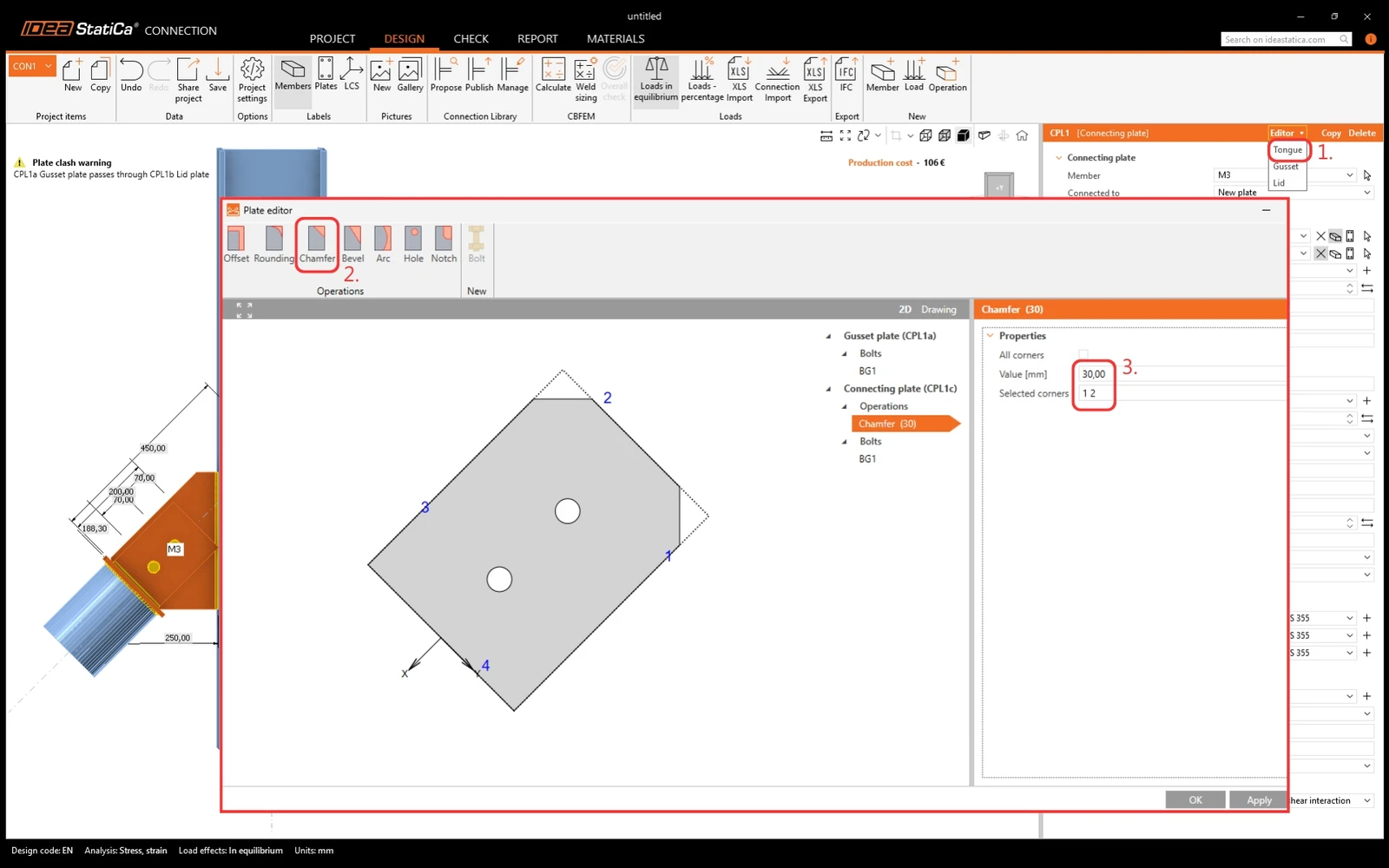
Do the same to trim the corners of the Tongue plate. 
And the design is finished. Now it can be published into Connection Library or simply used to run the analysis to obtain the results. To do that the Load effects need to be defined. 
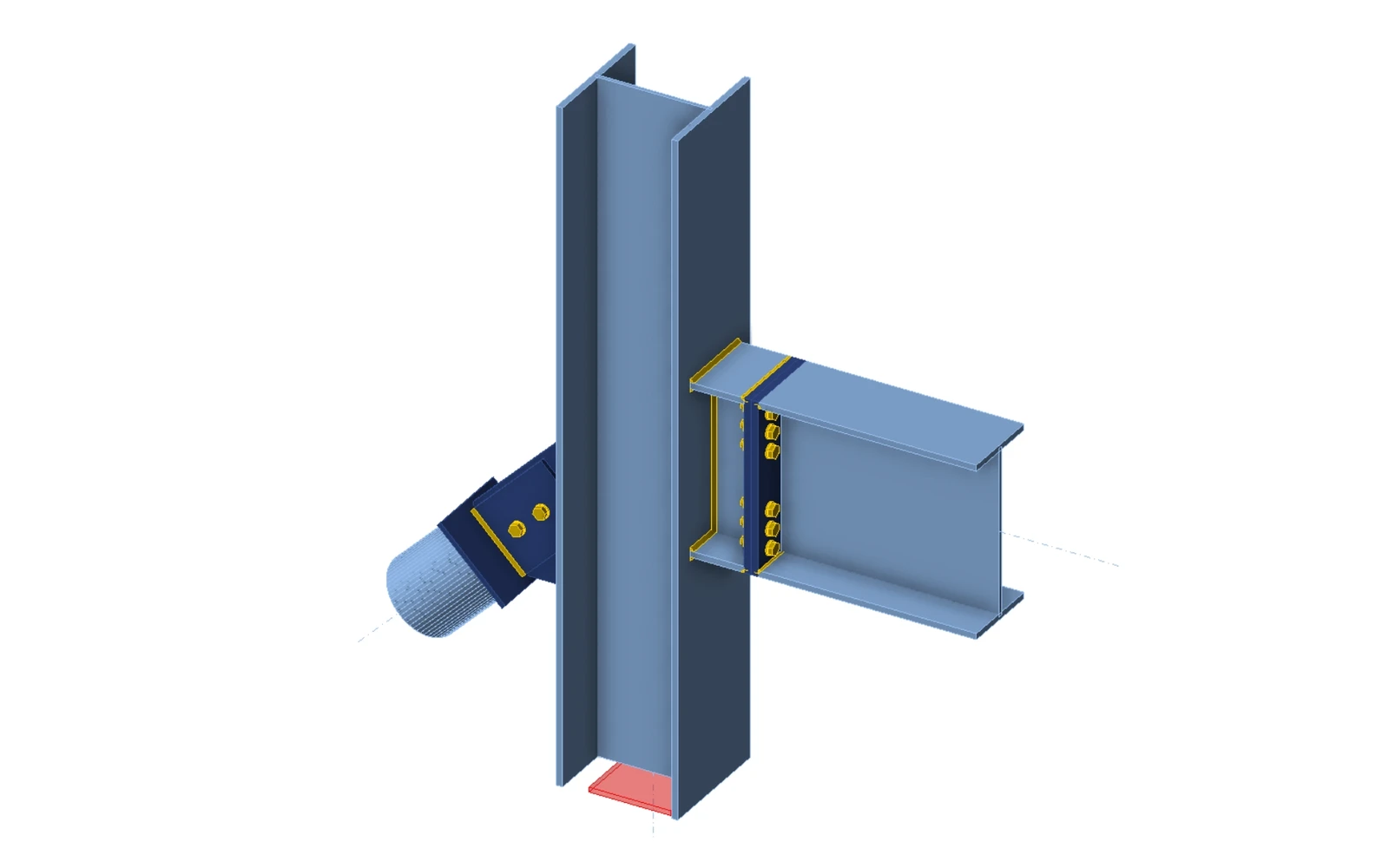
Unlock the power of the Connection Library now.

Read through the related articles below. 

Related articles

Parametric design in Connection - all documentation
  • Steel
  • Connection
  • Parametric design
  • +3
  • Steel
  • Connection
  • Parametric design

Knowledge base

Parametric design in Connection - all documentation

Read more
Parametric templates in Connection Library
  • Steel
  • Connection
  • Connection Library
  • v24.0
  • Parametric design
  • v24.1
  • v25.1
  • +7
  • Steel
  • Connection
  • Connection Library
  • v24.0
  • Parametric design
  • v24.1
  • v25.1

Knowledge base

Parametric templates in Connection Library

Read more
Get inspired by Connection Library
  • Steel
  • Connection Library
  • Connection
  • AISC (USA)
  • EN (Eurocode)
  • +5
  • Steel
  • Connection Library
  • Connection
  • AISC (USA)
  • EN (Eurocode)

Blog post

Get inspired by Connection Library

Read more