
Idea Statica
Steel
Concrete
BIM & Workflows
Support & Learning
Pricing
Company
14-Day Trial
Support CenterKnowledge BaseHow to create a section view
How to change analysis type
Project item and material management
Cost estimation
Measuring tool
In-app tooltips and links with Support Center
Connection pre-design
Multiselect and multiedit in the Connection app
All applications: Search box
Most common Dialog actions​
Changes in the tree of entities
How to create a section view
Direct link from Connection to Viewer
How to create and export a report to MS Word, PDF or DXF files
Detailed model and loads reporting
Change just the language of the report
Improvements in report readability
Black rectangles in report
Exporting an IFC file from IDEA StatiCa
How to create a section view
Section model view – drawings (“sketches”)
Enhanced sketches in reports
How to create a section view
SteelConnection designKnowledge baseConnectionEN (Eurocode)

How to create a section view

This article is also available in
ENCSDEITNL

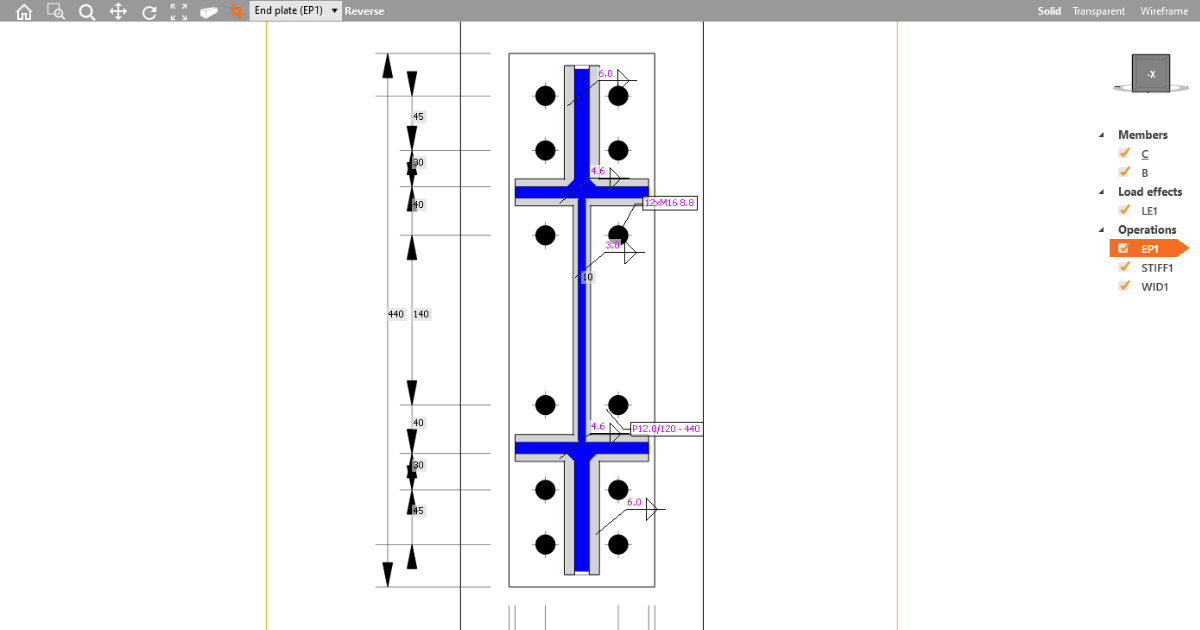
All structural engineers, designers, and detailers require clear visual outputs of their designs. Engineers want to generate “sketches”, detailers like to receive them, so they don't start the detailing from scratch. Let's see how you can work with section models in the Connection application.

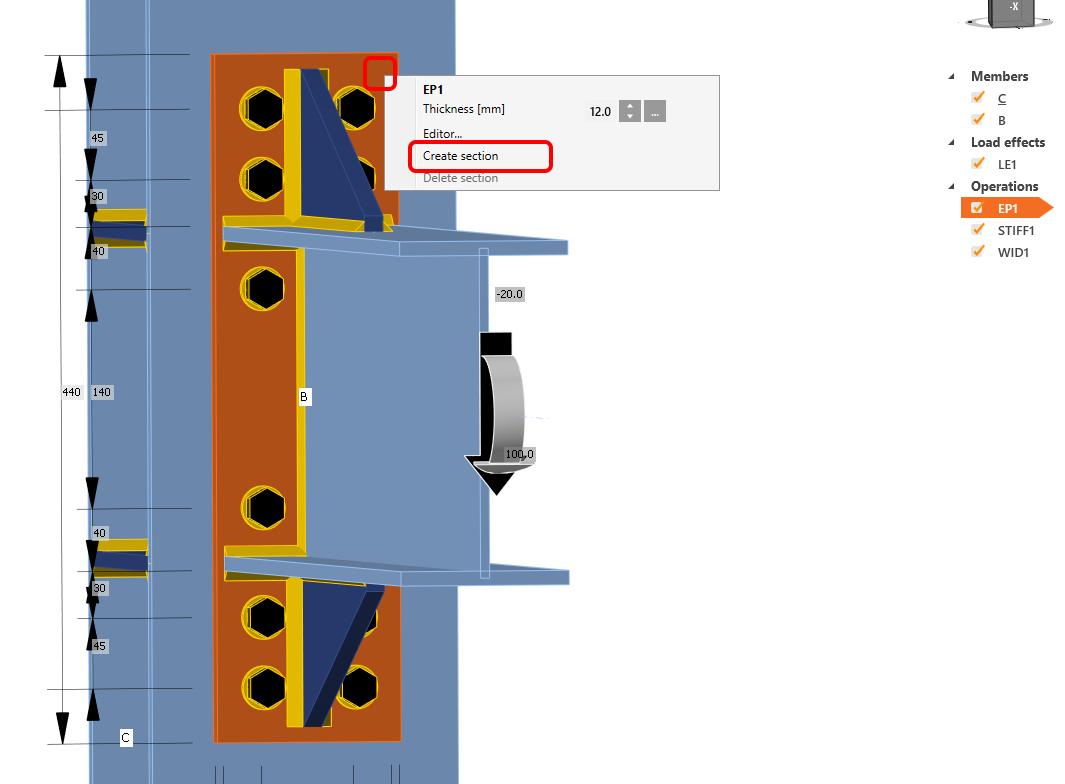
To create a section view, right-click on any plate in the 3D model of the joint, and select Create section. Immediately, the section view is created.
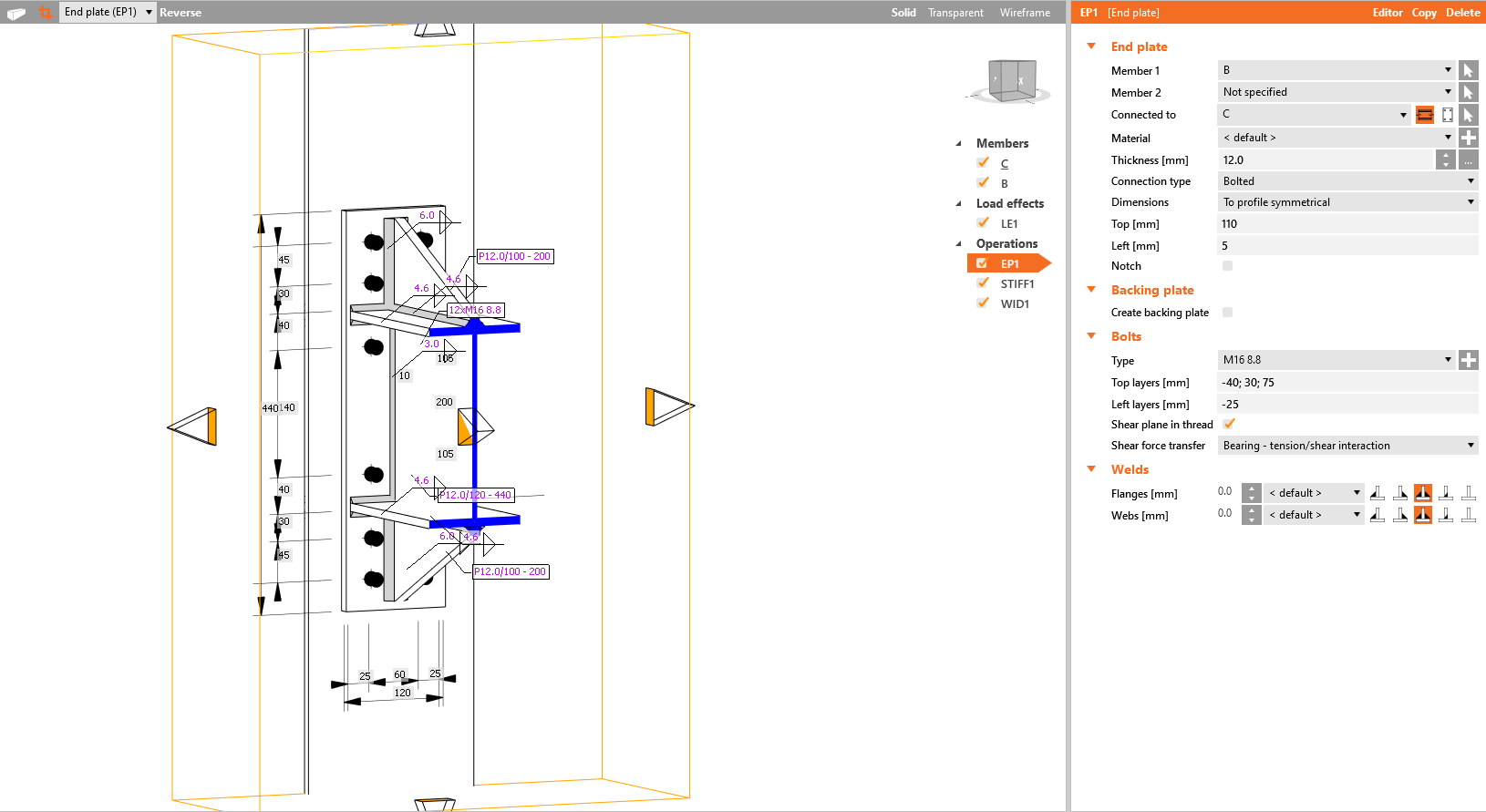
 If you want to change the size of the section itself, click on the yellow section border and drag the arrows.
To delete a section view, right-click on the same plate for which you have previously created the section view and select the Delete section.

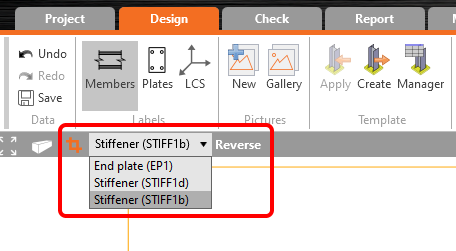
More section views for various plates of the joint can be defined. To switch between created sections, select the desired in the combo box.

The direction of the section can be changed by the Reverse command. Section model view can be activated/deactivated by the section button placed on the left side of the section items combo box.
Section views can be added to the Report as pictures from the gallery (also with the dimensions) or automatically after selecting the command button for sections in the Detailed report setup. 

The Bill of the material will automatically include all defined sections.

See the video on how to easily work with the sections:

Start your trial today and enjoy 14 days of full access and services free of charge.

Start free trial

Subscribe to our newsletter

Company

  • About us
  • Partnerships
  • Job openings
  • Patented technology for structural engineers

Resources

  • Customer projects
  • Case studies
  • IDEA StatiCa Connection Library
  • Concrete verifications

Legal

  • IDEA StatiCa END USER LICENSE AGREEMENT
  • Privacy policy
  • Terms of Services – IDEA StatiCa Viewer
  • Licensing

Help

  • Contact
  • Get price quote
  • IDEA StatiCa Specialists
  • Download the latest version
FacebookInstagramLinkedInYouTube

© IDEA StatiCa 2009-2026

Trusted and used worldwide by engineers, fabricators & consultants.