


Creating areport
To create a report, start in the Report tab.

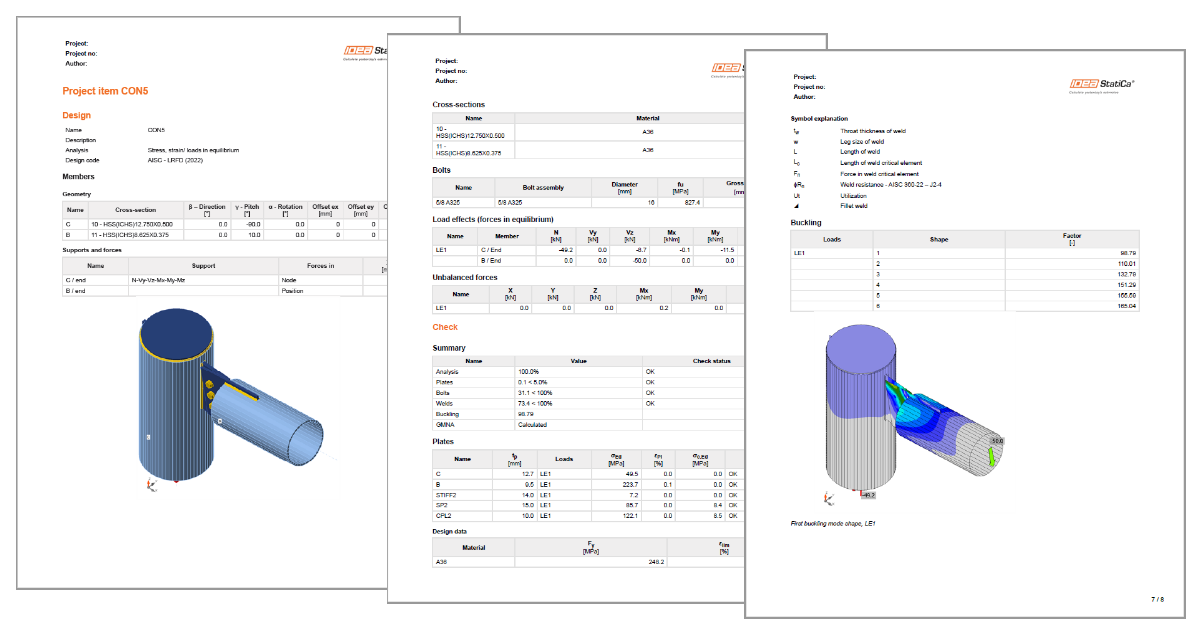
You can select the level of reporting: Brief gives the overall results only, One page puts the most necessary results on a single page, and Detailed is the most descriptive option. BOM (Bill of materials) presents the 2D drawings of the plates in the connection.

The report can be adjusted based on your preferences – use the Report settings (top right) and Project items settings (bottom right corner) menus. Preferences can be saved for future projects.
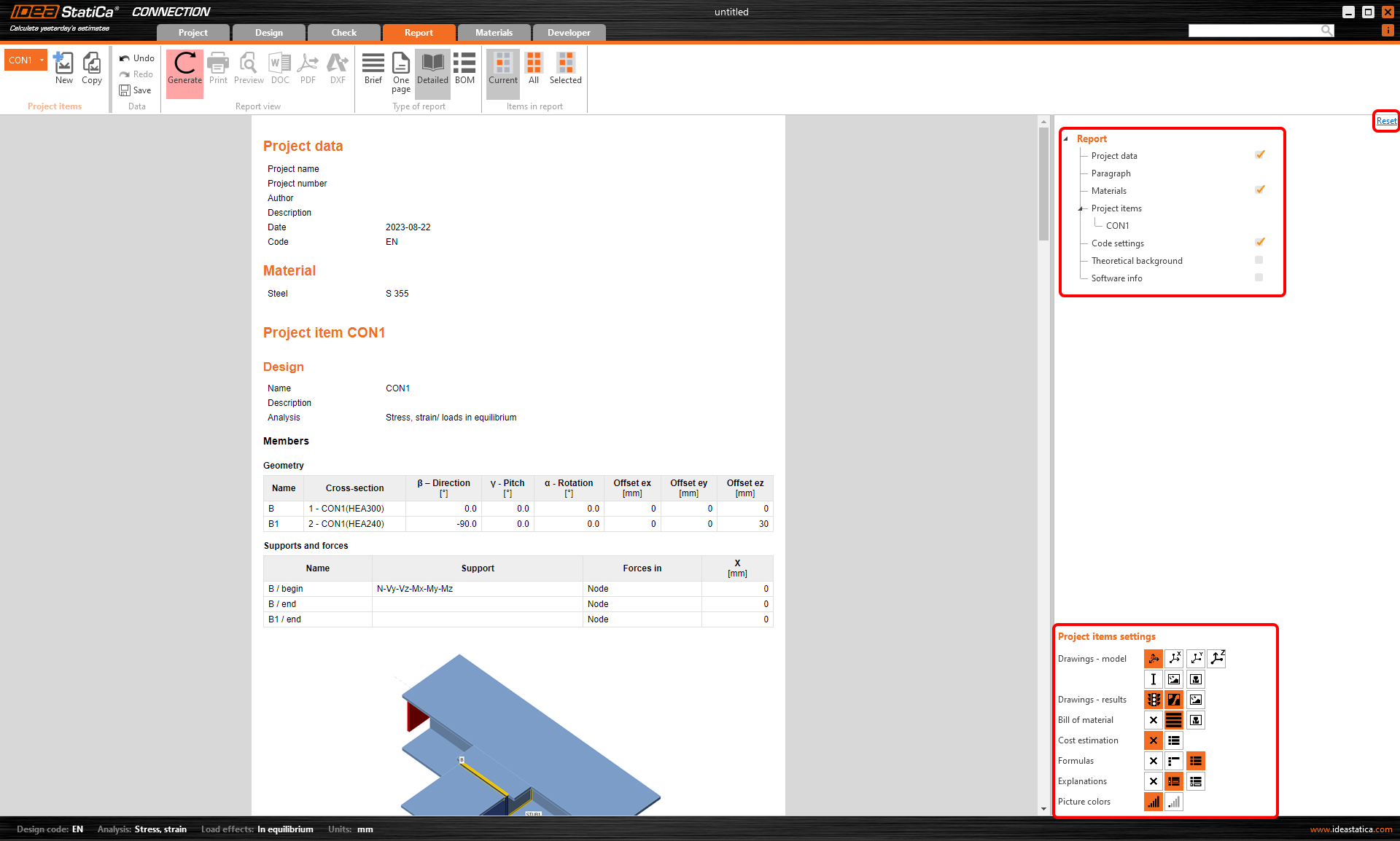
You can also select if you want the report to include the current project item only, the selected items, or all of them.

After each change, the report must be re-generated using the button in the top ribbon.

How to export report to MS Word, DXF or PDF files
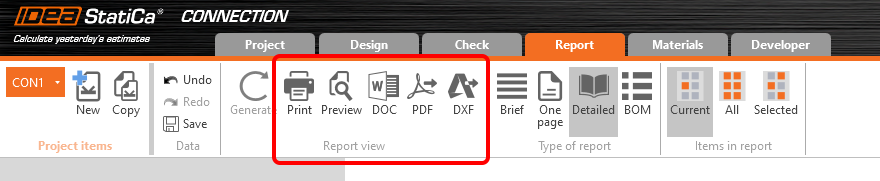
Once the report looks as you wish, you can directly Preview or Print the output or export it into DOC (editable Microsoft Word document) or PDF formats. The bill of materials can be exported to an editable DXF.
Improvements according to versions
Check also the improvements in version 23.0 in the Detailed model and loads reporting release notes article.
Save the report settings for the upcoming projects
Report settings can now be saved as default configurations and reused across all IDEA StatiCa Connection and Checkbot projects. Users can define preferred report parameters, language, format, scope, and detail level, once and apply them automatically to new projects.
Every change made in the Report tab is now automatically stored in the current project’s settings. Using the Save as Default option in Project Settings → Outputs → Report, these settings can be saved globally and applied to all newly created projects.
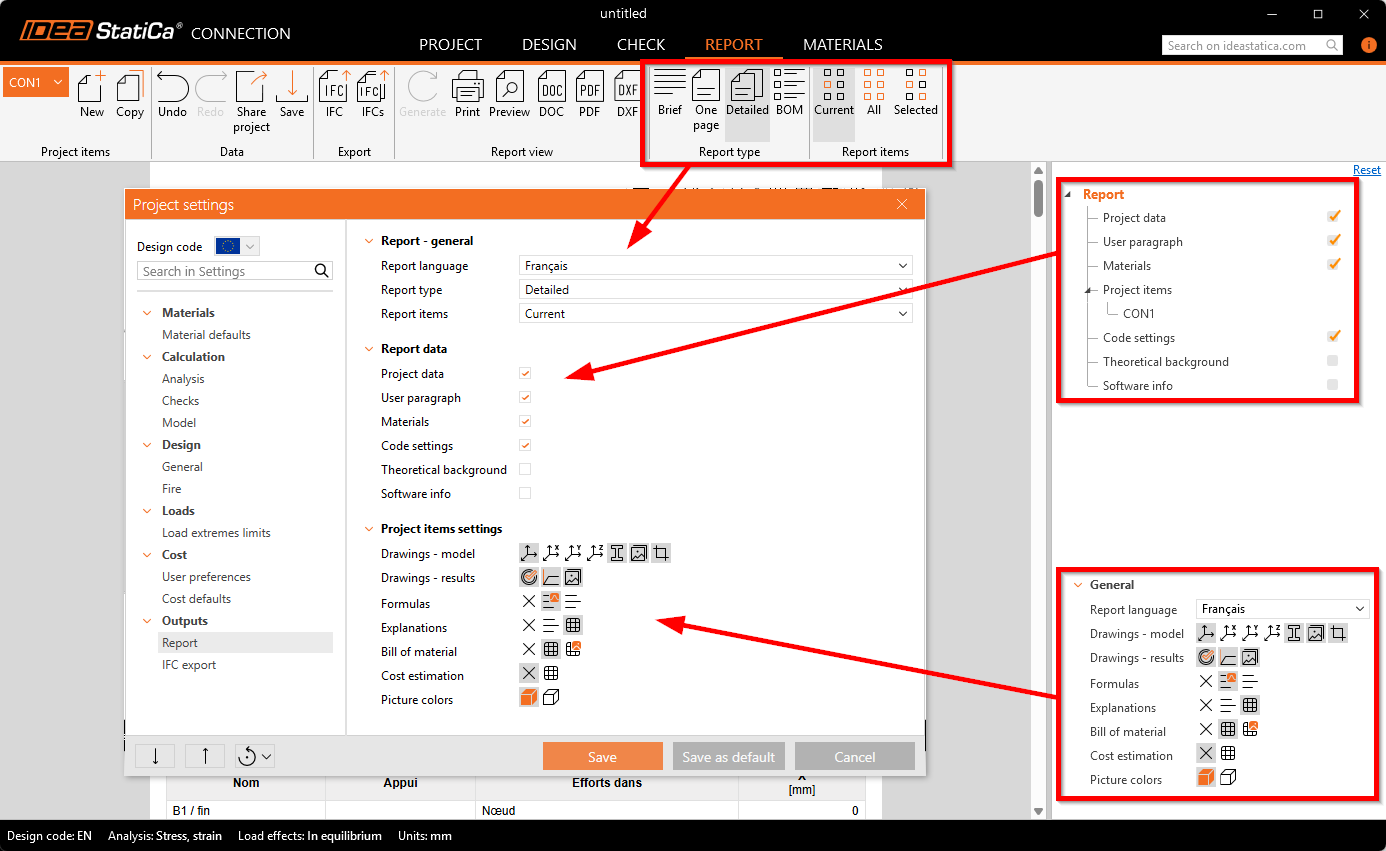
In addition, default report configurations can be managed directly from the Launcher without the need to open any project under the Project Settings.
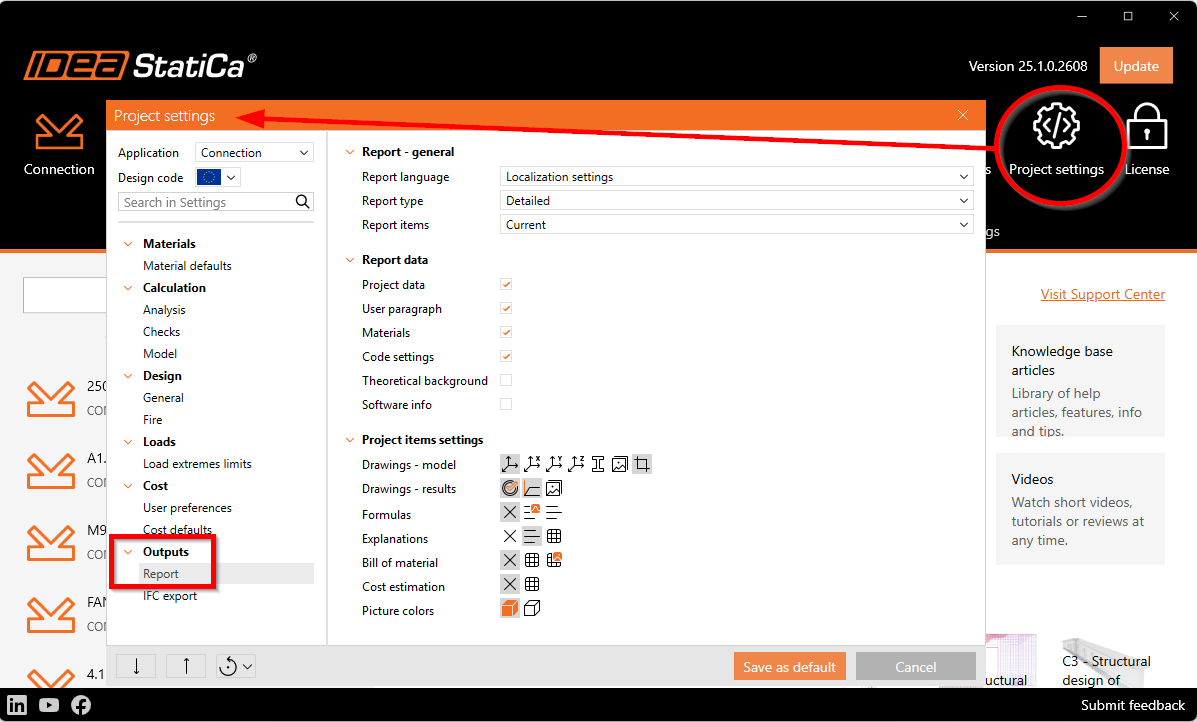
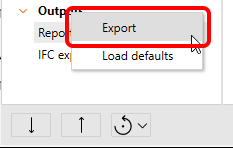
Report templates can be exported and imported. Using the Export option under the Outputs section, you can store customized report setups, for instance, short summaries, full detailed outputs, or client-specific formats.
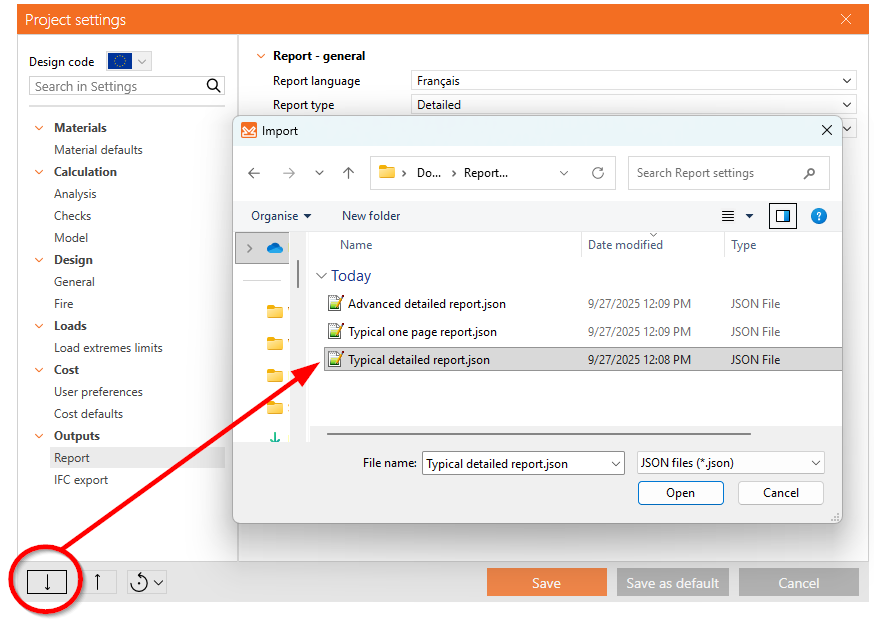
The Import function allows consistent use of these configurations across teams or projects, ensuring uniform report generation company-wide. Only the Outputs part of the settings that was exported is imported.
Webinar recording
Watch Adam describing how to get the report in our Tackling IDEA StatiCa Connection - The basics webinar.