Idea Statica
  • Steel
  • Concrete
  • BIM & Workflows
  • Support & Learning
  • Pricing
  • Company
  • Steel overview
  • Connection design
  • Member design
  • Parametric design
  • Steel case studies
  • Concrete overview
  • Walls and D-regions
  • Anchoring design
  • Concrete case studies
  • BIM Overview
  • Supported integrations
  • Checkbot
  • Viewer
  • APIs
  • Support Center
  • E-learning & certification
  • Blog
  • Downloads & Licensing
  • Plans
  • Free community tool
  • Enterprise customers
  • Students & educators
  • How much will you save?
  • About us
  • Contact
  • Research & development
  • Authorized resellers
  • Meet our customers
  • Career
  • Steel
    Steel overviewConnection designMember designParametric designSteel case studies
  • Concrete
    Concrete overviewWalls and D-regionsAnchoring designConcrete case studies
  • BIM & Workflows
    BIM OverviewSupported integrationsCheckbotViewerAPIs
  • Support & Learning
    Support CenterE-learning & certificationBlogDownloads & Licensing
  • Pricing
    PlansFree community toolEnterprise customersStudents & educatorsHow much will you save?
  • Company
    About usContactResearch & developmentAuthorized resellersMeet our customersCareer
14-Day Trial
14-Day Trial
  • Steel
  • Concrete
  • BIM & Workflows
  • Support & Learning
  • Pricing
  • Company

Subscribe to our newsletter

Company

  • About us
  • Partners
  • Careers
  • Patent

Resources

  • Customer projects
  • Case studies
  • Connection Library
  • Verification books

Legal

  • EULA
  • Privacy policy
  • California Privacy
  • TOS Viewer
  • Licensing

Help

  • Contact
  • Quote request
  • Resellers
  • Downloads
FacebookInstagramLinkedInYouTube

© IDEA StatiCa 2009-2026

Trusted and used worldwide by engineers, fabricators & consultants.

Support CenterTutorialsParametric design in IDEA StatiCa Connection - Single plate Shear connection
Parametric design in IDEA StatiCa Connection - Single plate Shear connection
SteelConnection designTutorialsIDEA Open Model (API)Connection

Parametric design in IDEA StatiCa Connection - Single plate Shear connection

This article is also available in
ENCZDEESFRITPTNLHUROKRPLTHTRVIZH

Find out how easy you can create your own parametric template.

In this tutorial we will parametrize a simple Single shear connection with one bolt row.

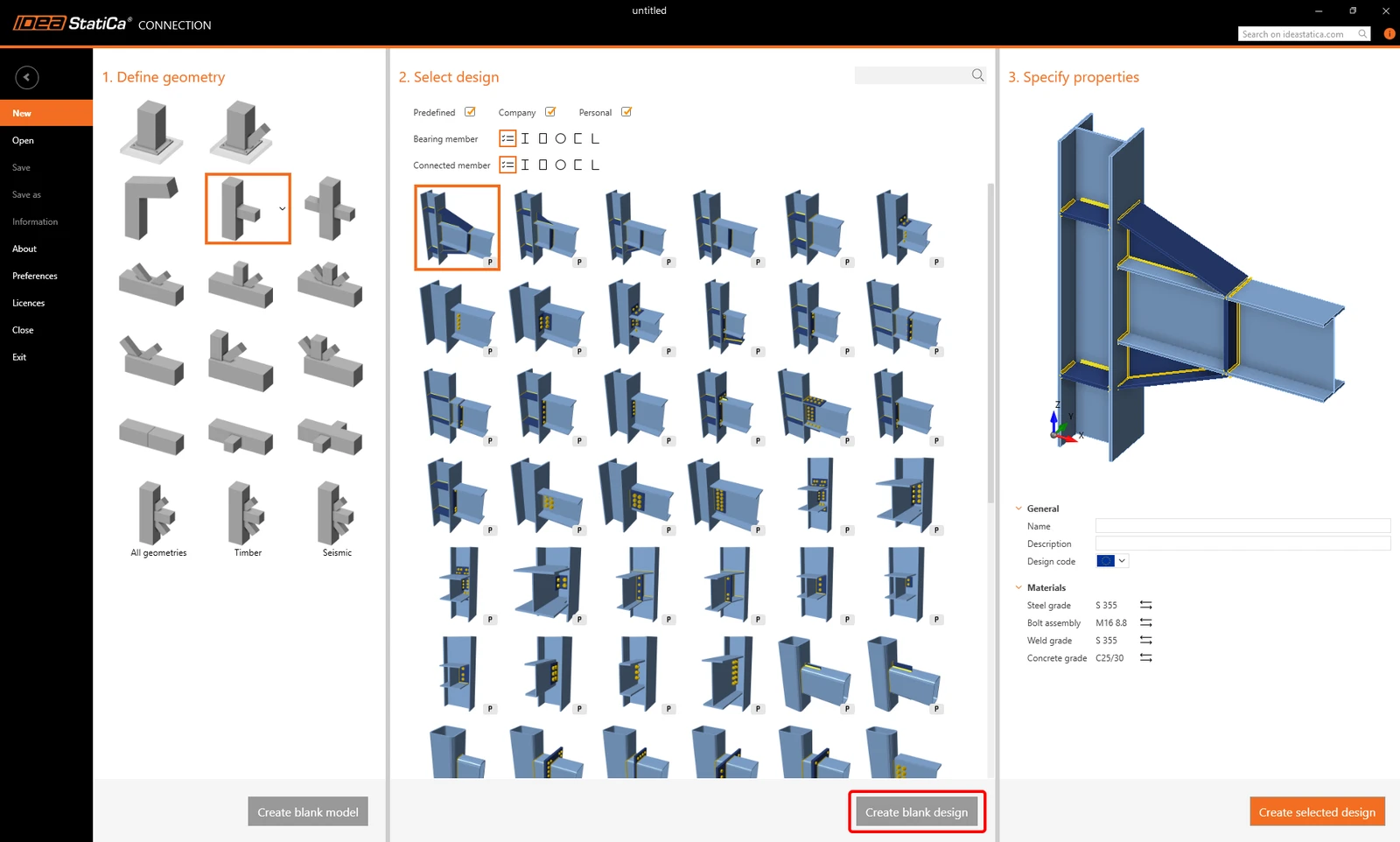
For this purpose, create a new  joint without any operation (click on Create blank Design). 
Apply the Operation Shear plate and switch to the Tab Developer.
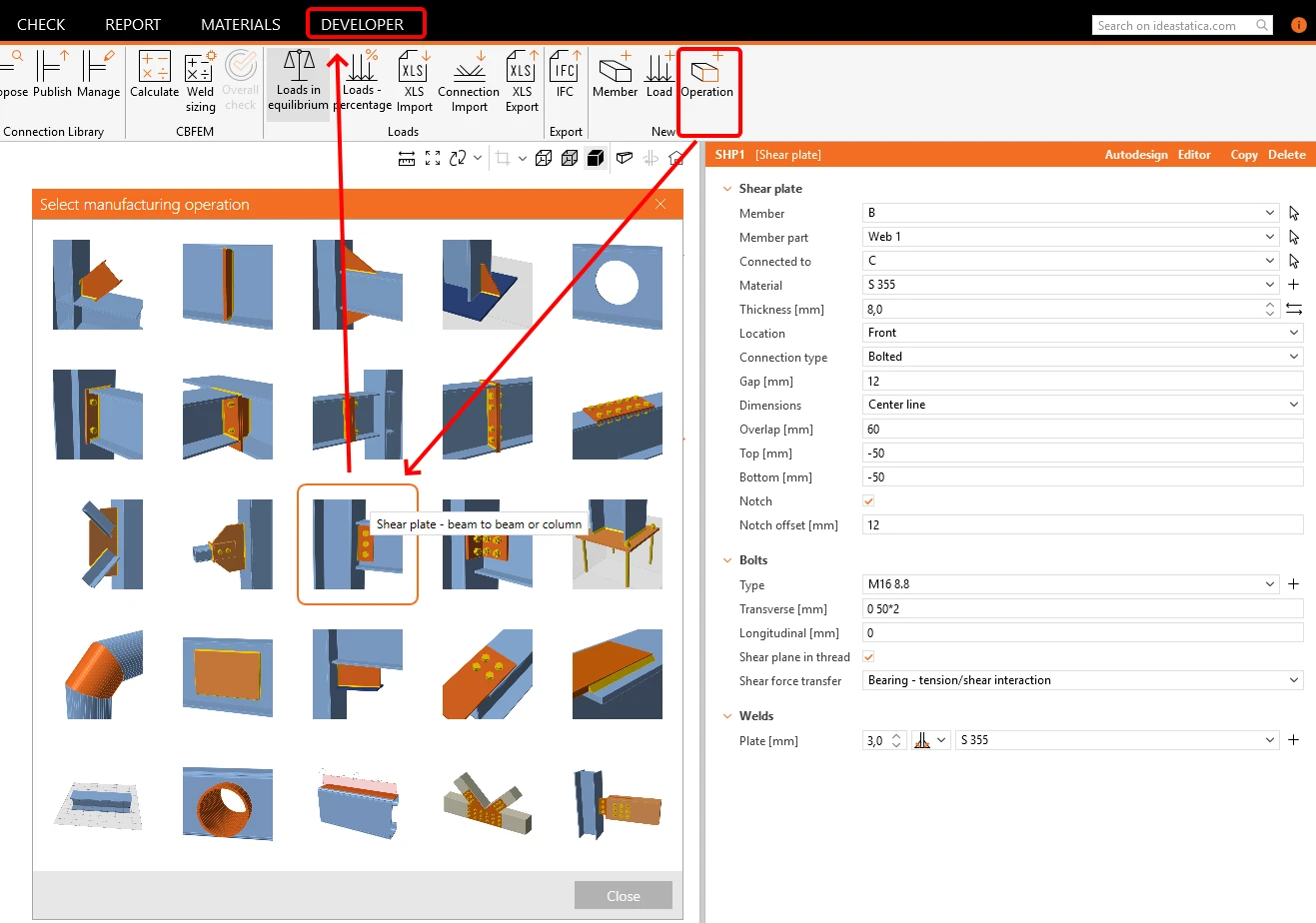
Instead of changing all these fields we can see in this Operation, we will focus only on following:

  • Plate thickness
  • Gap
  • Number of bolts
  • Bolt distance

Click on the + button and fill in the fields according the following picture. 

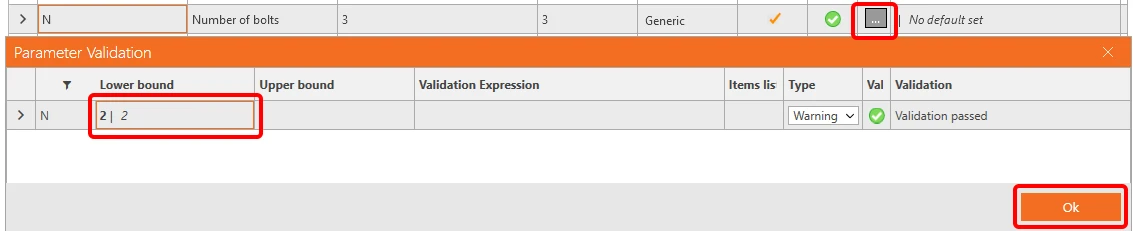
For the field Number of bolts, we would like set a warning to have an imput of at least two bolts. For this, set the Lower bound to the value 2.
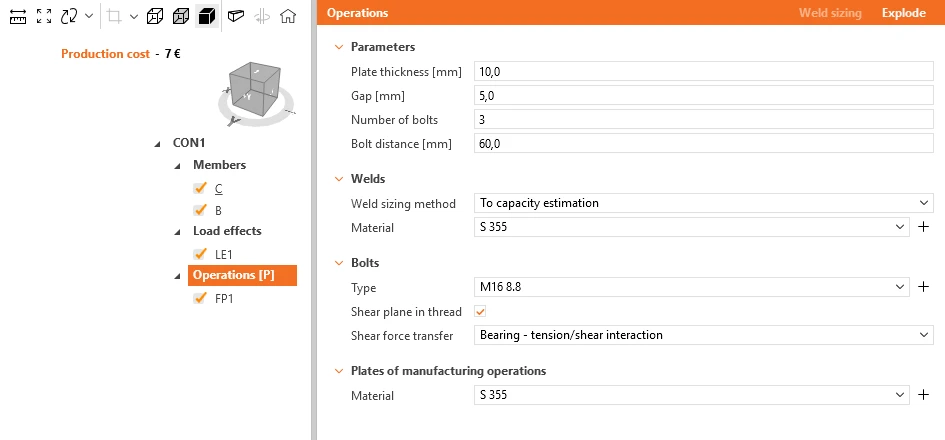
If you go back to the Tab Design, and select the Field Operations, you can see the parameters, we have set.
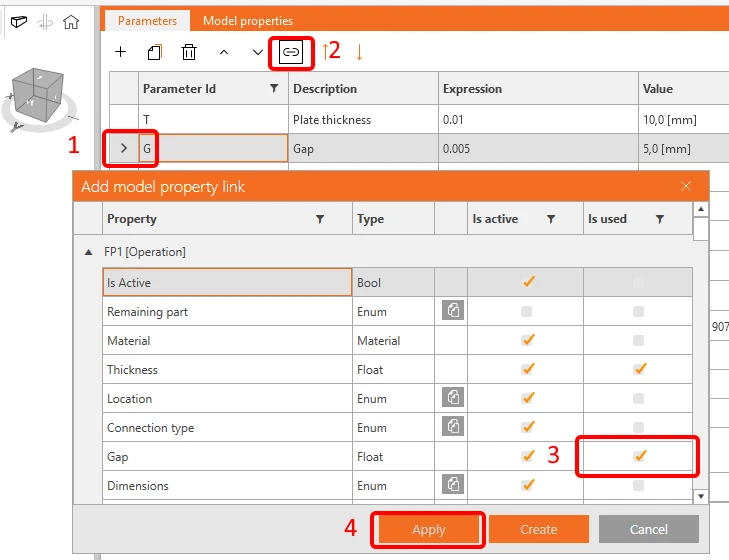
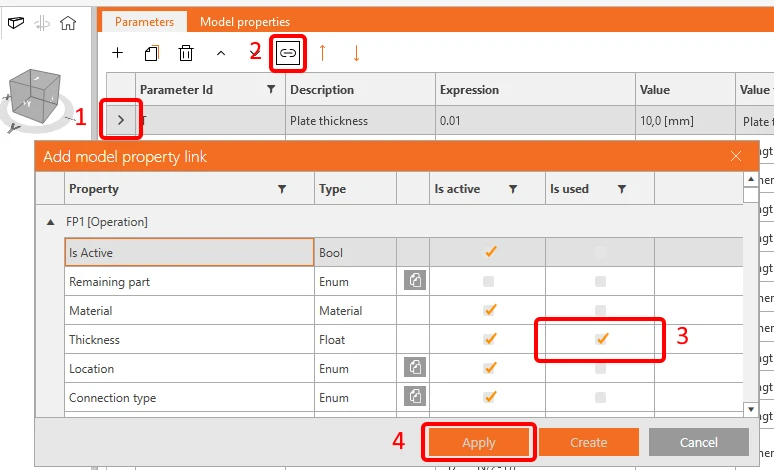
 The parameters T (Plate thickness) an G (Gap) you can now directly link to the operation FP1.
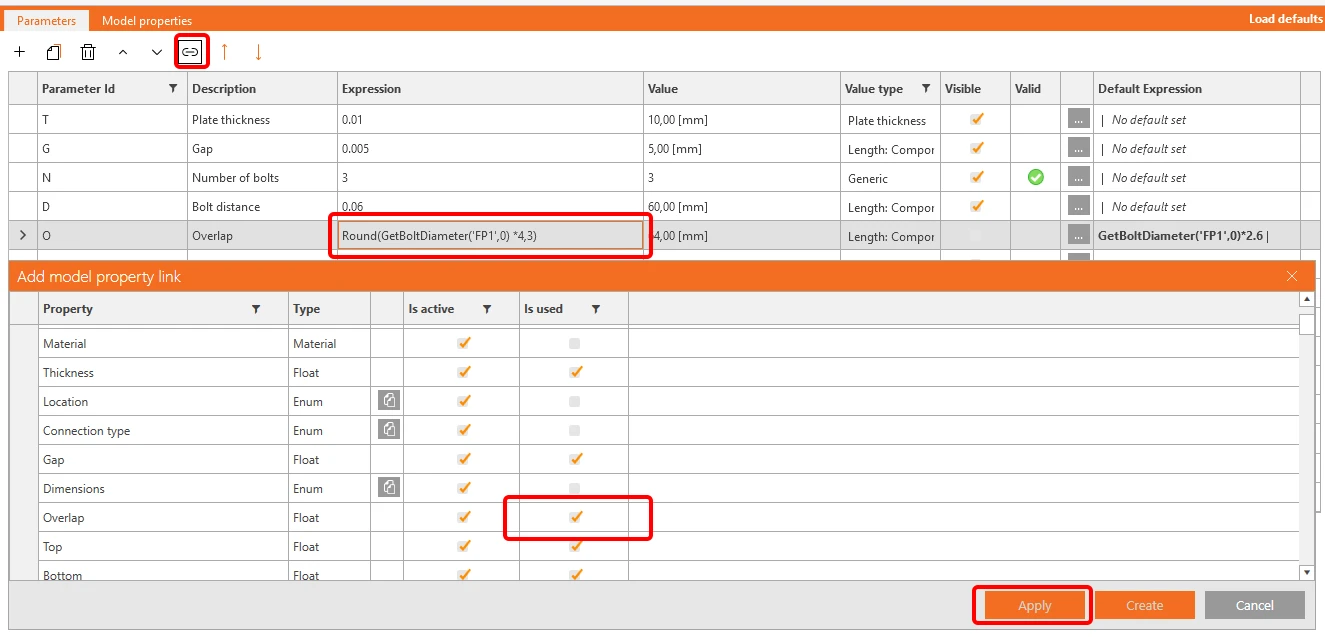
As we have only one bolt row, we can calculate the plate overlap as bolt diameter x 2 x 2 according the EN code. To set it properly, visit the link to Reference Guide, positioned at the bottom of the Parameters window.

OOverlapRound(GetBoltDiameter('FP1',0) *4,3)

Next, link this parameter to the operation FP1.
You have set the width of the shear plate, now its time to set the height of it. Again, we would also like to set a warning not to exceed the beam dimension.

You have to calculate the edge distance of the bolt and the clearence of the web to get the height of the plate.

EEdge distanceRound(GetBoltDiameter('FP1',0) *2,3)
HCross-section heightGetValue('B', 'CrossSection.Bounds.Height')
FFlange thicknessGetBeamPlateThickness('B', 'TopFlange')
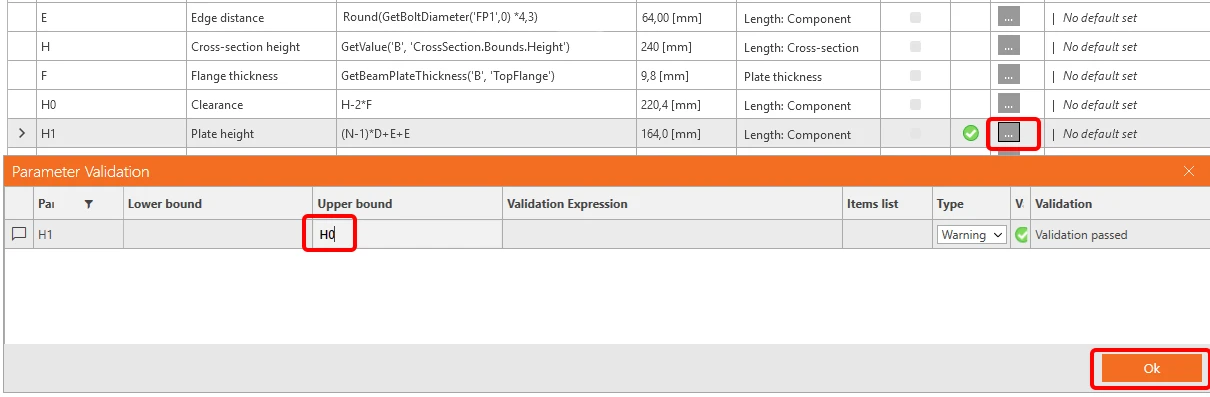
H0ClearanceH-2*F
H1Plate height(N-1)*D+E+E

Enter the data according following picture and set H0 to the Upper bound in the Parameter Validation table.
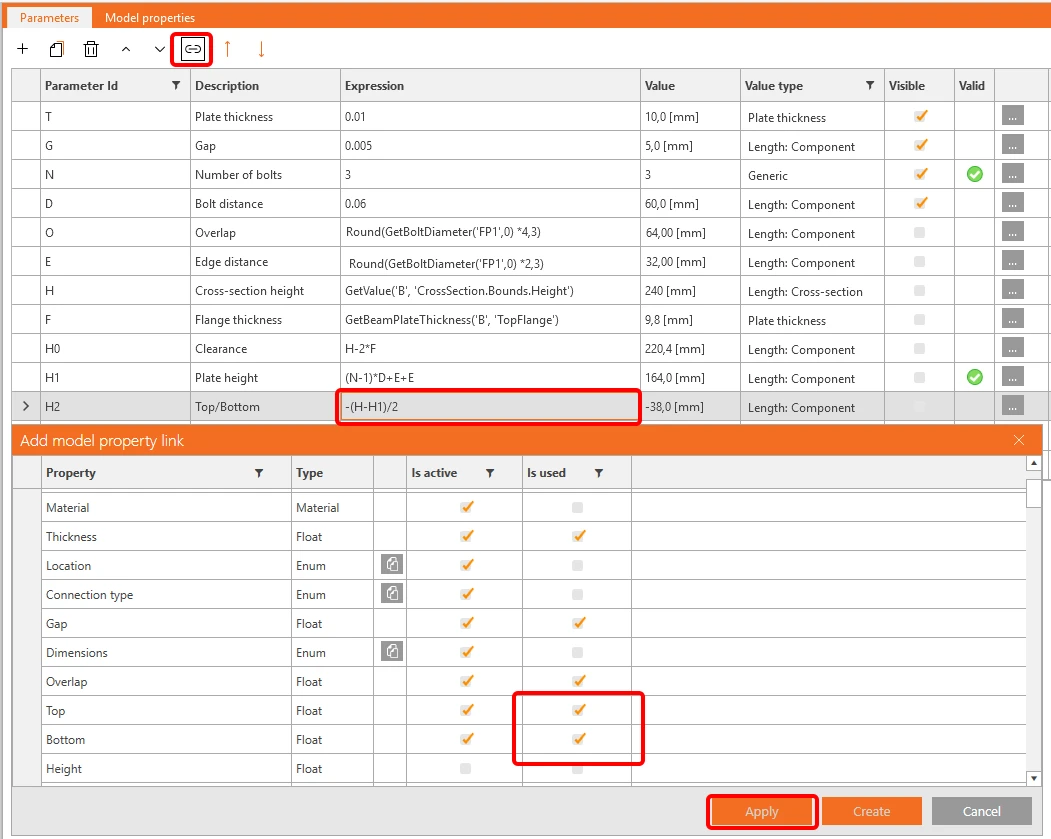
As in the operation FP1 you do not enter the height of the plate, but the distance Top/Bottom set the value 

-(H-H1)/2 for the parameter H2 and link it to the proper fields. 
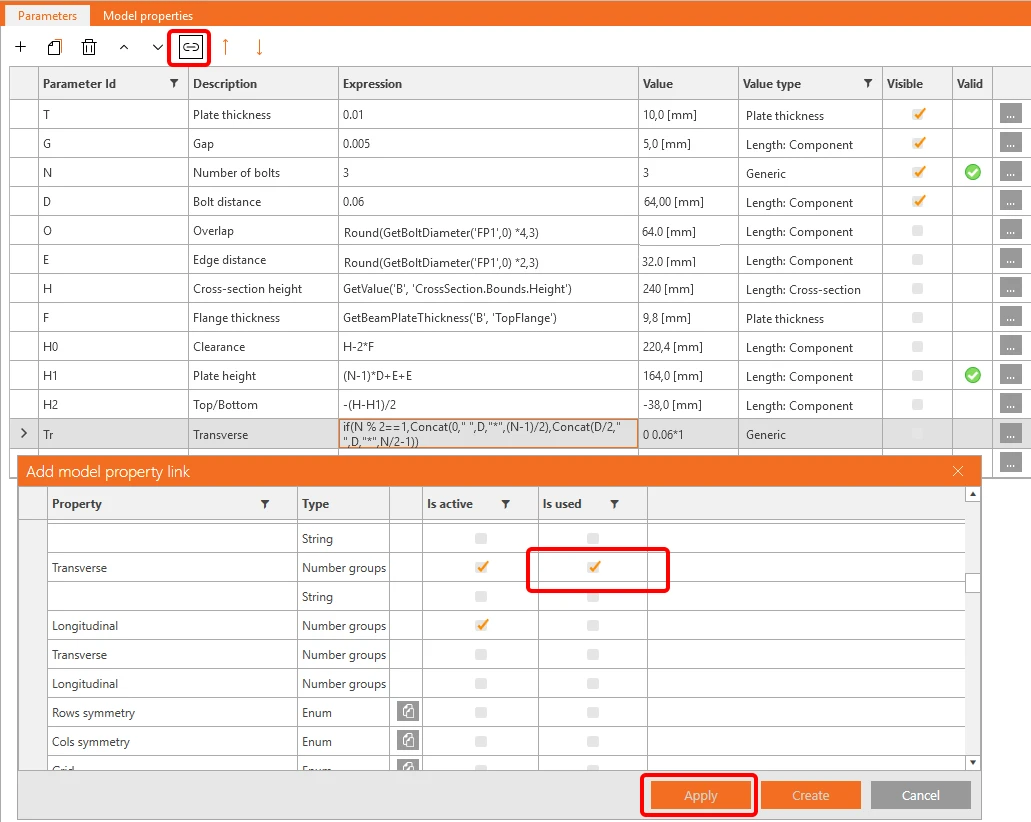
There is one more field, you need to set - the position of the bolts. According the number of the bolts (either odd or even) use following formula (Concat puts the number in correct format):

TrTransverseif(N % 2==1,Concat(0," ",D,"*",(N-1)/2),Concat(D/2," ",D,"*",N/2-1))

As the connection is a shear joint, we can assume that the shear forces are acting in the position of bolts and the Model type is N-Vz-My. 

So add another parameter B with the value 'Bolts' and link it to the member B. In case, the position is changed, you can add a validation (CheckForcesIn('Bolts', 'B')).   
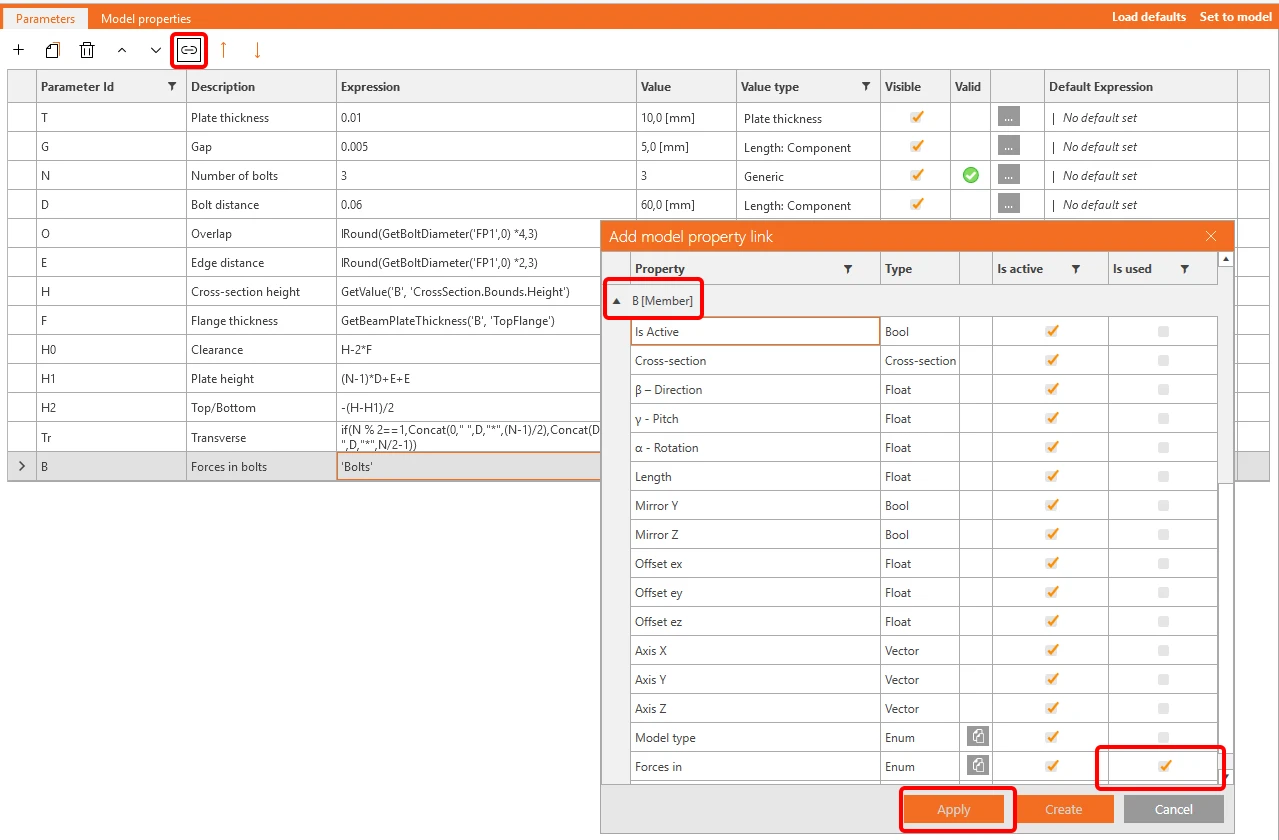
For the Model type we create parameter M with the value 'N-Vz-My' and set a validation warning to GetValue('B', 'StaticBehavior') == 'DoNotActDirYRotZ'.

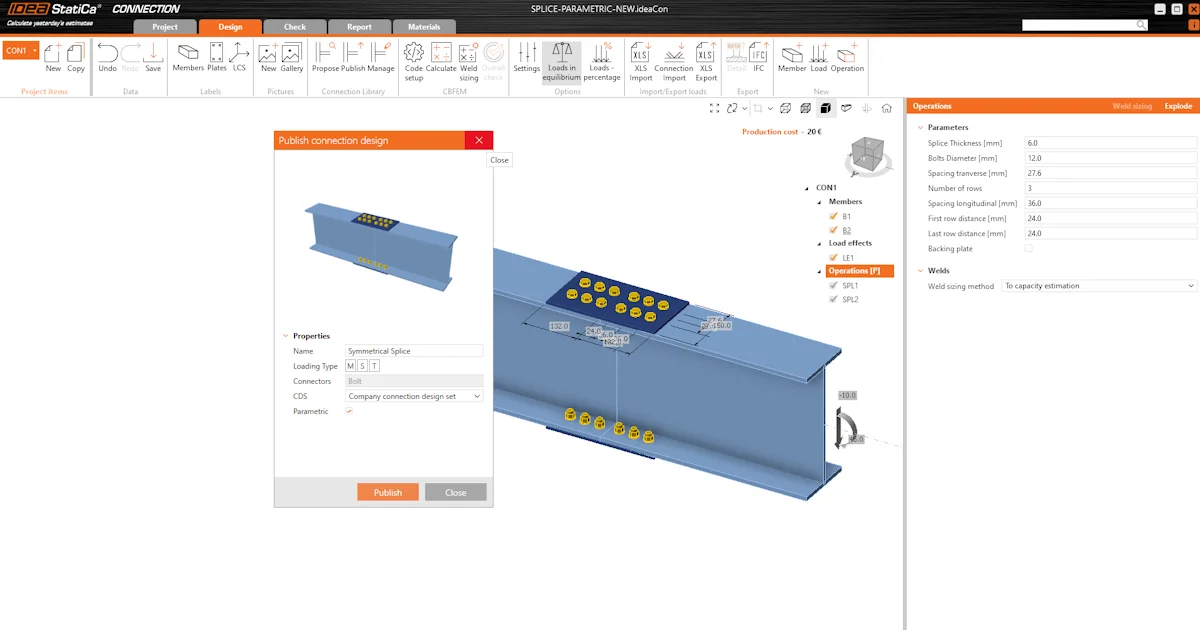
 Now, you can go to the tab Design and strore your newly created parametric joint as a template, either in the personal or company set.
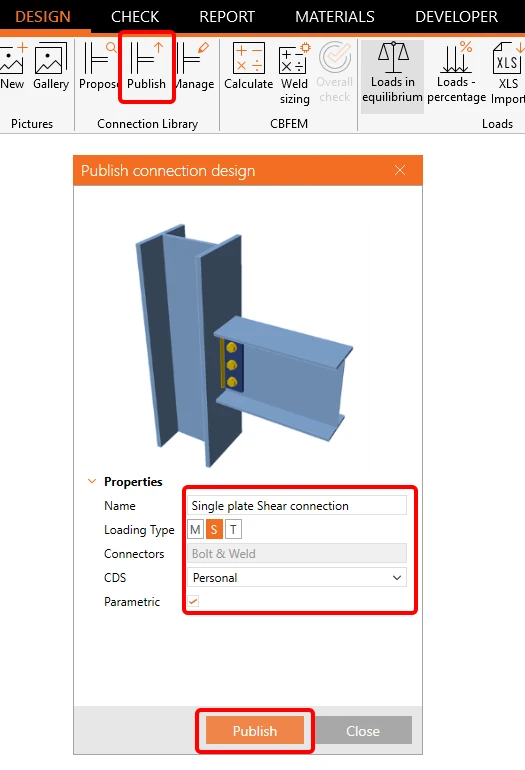
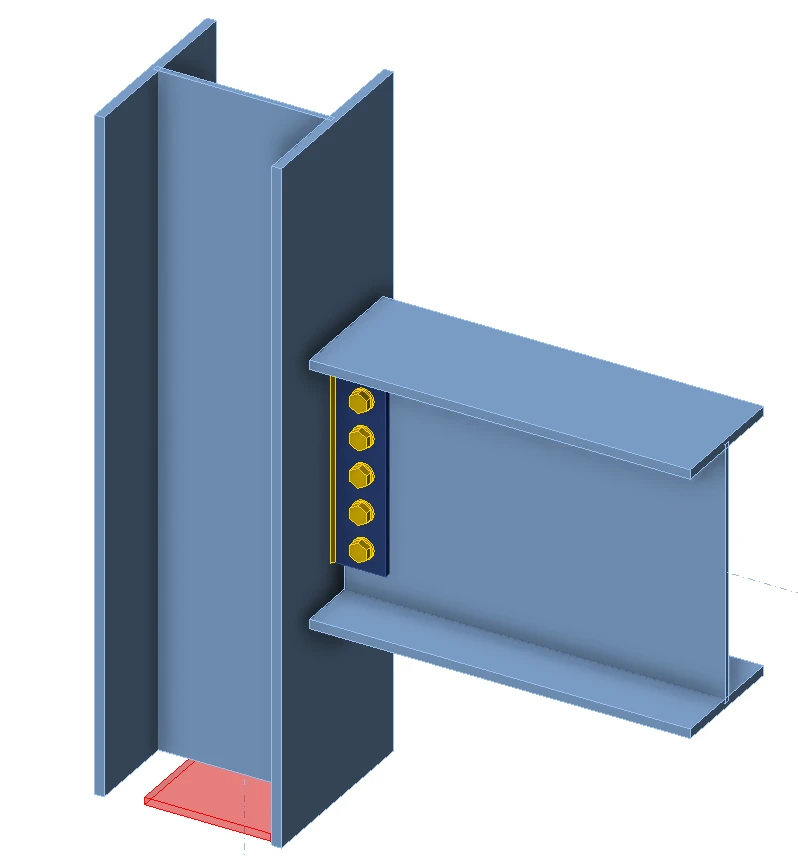
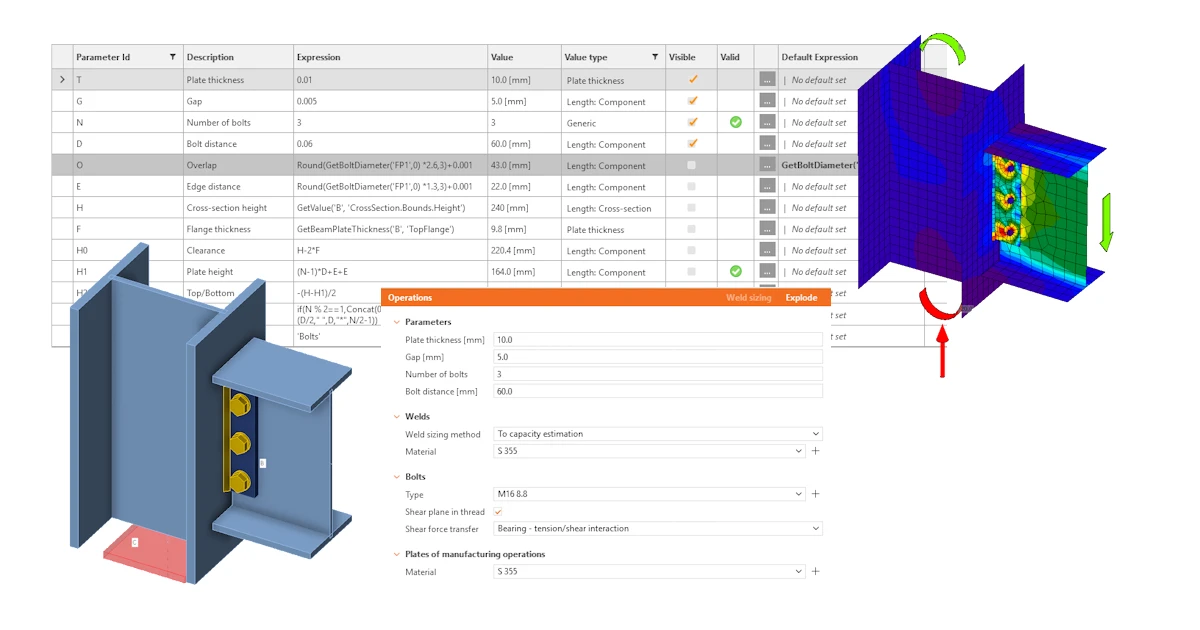
See below the finished model. 

You have acquired the skills to utilize parameters, create parametric templates, and undertake fundamental parameter-related tasks. 

Attached Downloads

  • shear.ideaCon (IDEACON, 35.8 KB)

Related articles

Parametric design in Connection - all documentation
  • Steel
  • Connection
  • Parametric design
  • +3
  • Steel
  • Connection
  • Parametric design

Knowledge base

Parametric design in Connection - all documentation

Read more
Basics of the parametric design in steel connections
  • Steel
  • Connection
  • Connection Library
  • Parametric design
  • IDEA Open Model (API)
  • +5
  • Steel
  • Connection
  • Connection Library
  • Parametric design
  • IDEA Open Model (API)

Tutorials

Parametric design in IDEA StatiCa Connection - Basics (01)

Read more
Parametric design - Advance
  • Steel
  • Connection
  • IDEA Open Model (API)
  • Connection Library
  • Parametric design
  • +5
  • Steel
  • Connection
  • IDEA Open Model (API)
  • Connection Library
  • Parametric design

Tutorials

Parametric design in IDEA StatiCa Connection - Advanced (02)

Read more
How to get started with API - Basics 01
  • Steel
  • Connection
  • IDEA Open Model (API)
  • +3
  • Steel
  • Connection
  • IDEA Open Model (API)

Tutorials

How to get started with API - Basics 01

Read more