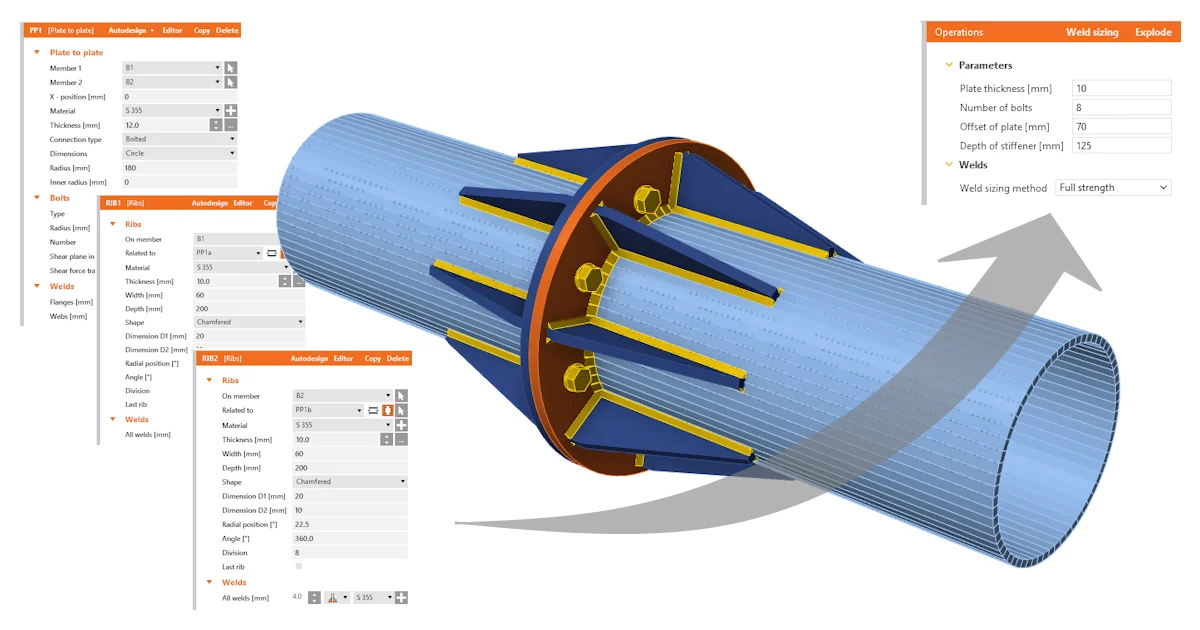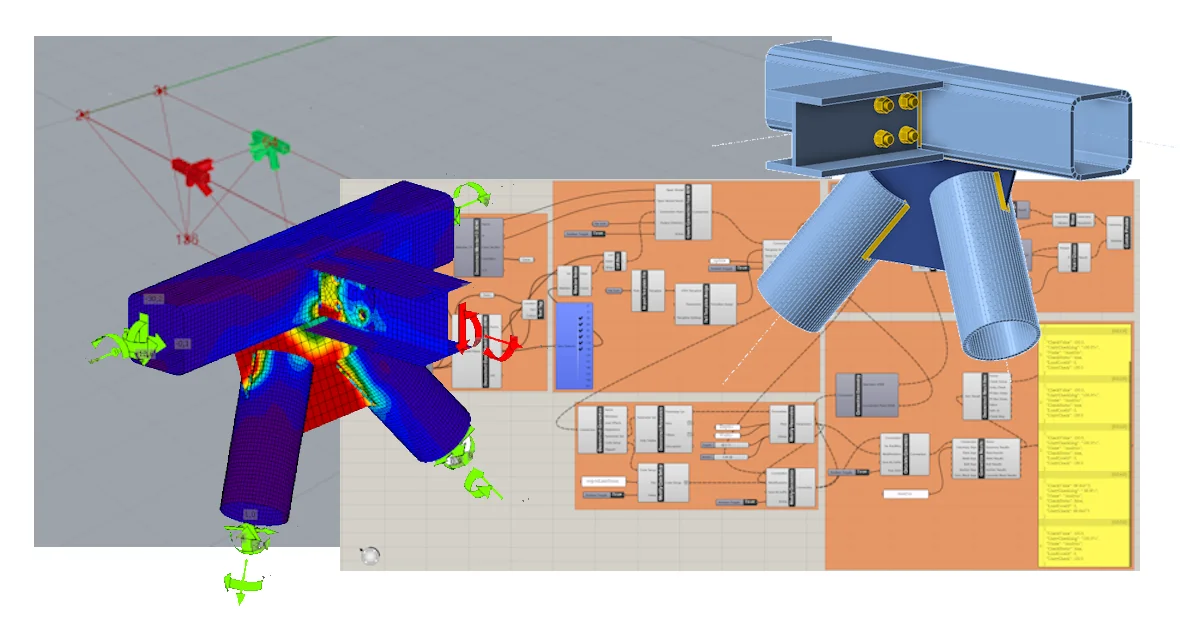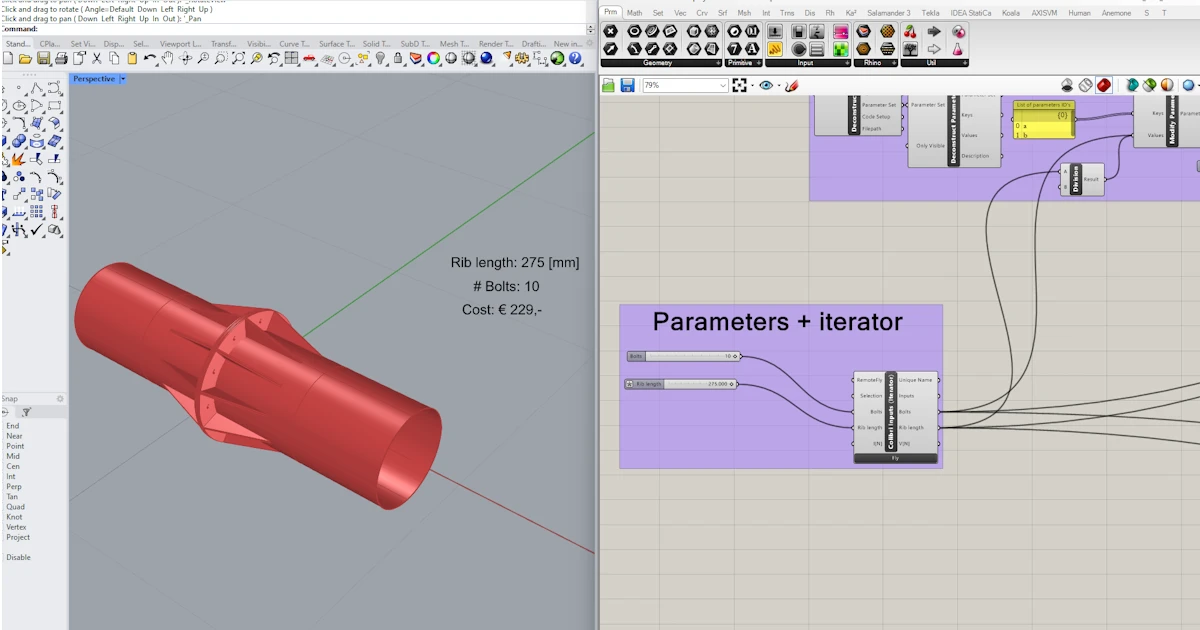
Idea Statica
  • Steel
  • Concrete
  • Support & Learning
  • Pricing
  • Company
  • Steel overview
  • Connection design
  • Member design
  • Parametric design
  • Steel case studies
  • Concrete overview
  • Walls and D-regions
  • Anchoring design
  • Concrete case studies
  • BIM Overview
  • Supported integrations
  • Checkbot
  • Viewer
  • APIs
  • Support Center
  • E-learning & certification
  • Blog
  • Downloads & Licensing
  • Plans
  • Free community tool
  • Enterprise customers
  • Students & educators
  • How much will you save?
  • About us
  • Contact
  • Research & development
  • Authorized resellers
  • Meet our customers
  • Career
  • Steel
    Steel overviewConnection designMember designParametric designSteel case studies
  • Concrete
    Concrete overviewWalls and D-regionsAnchoring designConcrete case studies
  • BIM OverviewSupported integrationsCheckbotViewerAPIs
  • Support & Learning
    Support CenterE-learning & certificationBlogDownloads & Licensing
  • Pricing
    PlansFree community toolEnterprise customersStudents & educatorsHow much will you save?
  • Company
    About usContactResearch & developmentAuthorized resellersMeet our customersCareer
14-Day Trial
14-Day Trial

Subscribe to our newsletter

Company

  • About us
  • Partners
  • Careers
  • Patent

Resources

  • Customer projects
  • Case studies
  • Connection Library
  • Verification books

Legal

  • EULA
  • Privacy policy
  • California Privacy
  • TOS Viewer
  • Licensing

Help

  • Contact
  • Quote request
  • Resellers
  • Downloads
FacebookInstagramLinkedInYouTube

© IDEA StatiCa 2009-2026

Trusted and used worldwide by engineers, fabricators & consultants.

Support CenterTutorialsGrasshopper API link - Cost estimation (05)
Grasshopper API link - Cost estimation
SteelConnection designTutorialsConnectionIDEA Open Model (API)

Grasshopper API link - Cost estimation (05)

This article is also available in
ENCZDEESFRITPTNLHUROKRPLTHTRVIZH

In this tutorial, you'll discover how to effectively parameterize a joint to generate a range of costs for various settings using Grasshopper.

This tutorial is using Rhino 8. If you work with IDEA StatiCa version up to 24.1.3, see this tutorial.

Grasshopper - Plugin Installation

You can get a trial version of Rhino3d and Grasshopper from the Rhino3d website. Run Rhinoceros and select the template with Meters:
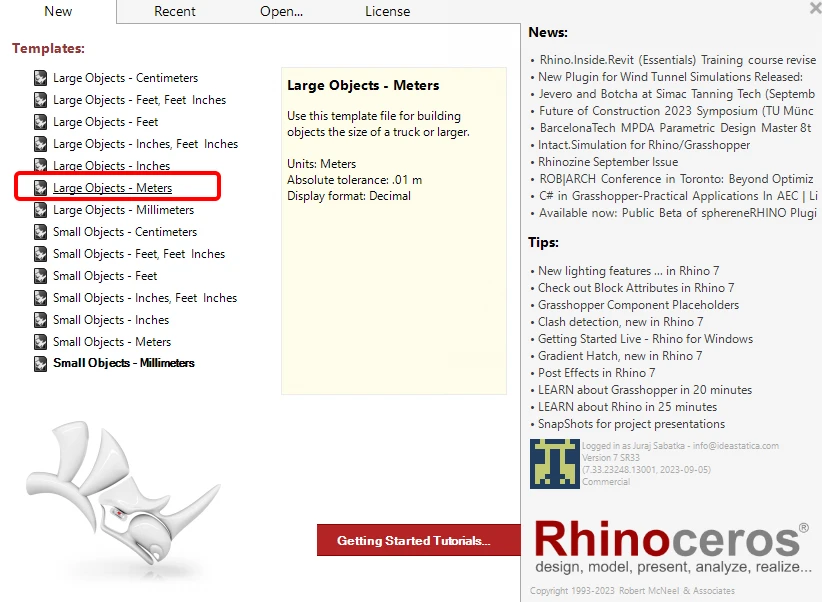
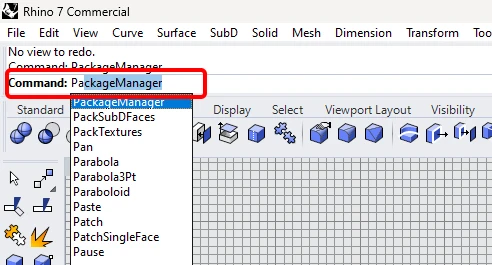
In the Command line, please enter "Package Manager":
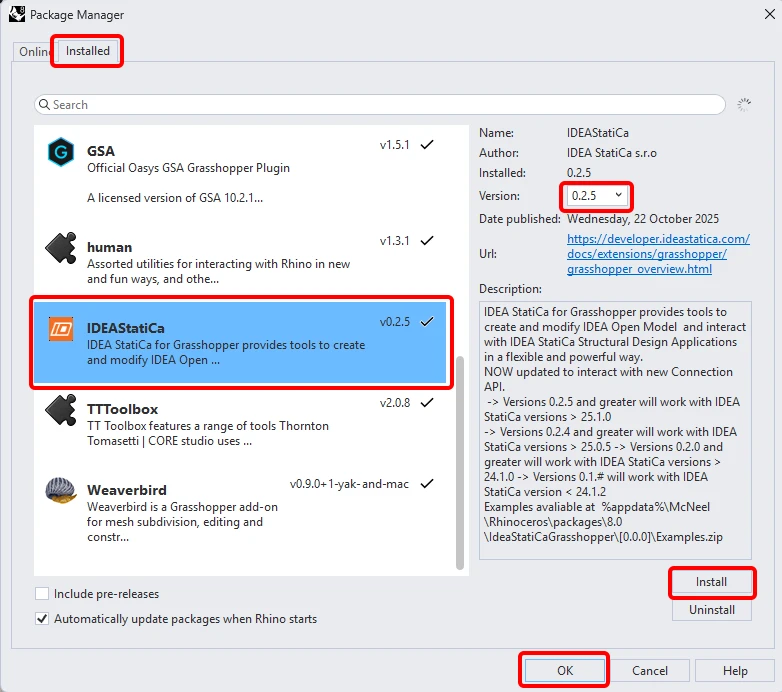
A new window appears; select IDEAStatiCa and click Install. The plugin will be downloaded and installed. To become active, a restart of Rhinoceros is necessary.
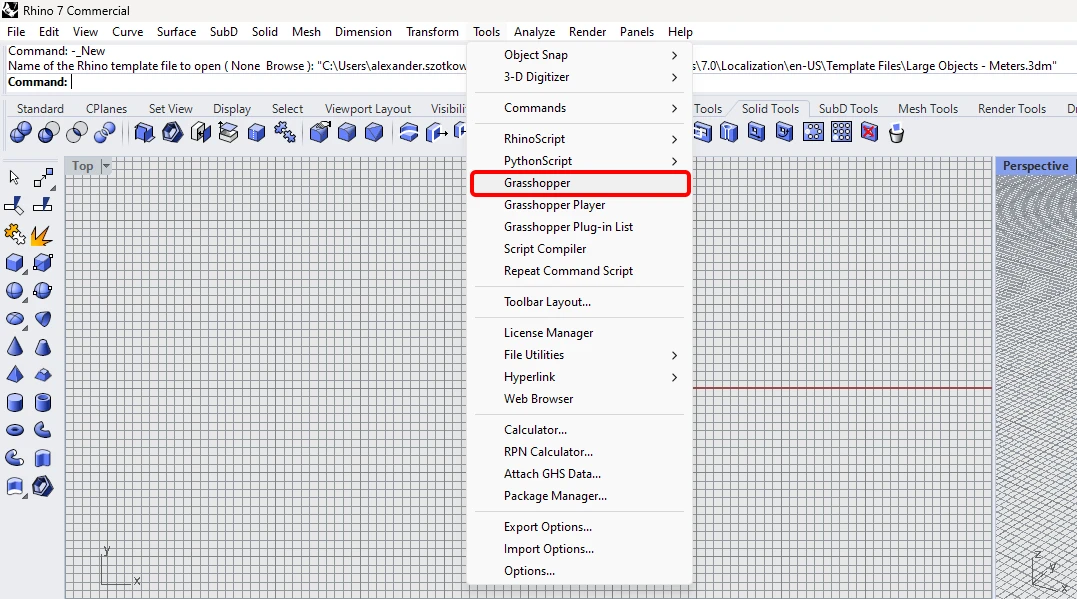
 To start Grasshopper with the IDEA StatiCa plugin, select Tools / Grasshopper in the Rhihoceros tab.
As you can see, the plugin is already incorporated.

Learn about the components and commands in the IDEA StatiCa plugin for Grasshopper in the article Description of Grasshopper plugin components.

Colibri plugin

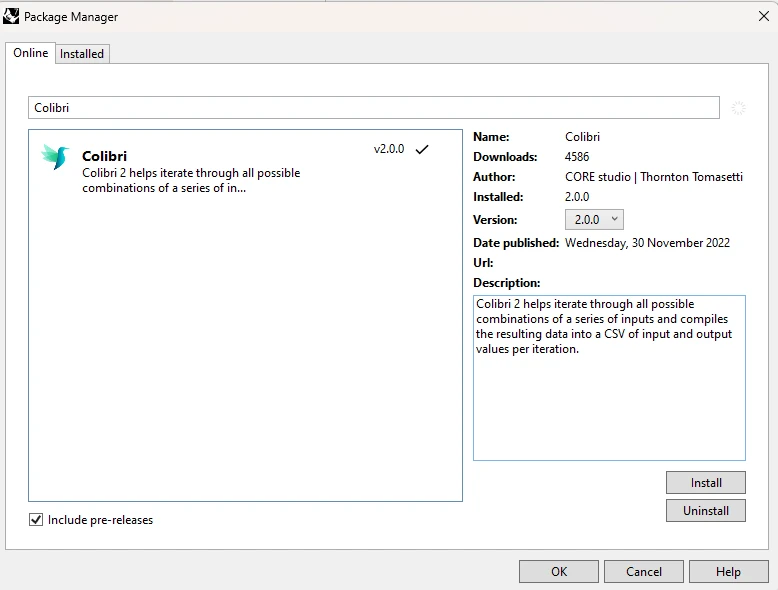
As Grasshopper can not work with loops, you have to install another plugin - COLIBRI, which you will utilize in this tutorial.
IDEA StatiCa Connection – Design of a joint and set parameters

You can use this ideaCon file or create one from scratch according to the following steps.
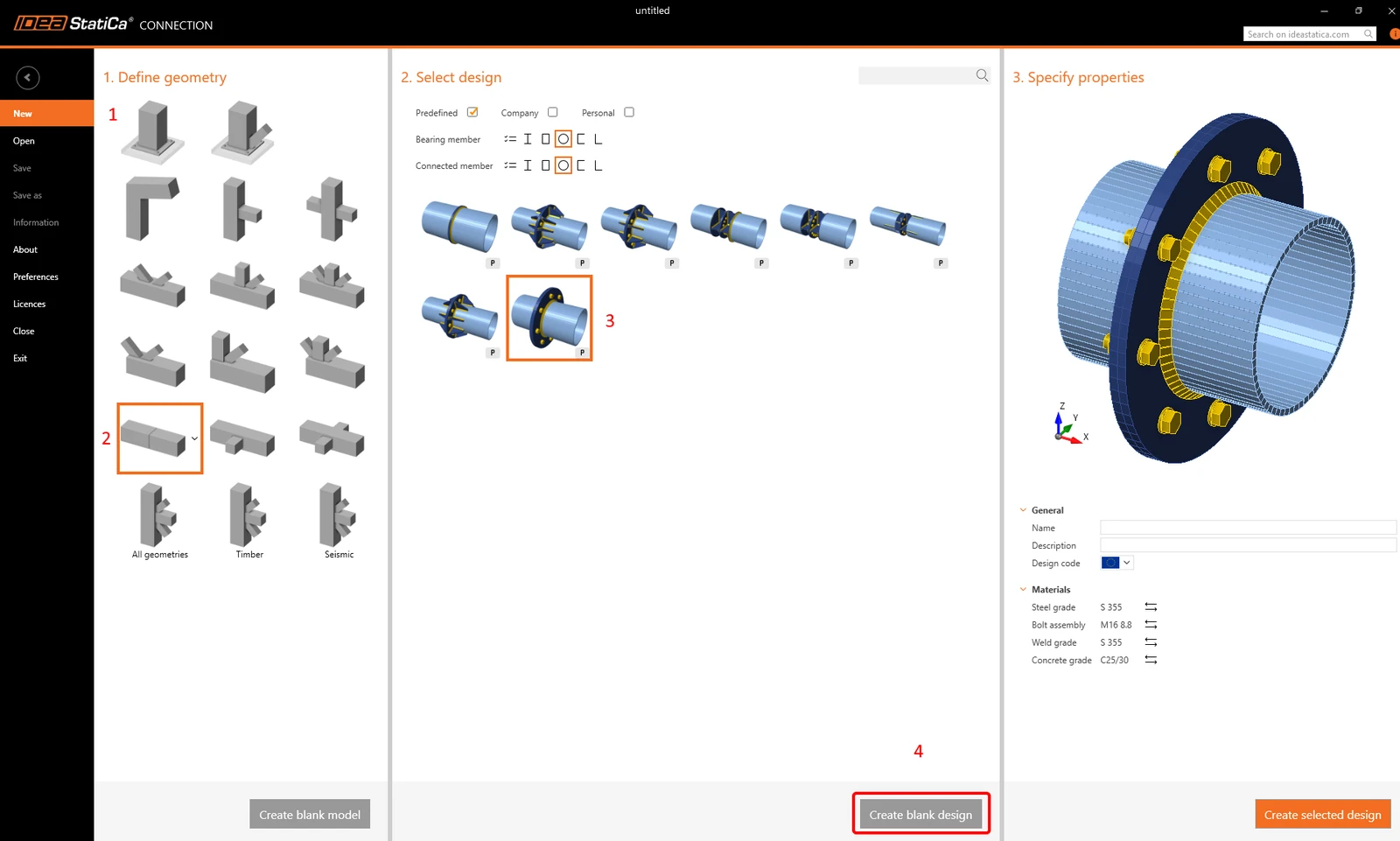
Grasshopper API link - Cost estimation

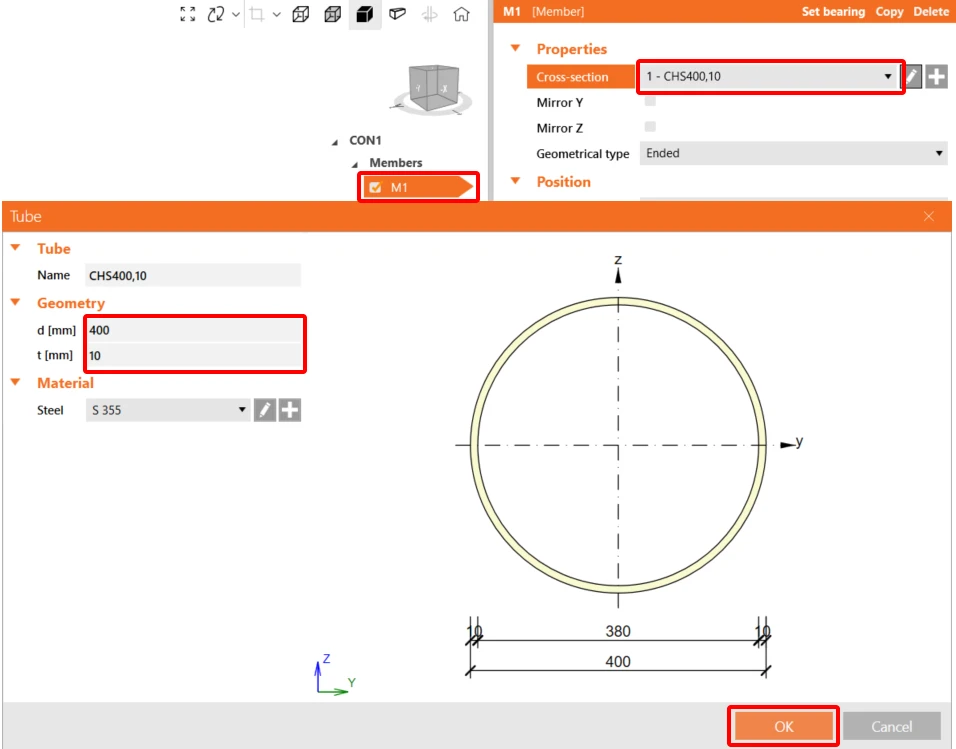
Change both the cross-sections to the CHS400,10.
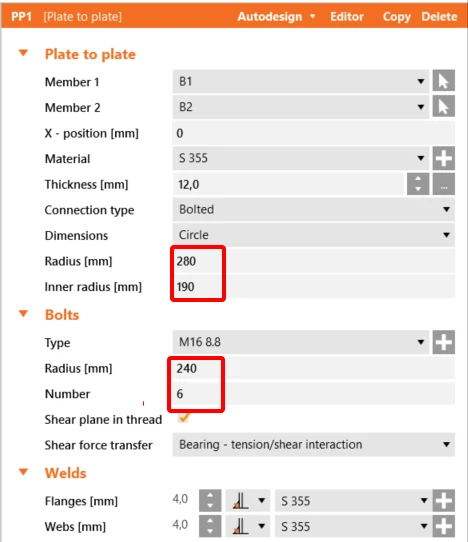
Now apply the Plate to Plate Operation according to the following picture:
Add operation Rib with actual settings:
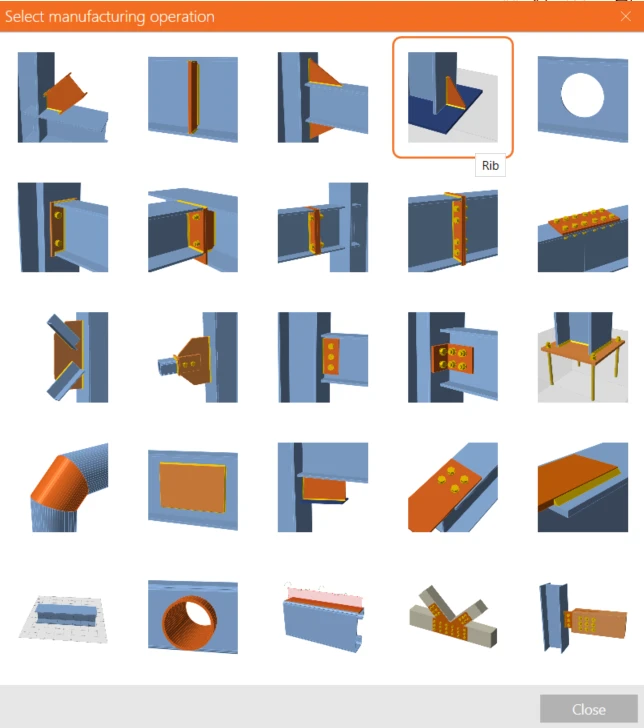
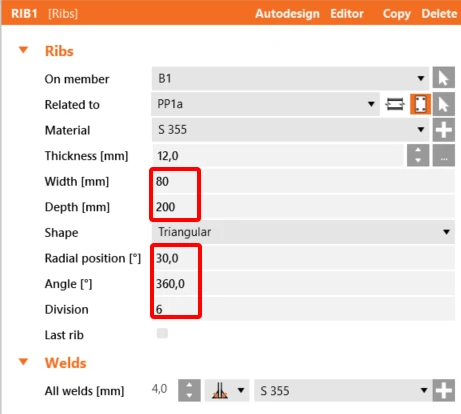
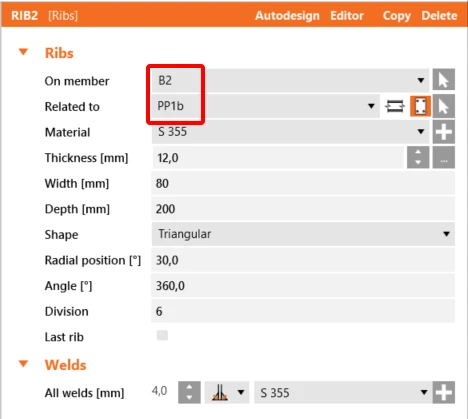
Copy this Operation and set up these values:
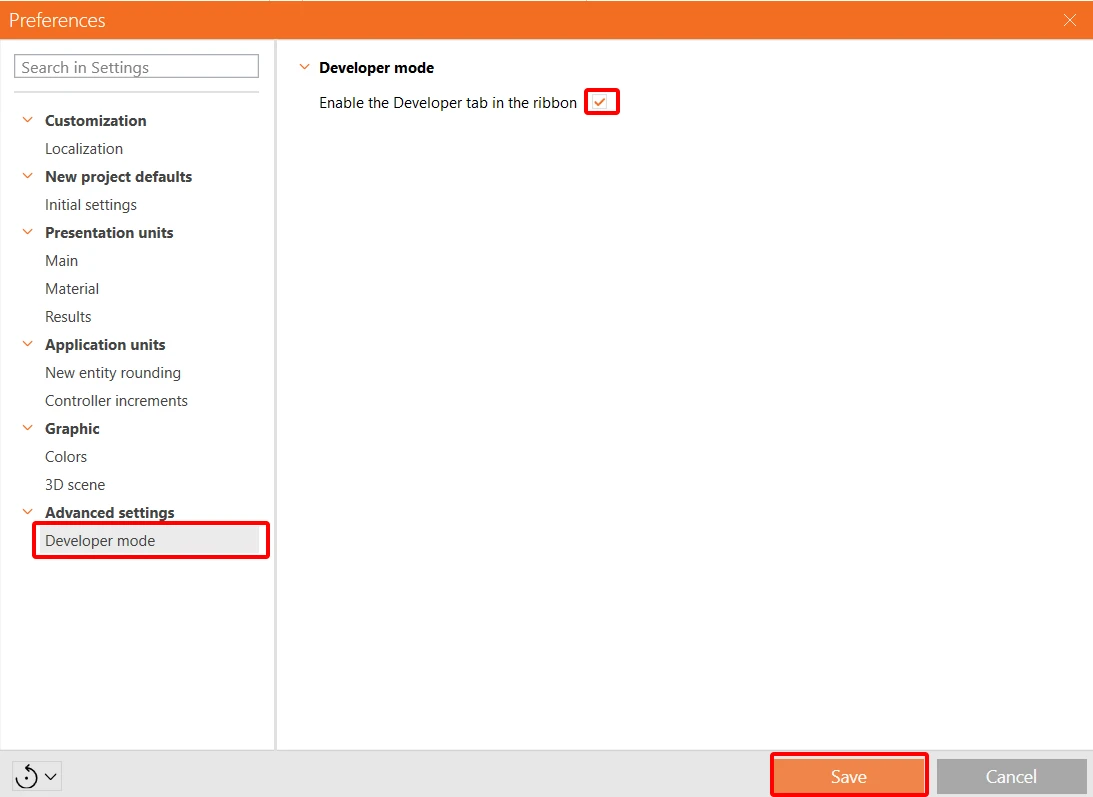
To be able to work with parameters, it is necessary to enable the Developer tab in Preferences / Advance Settings: 
Now, you have to set up three parameters for this connection. Click in the Developer tab on the + button and set the values. The first one will be the diameter of bolts, the second one the length of the rib and the third one the position of the rib. Both parameters a and b set to Visible.
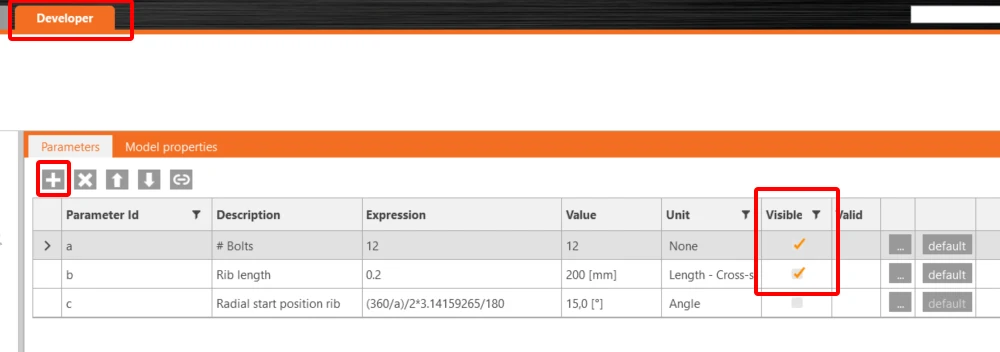
Connect all three parameters with the appropriate values of the corresponding operations.
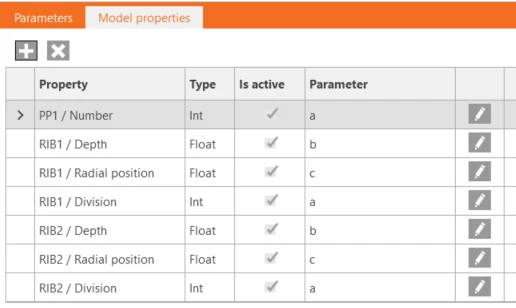
Finally, you can save this connection under the name Model_costs_template.ideaCon.

Grasshopper - Import of the *ideaCon file and adding components

Create a new document, select the tab Params in the upper ribbon, and place the component File Path on the Canvas. 
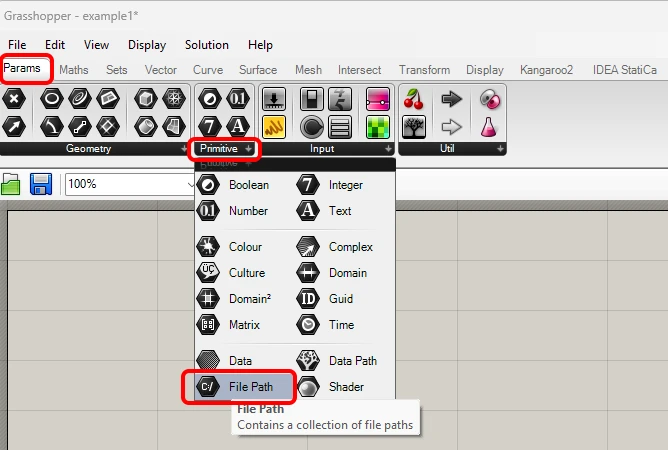
file

Right-click on the component and select the file Model_costs_template.ideaCon you saved before. 

Note: If you open the attached file, you must change this path accordingly. 

Since version 24.1.4, IDEA StatiCa came with a new API, described here.

To run grasshopper scripts, it is necessary to add to every file a component Connection Service Runner,  which can be found in  IDEA StatiCa / App Common.
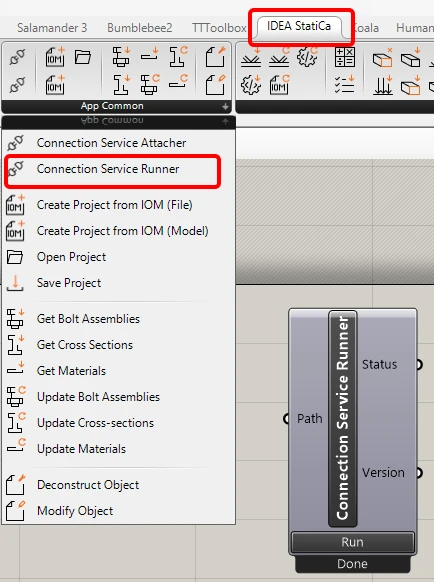
Runner

To connect the Grasshopper plugin to the correct IDEA Connection version, add the component File Path and link it to the actual IDEA folder (C:\Program Files\IDEA StatiCa\StatiCa 25.1)

  When running this component, you should see the following window appear.
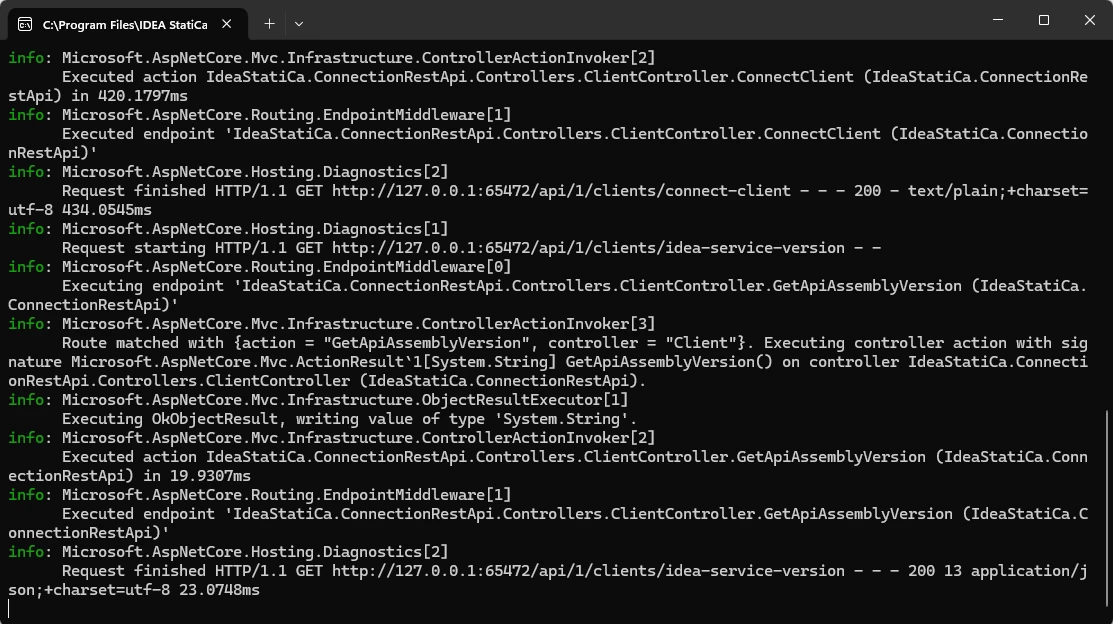
CMD

Check the attached file for all the components, enabling cost estimation.

You can also watch the video, where the workflow is seen. 

Here is the final video with running the script.
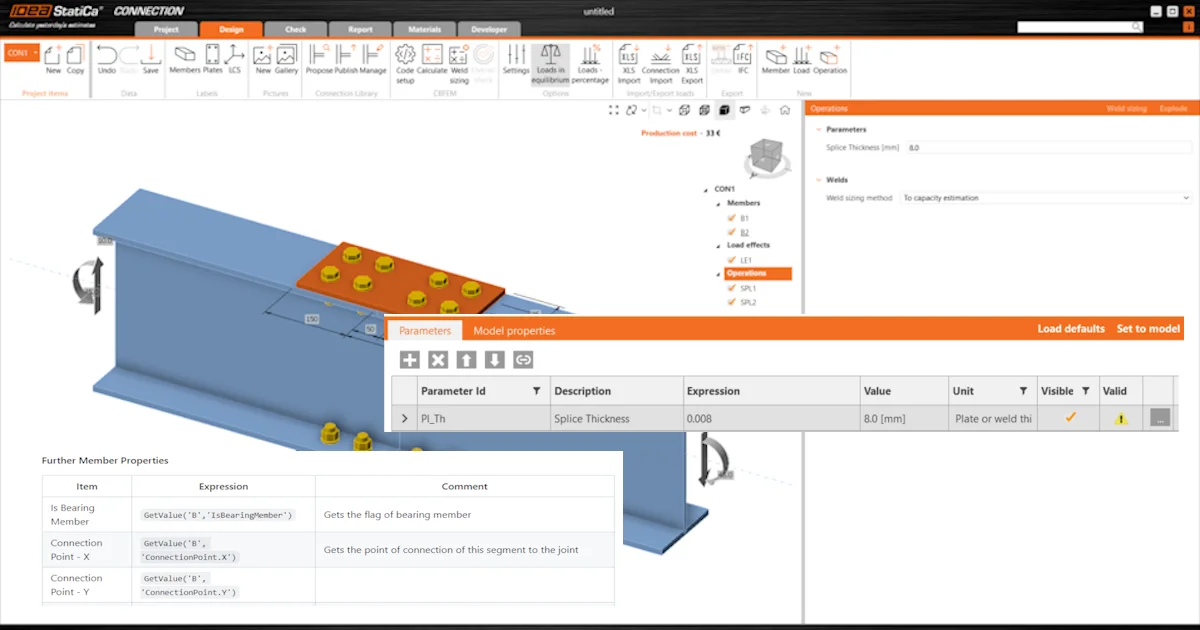
Attached Downloads

  • Example5.gh (GH, 22.7 KB)

  • Model_costs_template.ideaCon (IDEACON, 127 KB)

Related articles

Basics of the parametric design in steel connections
  • Steel
  • Connection
  • Connection Library
  • Parametric design
  • IDEA Open Model (API)
  • +5
  • Steel
  • Connection
  • Connection Library
  • Parametric design
  • IDEA Open Model (API)

Tutorials

Parametric design in IDEA StatiCa Connection - Basics (01)

Read more
Parametric design for steel connections
  • Steel
  • Connection
  • Parametric design
  • +3
  • Steel
  • Connection
  • Parametric design

Knowledge base

Parametric design for steel connections

Read more
Grasshopper API link - bulk calculation of steel joints
  • Steel
  • Connection
  • IDEA Open Model (API)
  • Grasshopper
  • Checkbot
  • Modeling
  • +6
  • Steel
  • Connection
  • IDEA Open Model (API)
  • Grasshopper
  • Checkbot
  • Modeling

Tutorials

Grasshopper API link - bulk calculation of steel joints (06)

Read more