


Why this happens
Our previous code-signing certificate expired, so we now sign the installer with a new one. SmartScreen judges files by reputation, and a new certificate starts with none, even when it is valid and issued by a trusted authority (BleachBit, Microsoft Q&A).
Reputation does not carry over from the old certificate. It builds automatically from successful installations, and there is no way for a publisher to transfer or speed it up manually. The warning will disappear on its own once enough users have installed the new version. Every installation helps.
How to run the installer
Step 1 – Download the installer
Download the installer from the official IDEA StatiCa website and run it.
The Windows protected your PC dialog appears.
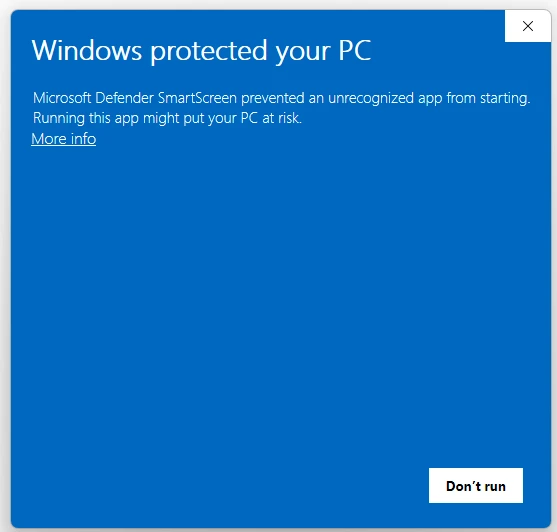
Step 2 – Click More info
The app name and the publisher are now shown. Check that the publisher is IDEA StatiCa.
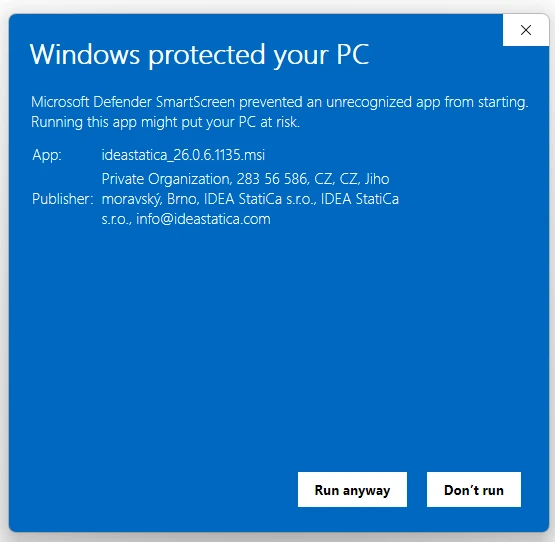
Step 3 – Click Run anyway
The setup starts and continues as usual.
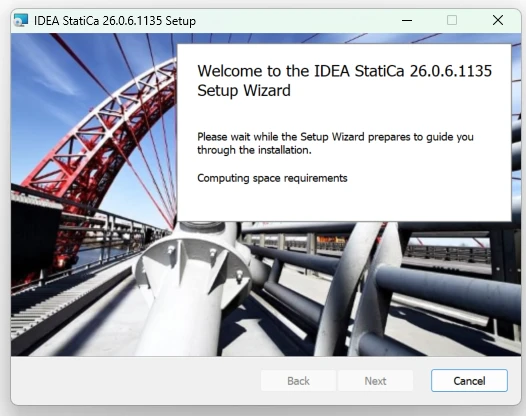
The installation itself is not affected. Only the start-up warning is different.
Is it safe?
Yes, as long as you downloaded the installer from IDEA StatiCa. The warning means the file is new to Microsoft, not that it is harmful.
To confirm the file is genuine before you run it:
- Right-click the downloaded installer and select Properties.
- Open the Digital Signatures tab and check that the signer is IDEA StatiCa.
- Select the signature, click Details, and confirm it shows This digital signature is OK.

If the publisher shows as Unknown publisher or anything other than IDEA StatiCa, do not run the file. Delete it and contact our support.
For IT administrators
If your organization's policy hides the Run anyway button, users cannot bypass the warning themselves. In that case, an administrator needs to approve or deploy the installer.
- Verify the digital signature as described above before approving the file.
- If your security tools quarantine the installer, you can report it to Microsoft as a false positive through the Microsoft Security Intelligence submission portal.
Larger organizations can deploy remotely via Intune, which is not affected by this issue.
We can't give an exact date. Microsoft does not publish the threshold, and reputation grows with the number of successful installations.
No. The warning only appears when the installer is started. The installed applications work as usual.
Possibly, if the update installer is downloaded from the internet and signed with the new certificate. Follow the same steps.