Idea Statica
  • Steel
  • Concrete
  • BIM & Workflows
  • Support & Learning
  • Pricing
  • Company
  • Steel overview
  • Connection design
  • Member design
  • Parametric design
  • Steel case studies
  • Concrete overview
  • Walls and D-regions
  • Anchoring design
  • Concrete case studies
  • BIM Overview
  • Supported integrations
  • Checkbot
  • Viewer
  • APIs
  • Support Center
  • E-learning & certification
  • Blog
  • Downloads & Licensing
  • Plans
  • Free community tool
  • Enterprise customers
  • Students & educators
  • How much will you save?
  • About us
  • Contact
  • Research & development
  • Authorized resellers
  • Meet our customers
  • Career
  • Steel
    Steel overviewConnection designMember designParametric designSteel case studies
  • Concrete
    Concrete overviewWalls and D-regionsAnchoring designConcrete case studies
  • BIM & Workflows
    BIM OverviewSupported integrationsCheckbotViewerAPIs
  • Support & Learning
    Support CenterE-learning & certificationBlogDownloads & Licensing
  • Pricing
    PlansFree community toolEnterprise customersStudents & educatorsHow much will you save?
  • Company
    About usContactResearch & developmentAuthorized resellersMeet our customersCareer
14-Day Trial
14-Day Trial
  • Steel
  • Concrete
  • BIM & Workflows
  • Support & Learning
  • Pricing
  • Company

Subscribe to our newsletter

Company

  • About us
  • Partners
  • Careers
  • Patent

Resources

  • Customer projects
  • Case studies
  • Connection Library
  • Verification books

Legal

  • EULA
  • Privacy policy
  • California Privacy
  • TOS Viewer
  • Licensing

Help

  • Contact
  • Quote request
  • Resellers
  • Downloads
FacebookInstagramLinkedInYouTube

ยฉ IDEA StatiCa 2009-2026

Trusted and used worldwide by engineers, fabricators & consultants.

Support CenterKnowledge Base ArticlesGeneral interface in Detail application
General interface in Detail application
General settings in Detail application
Intuitive ribbon and navigation system for IDEA StatiCa Detail
Comprehensive user interface in IDEA StatiCa Detail
Comprehensive view options and User Interface in Detail
All applications: Search box
Keyboard shortcuts (hotkeys) in IDEA StatiCa apps
Unified Materials tab in Detail
General interface in Detail application
Reinforced concreteConcreteKnowledge baseDetail 2D

General interface in Detail application

This article is also available in
ENCZDEESFRITPTNLHUROKRPLTHTRVIZH

The description of the general interface is shown in the following article. You will understand the layout of the application and what the display options are.

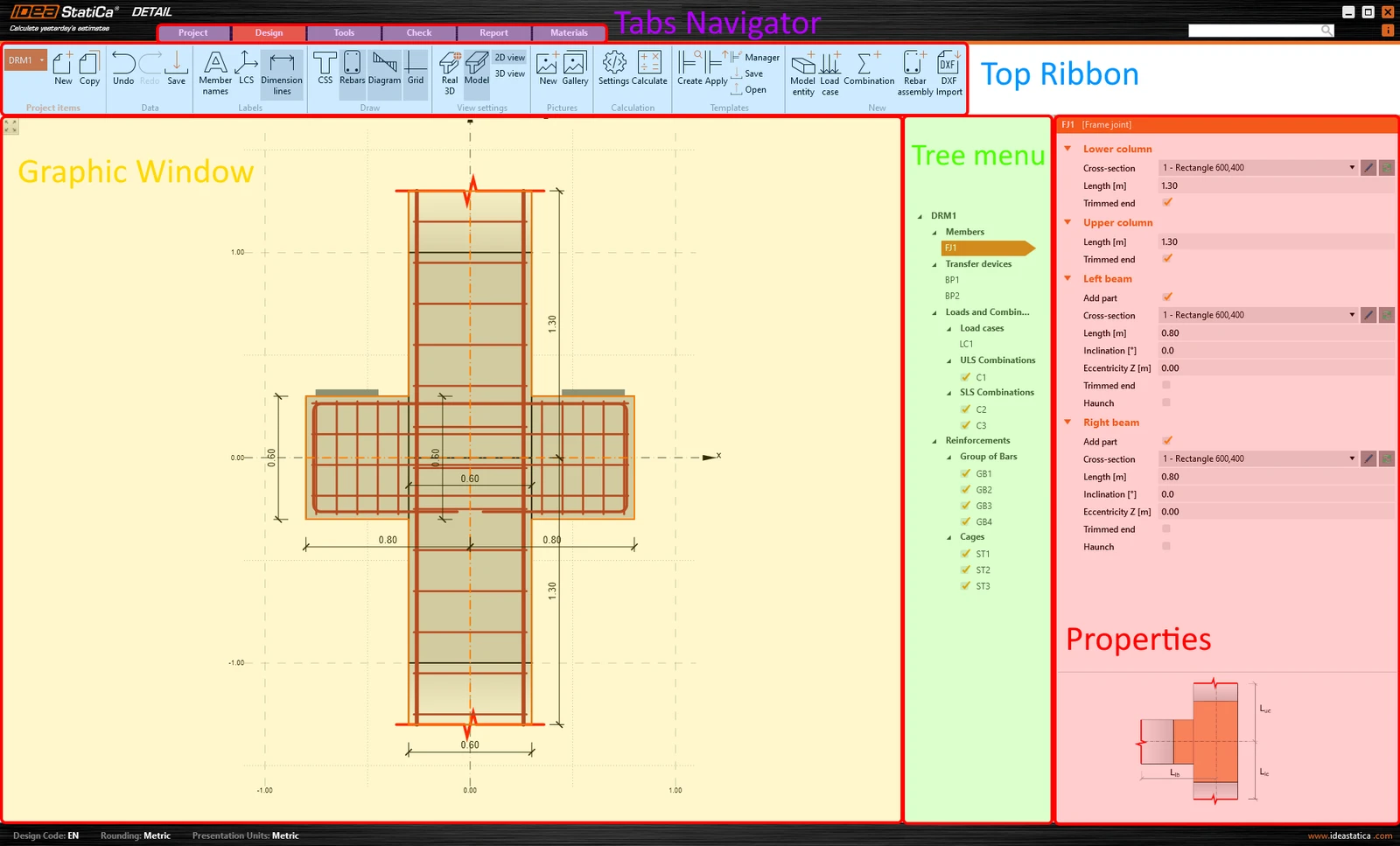
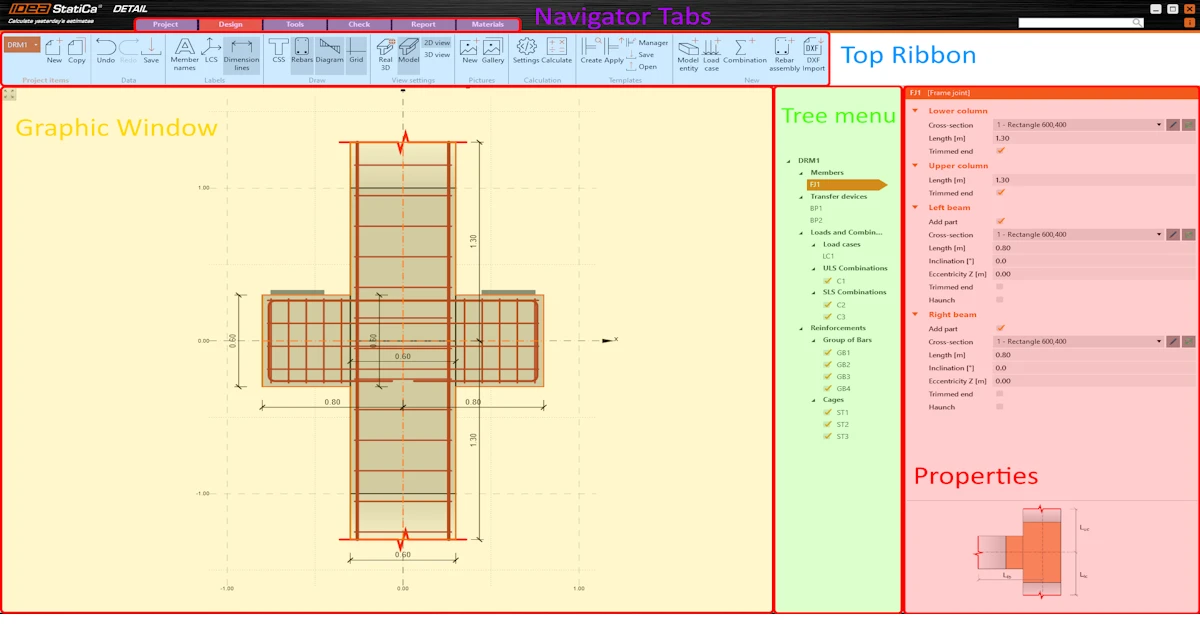
The application is divided into several sections. For better understanding, let's name and explain them.ย 

  • Tabs Navigatorย 
  • Top Ribbon
  • Propertiesย 
  • Graphic Window
  • Tree menu

Tabs Navigator

The Tabs Navigator is a graphical control element in the form of toolbars divided into several tabs. In other words, various toolbar sets are provided for specific steps of modeling.ย 

Top Ribbon

At the top ribbon, you'll see distinct sets of toolbars, each designed for specific stages in the modeling process. Under these toolbars, you will find the steps to follow when creating and editing the model.ย 

Properties

In this section, you enter all the data. The layout of the Properties section varies according to the specific step from the Top Ribbon.

Properties always display. The rest of the tabs vary according to the specific step as different options are available when for example, changing the geometry or checking the results.

Graphic Window

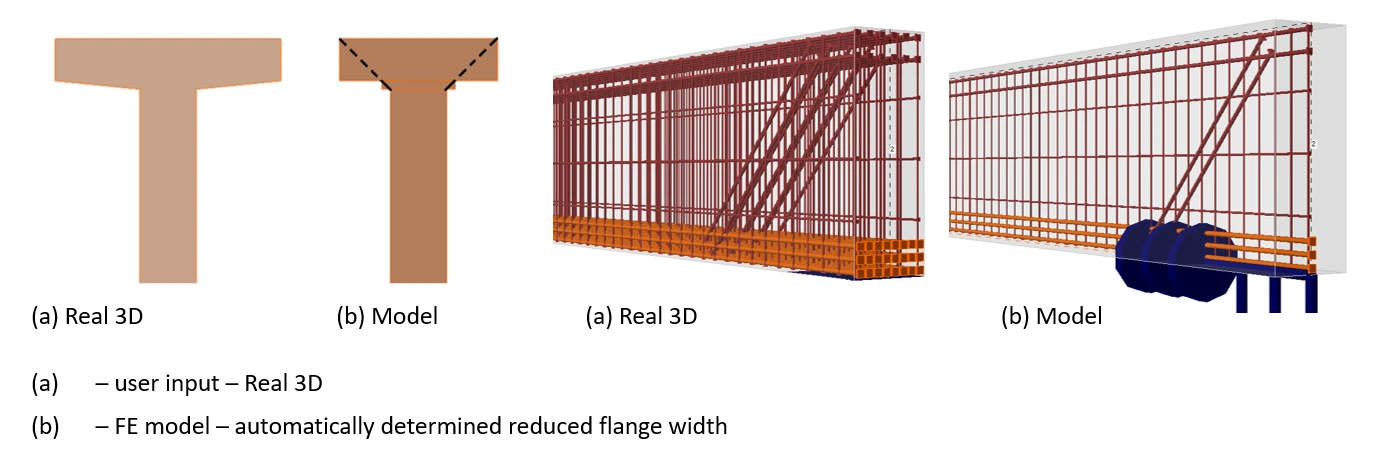
This is the main graphical window in the application. You will see all the changes and views you have set up in the project here. You can control the displayed model in the view settings in the Top ribbon. You can switch between 2D or 3D views and Real 3D or Model views.

If the Real 3D is activated, the user input displays (without modification). If the Model view is activated, the automatically determined view with reduced flange width displays. Notice also the difference between the Real 3D and Model views of the reinforcement.ย 

For more information, read the knowledge base article:ย 

  • Geometric modification of cross-sections.

Tree menu

A tree menu refers to a hierarchical navigation represented as a tree-like list. This visual representation helps easily comprehend the relationships and hierarchy of content within the software interface. It is adjusted according to the specific stage of the modeling process.

Search bar

When you need help, write keywords describing the problem into the Search bar. You will be immediately redirected to the support center.

Try IDEA StatiCa for free

Start your trial today and enjoy 14-days of full access and services free of charge.

Start free trial
Related articles

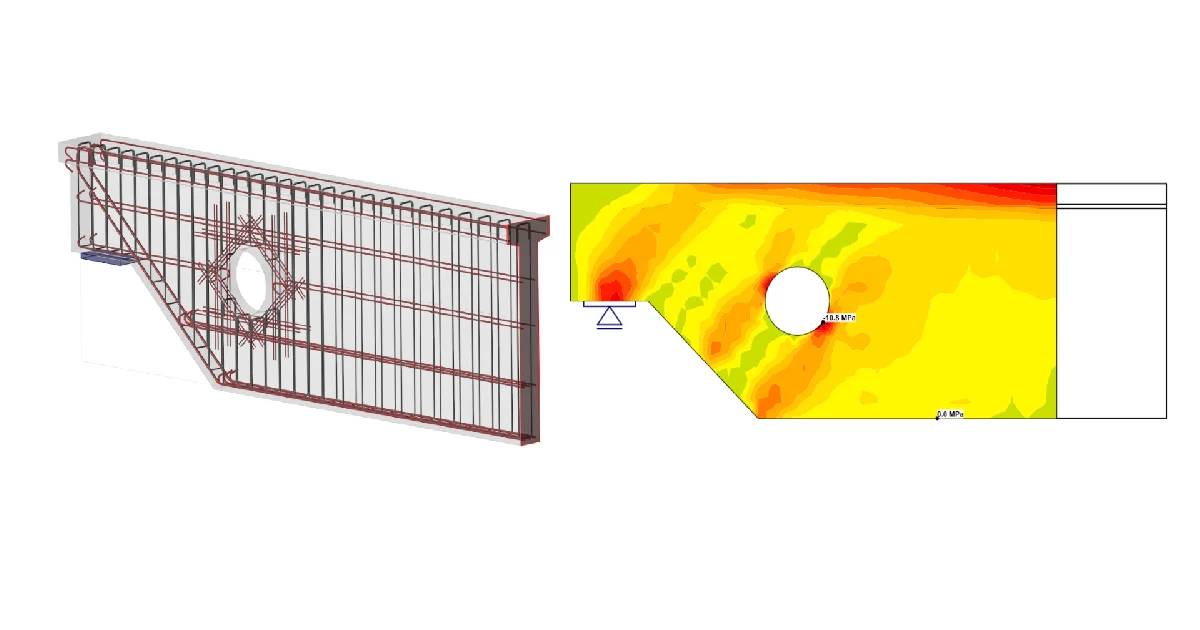
IDEA StatiCa Detail step-by-step tutorial for the structural design of a concrete dapped end with an opening. Structural engineering concrete design software.
  • Concrete
  • EN (Eurocode)
  • Detail 2D
  • CSFM
  • Openings
  • +5
  • Concrete
  • EN (Eurocode)
  • Detail 2D
  • CSFM
  • Openings

Tutorials

Structural design of a dapped end with an opening (EN)

Read more
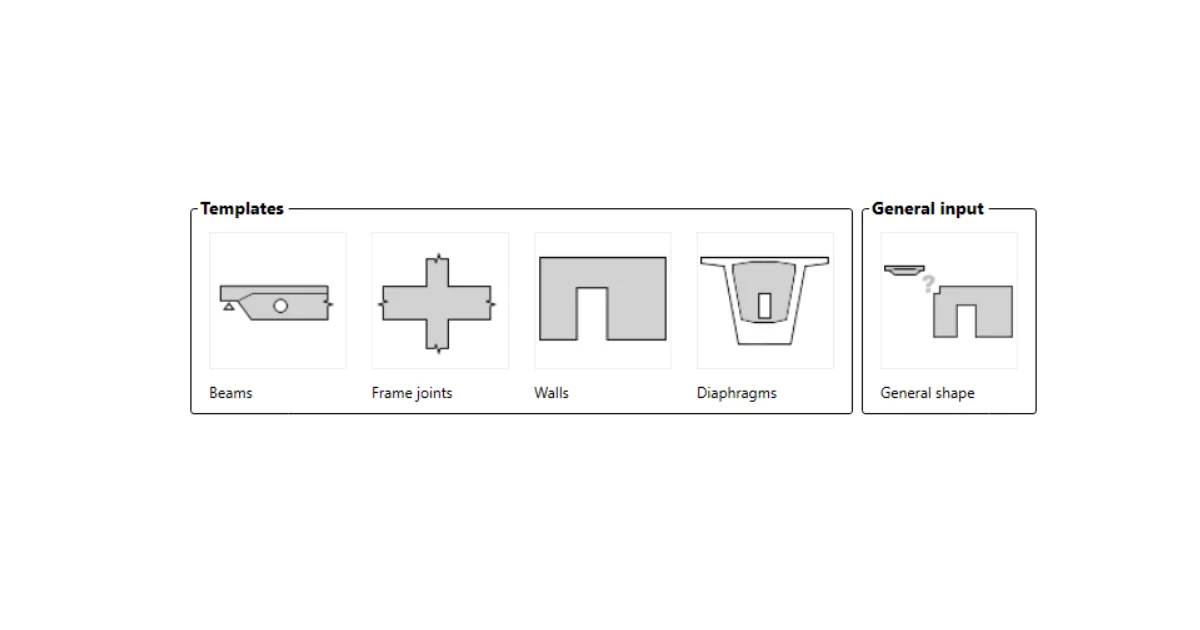
How to create a new model in Detail application
  • Concrete
  • Detail 2D
  • Geometry
  • +3
  • Concrete
  • Detail 2D
  • Geometry

Knowledge base

How to create a new model in Detail application

Read more
Basic assumptions of Compatible stress field method (CSFM)
  • Concrete
  • ACI (USA)
  • EN (Eurocode)
  • CSFM
  • Cracks
  • Stress in reinforcement
  • Detail 2D
  • +7
  • Concrete
  • ACI (USA)
  • EN (Eurocode)
  • CSFM
  • Cracks
  • Stress in reinforcement
  • Detail 2D

Knowledge base

Basic assumptions of Compatible Stress Field Method (CSFM)

Read more