


In case the Checkbot command does not show up in the Tekla toolbar or it can not be launched, even though you have correctly installed the BIM link with IDEA StatiCa, there might be several issues that cause this error.
Please, try to go through these measures:
- Check if the linked software version is supported, possibly update to the latest version.
- Reinstall IDEA StatiCa to the latest version.
- Check if the license is working right, search in the Support center to get more help about how to troubleshoot it.
- Check if there's no antivirus/security program (e.g. G DATA) that might be blocking the Checkbot opening, or that has deleted some installation files of IDEA StatiCa making the Checkbot unusable.
- Check your Windows user rights, those might be limited preventing 3rd party software to be launched (possibly consult with your IT administrator).
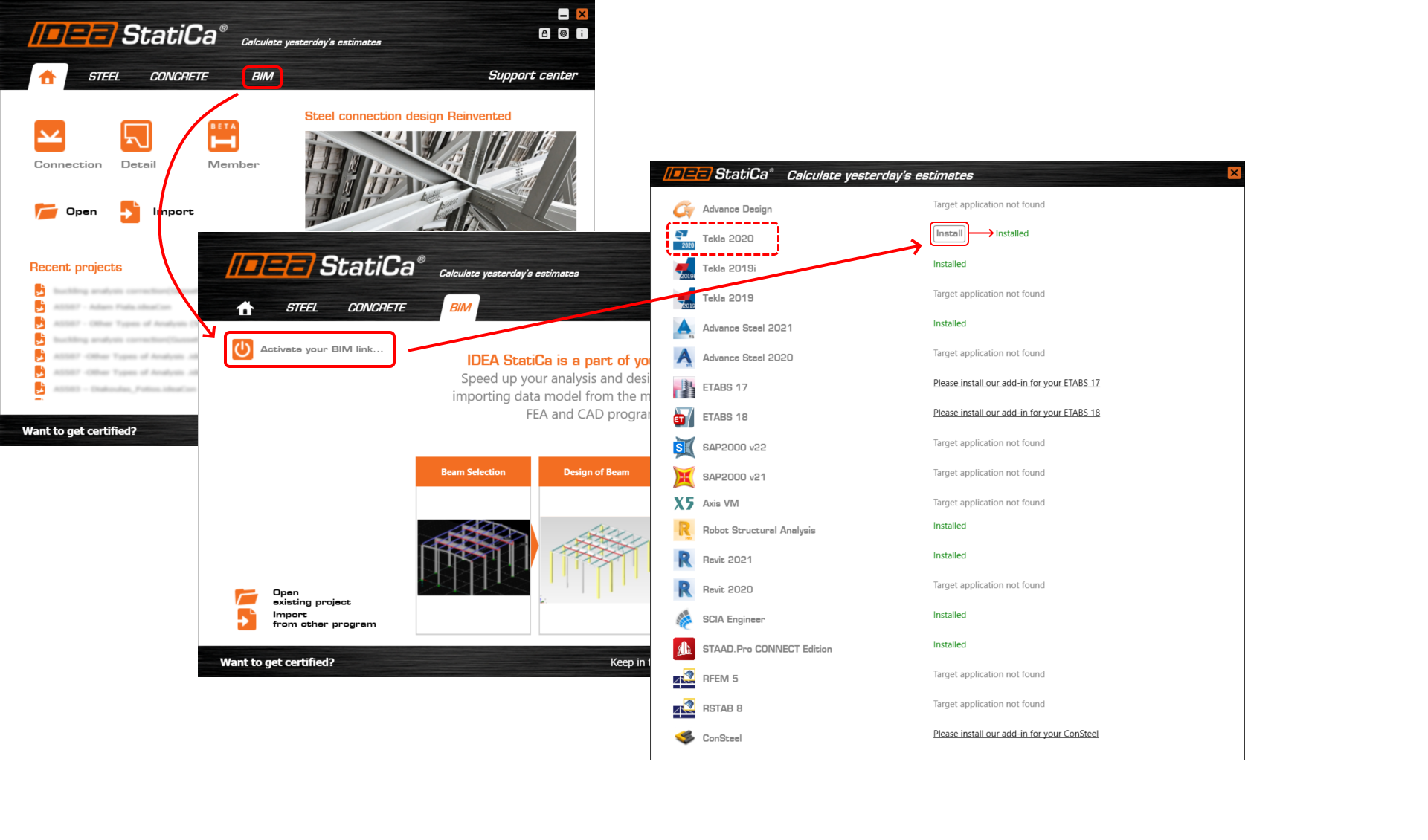
- Check if the BIM link is installed in your application list through the IDEA StatiCa launching window. If not, click on the install button to incorporate it in the specific application.
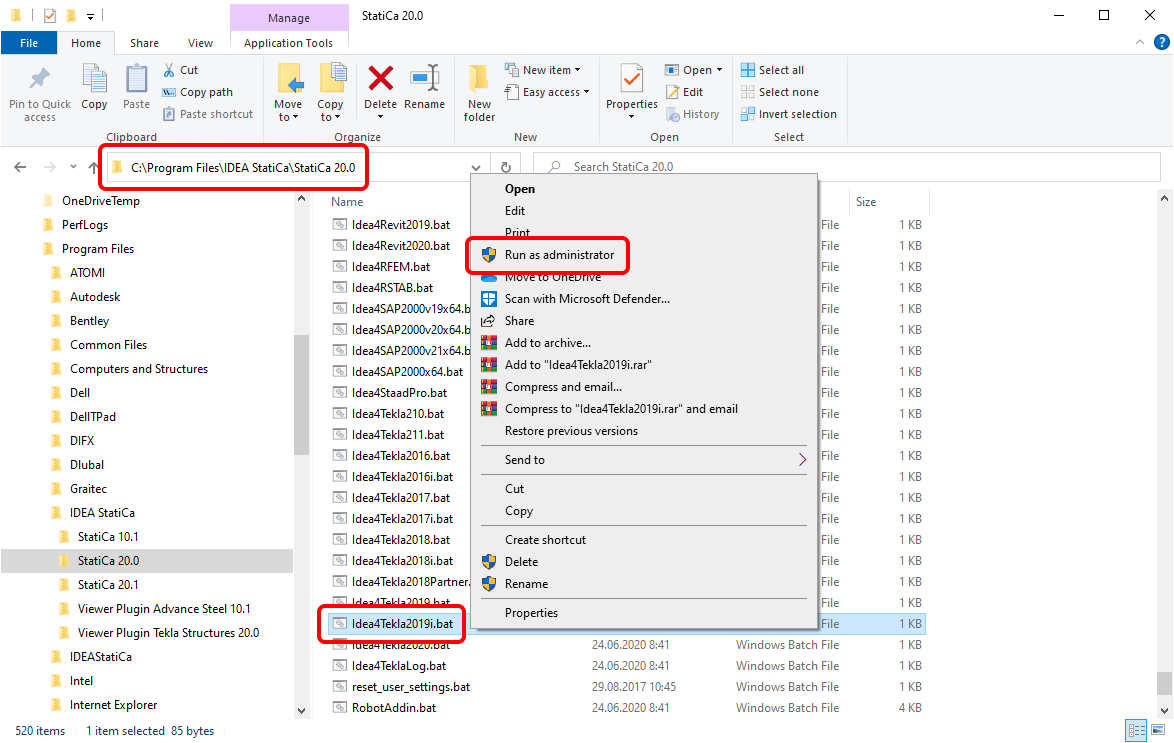
- If the green note 'Installed' is already listed there, but the IDEA ribbon is still missing in your Tekla application, you can install the BIM link manually by running the appropriate .bat file. Close the linked software, go to the installation folder of IDEA StatiCa on your computer (typically C:\Program Files\IDEA StatiCa\StatiCa XX.X), select the .bat file for a particular version of Tekla application, and run it via the right-click as administrator.
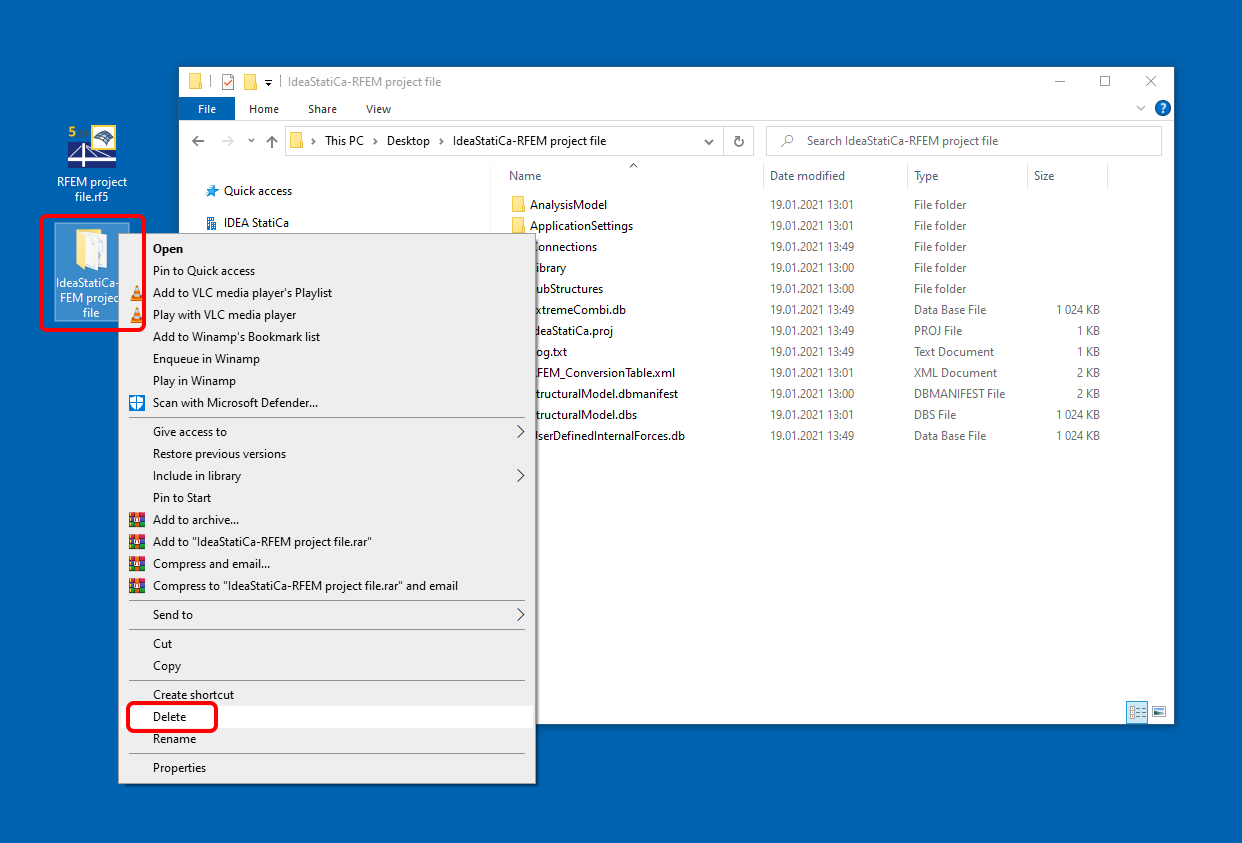
- Delete the IDEA StatiCa import folder. This folder is created inside the Tekla Structures project folder and has the same name. This clears the data and allows you to create a new import.
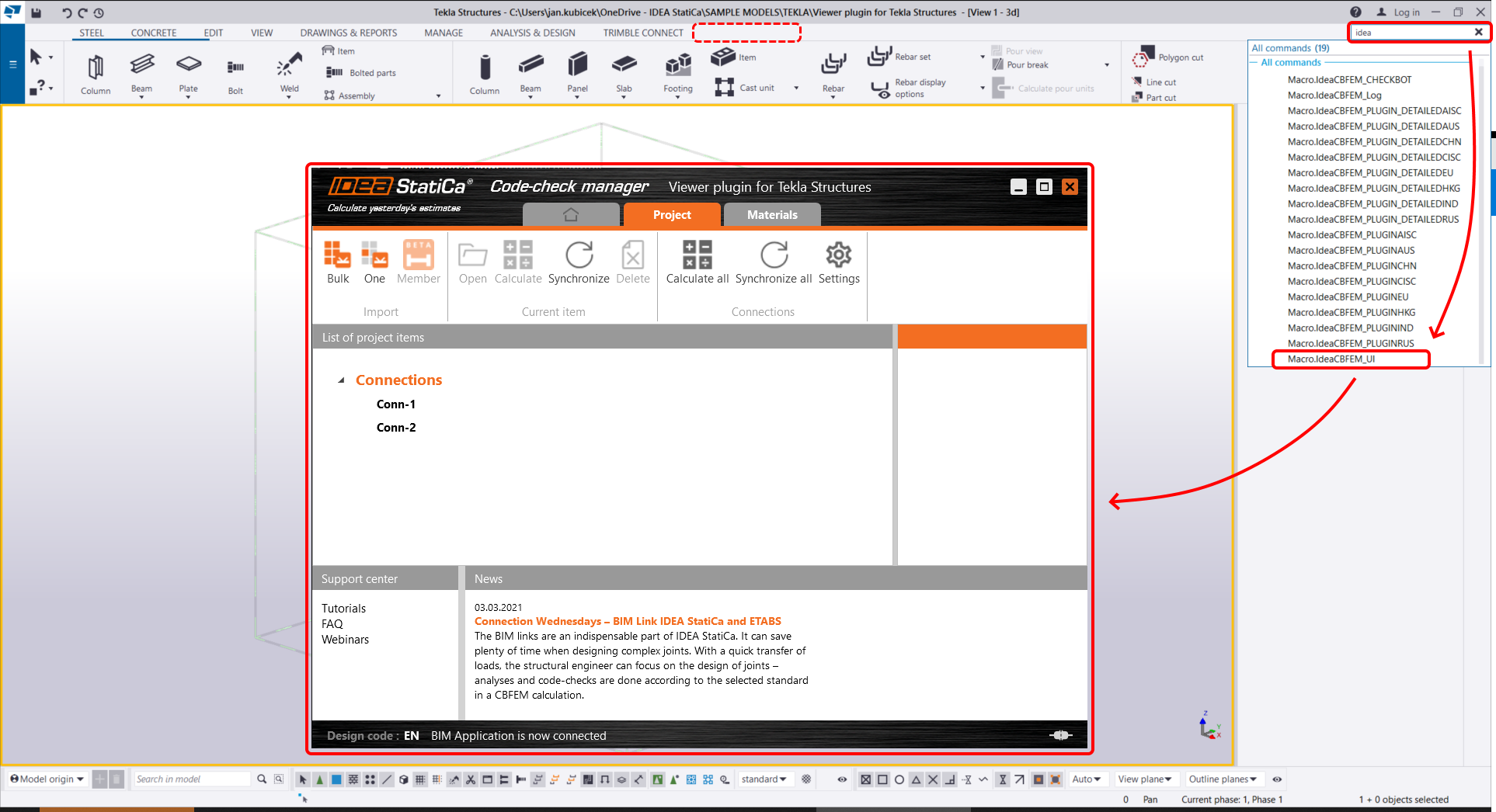
If you still can't see the IDEA StatiCa TAB in your Tekla Structures toolbar, you can search the IDEA macros through the general search window. After typing 'Idea' in it you should see a list of macros related to the IDEA StatiCa application. If the 'Macro.IDEAStatiCaCheckbot' appears, it's proof that the BIM link feature is installed in your Tekla Structures and you can run the Checkbot application from this list.
For more convenient usage of the Checkbot application, we can manually add the missing IDEA StatiCa Tab and ribbon to the toolbar. For this, please follow the simple process.
At first, we add the 'IDEA StatiCa' Tab.
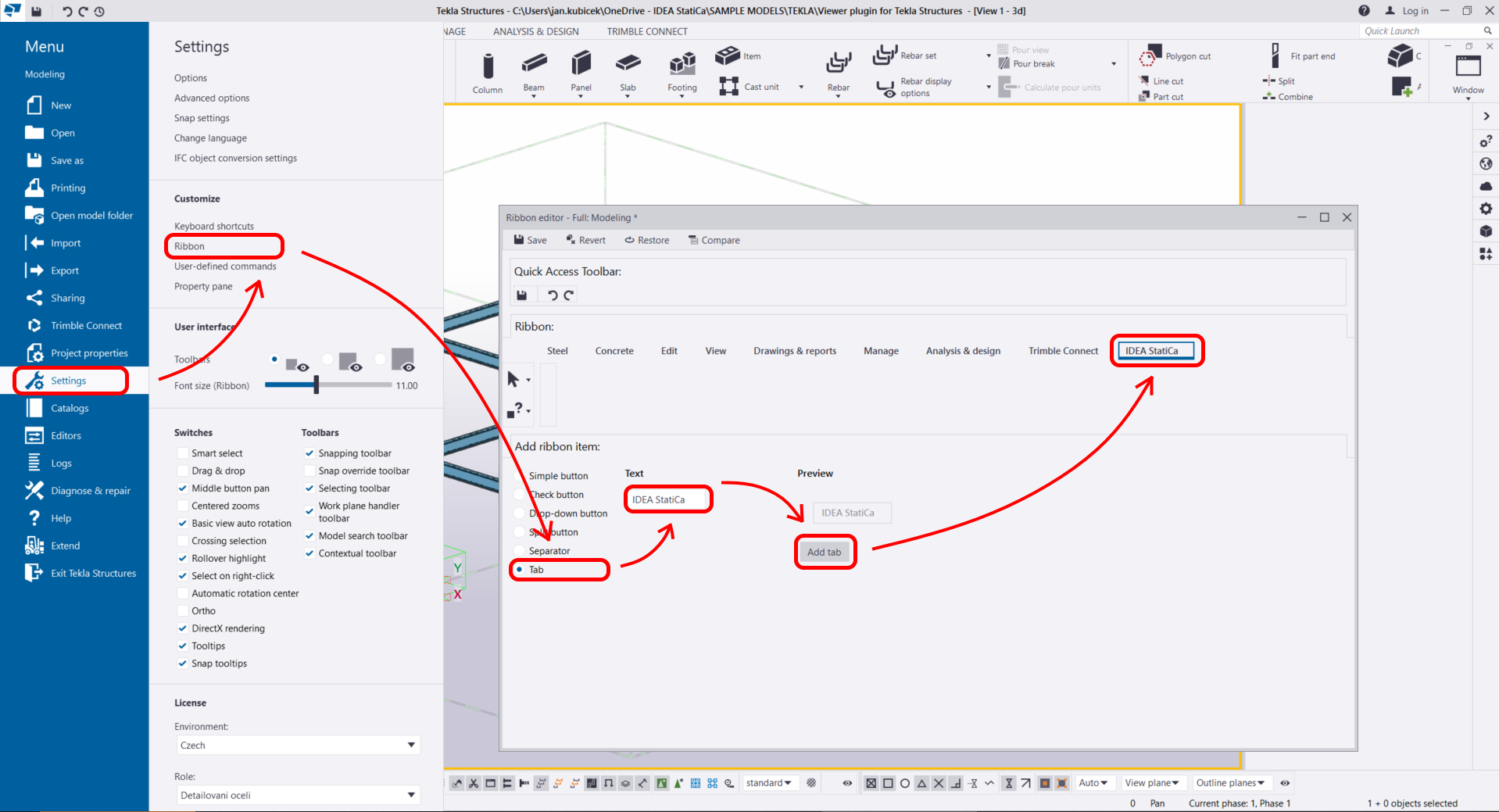
Secondly, we choose an appropriate icon for our ribbon.

Finally, we move the Ribbon to the selected place in the toolbar by drag-and-drop.

Now, we can test our newly added Checkbot manager application.
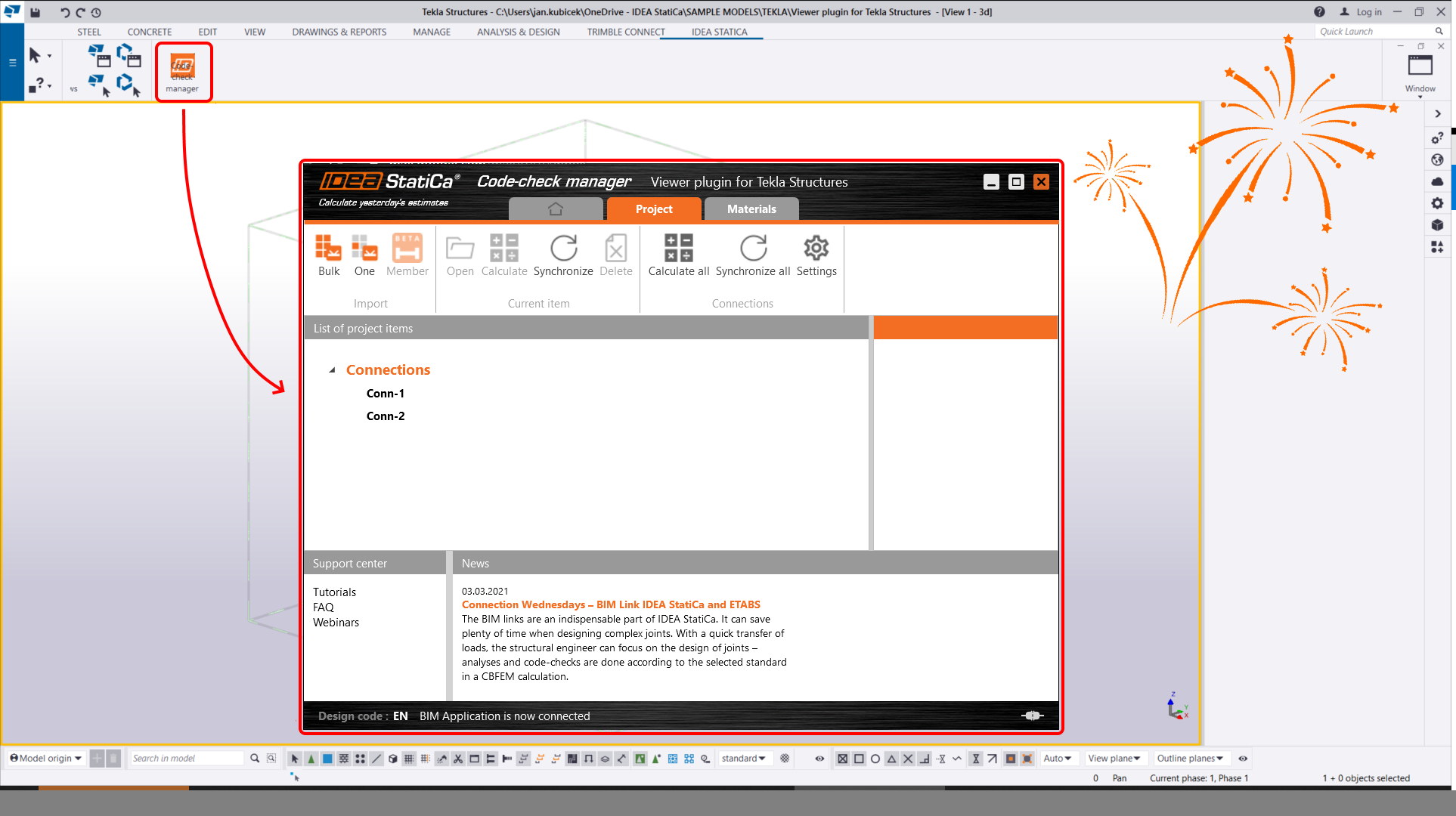
We have also prepared a short video tutorial on this topic where you can go through this process step by step.