


The 3D presentation depends on both, hardware and software. Unfortunately, it is not possible to suggest one setting for high performance and another for beautiful screenshots. Processor performance, graphics card performance, producer and drivers – they all affect the resulting performance of 3D window in IDEA StatiCa.
We recommend testing ideal settings for each personal computer. Pick a large model (you can find many of them in our Sample projects) and time how long it takes to switch, e.g., from stress plot to strain plot with various settings.
Note that 3D presentation settings are applied after starting a new project or opening an old one. You do not need to close the whole application.
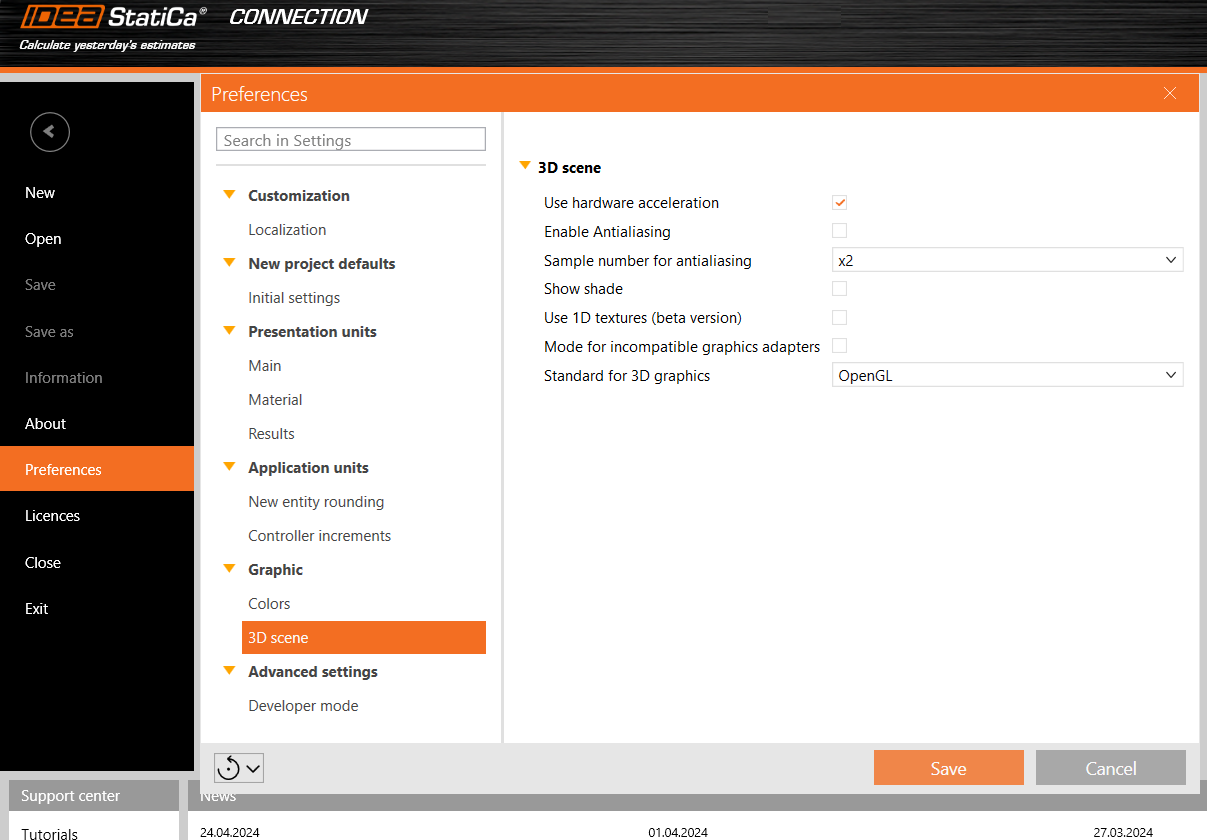
Use hardware acceleration
Hardware acceleration, or GPU rendering, lets the application move all graphics and text rendering from the CPU to the GPU. For high-performance GPU, this should reduce latency and speed-up 3D scene.
When compatibility issues occur, please install the latest GPU drivers or turn hardware acceleration off.
From our testing, the hardware acceleration has a big impact on 3D scene performance. However, this impact is not always positive. It actually seems that on computers with with weak, integrated graphics cards, but also with powerful AMD graphics cards, the rendering is about 3x slower with hardware acceleration turned on.
Antialiasing
Antialiasing smooths the edges of inclined lines. Theoretically, antialiasing turned on would slow down performance. However, not a significant impact was measured on our computers, even with a high sample number.
Show shade
Again, theoretically, shade should increase computational effort but no high impact was measured on our computers.
Use 1D textures
1D textures are suitable for maximizing performance. However, some graphic cards may have troubles, causing the rendered pictures to be black. If that happens, change the Standard for 3D graphics. Moreover, the stress patterns may change slightly for using 1D textures or not on one computer and even for computers using a different graphic card (NVidia vs AMD). The stress peaks are not affected and shown stress heatmaps are averaged in nodes, so it does not need to be a big concern.
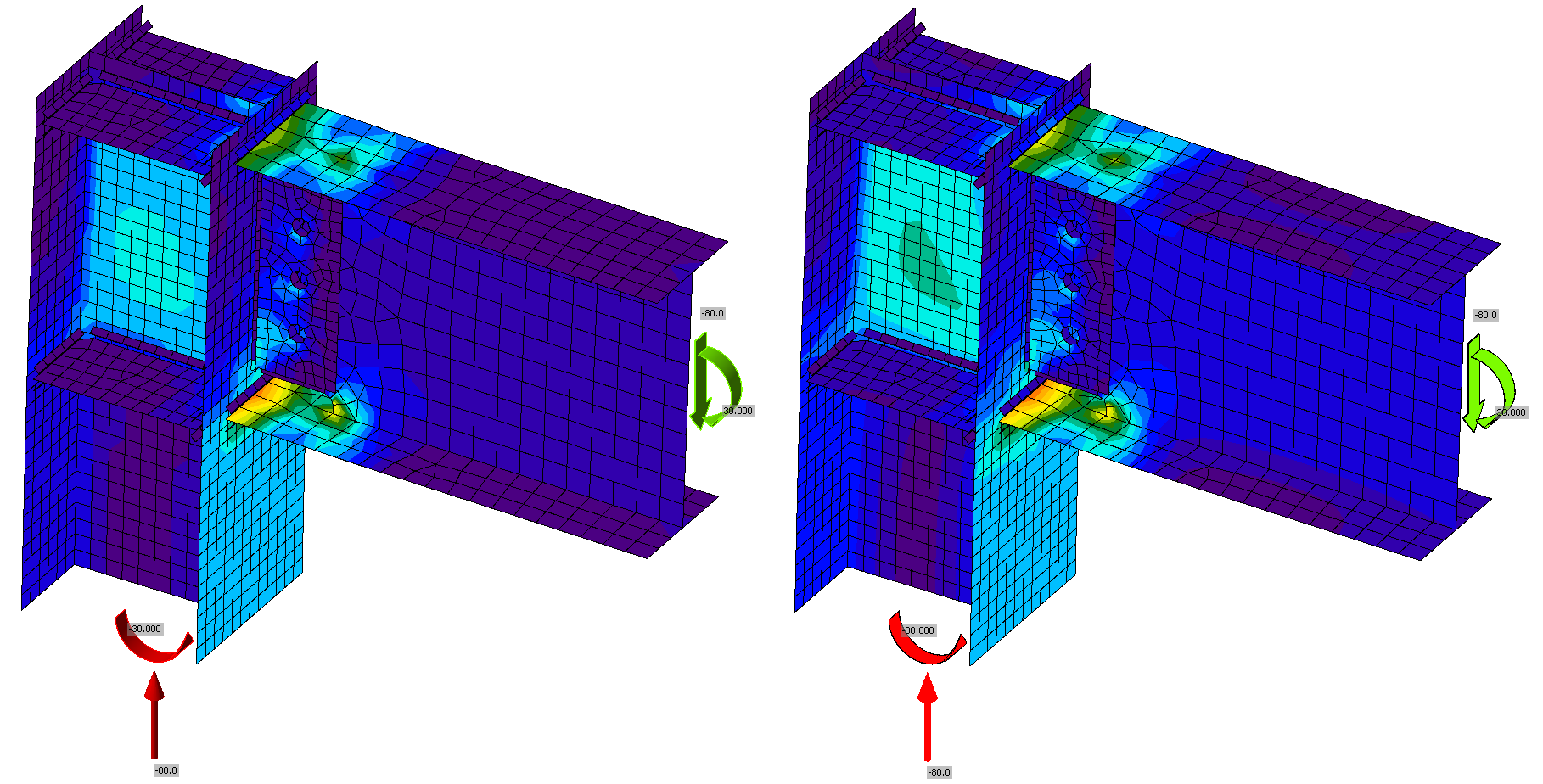
Figure: 1D textures activated on the left; deactivated on the right
Mode for incompatible graphic drivers
This mode should be activated if unwanted black rectangles appear in reports.
Standard for 3D graphics
Options are Direct3D and OpenGL. This setting should be changed, especially if rendered pictures are black when using 1D textures. The standard also affects the performance and optimal settings should be tested for a particular computer.