


Create model
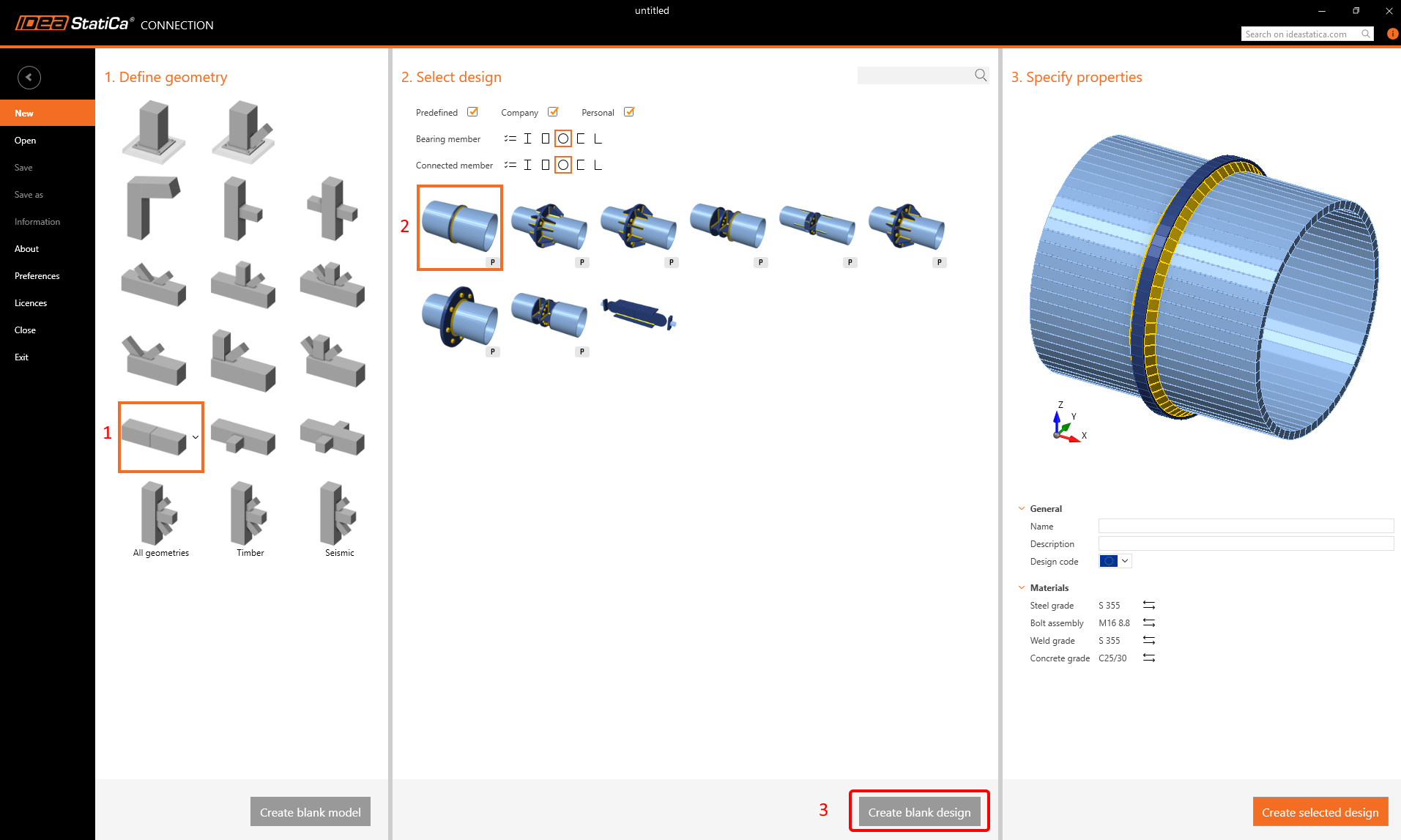
Start the Connection application and choose the following template and initial parameters (click on Blank design):
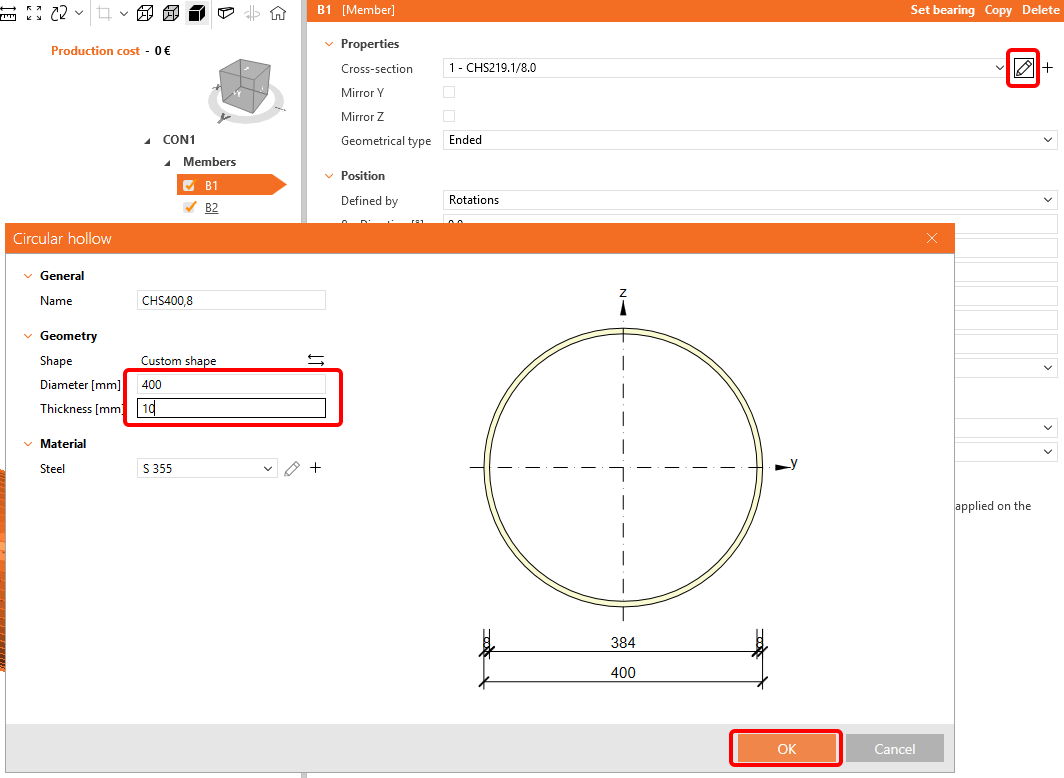
Change the dimensions of the cross section for B1 and B2 to d = 400 mm and t = 10 mm:
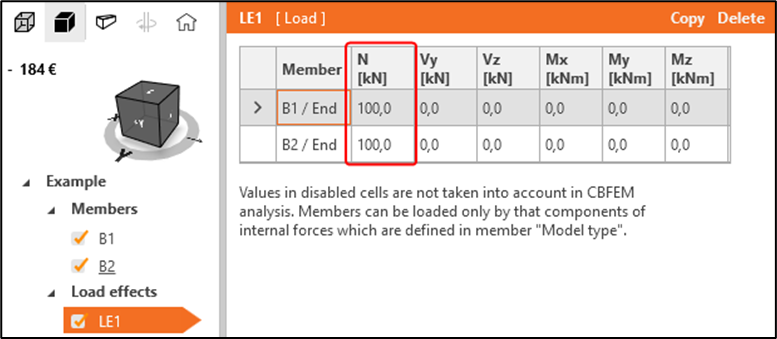
Go to LE1 and modify as follows:
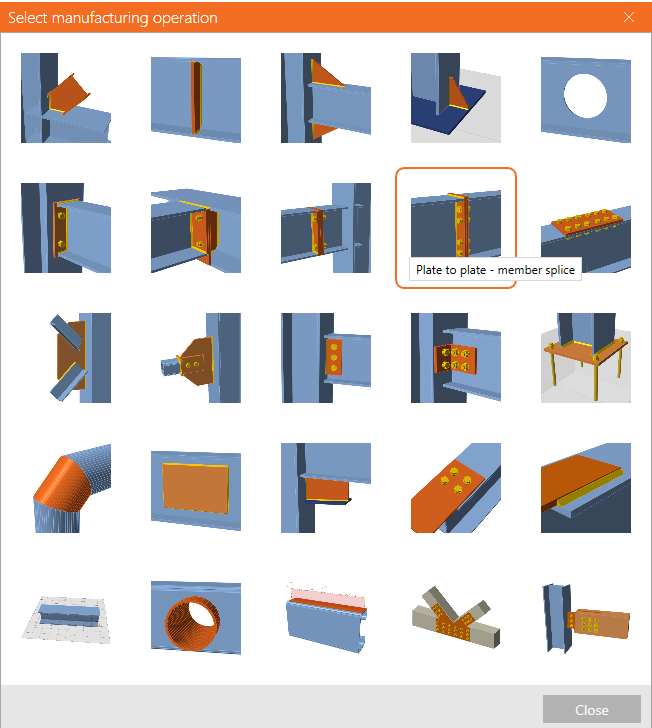
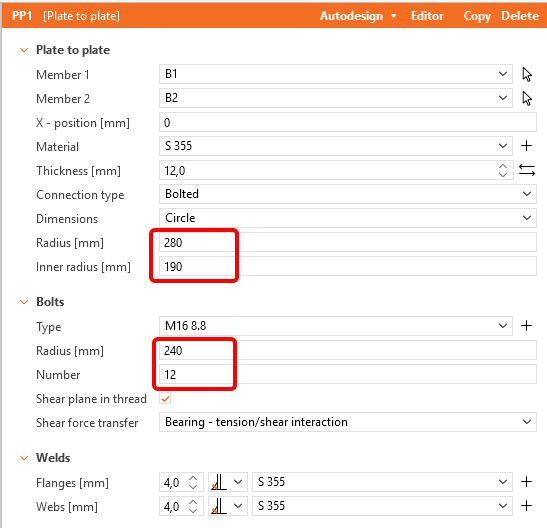
Add a new Plate to Plate operation and change te values according the picture:
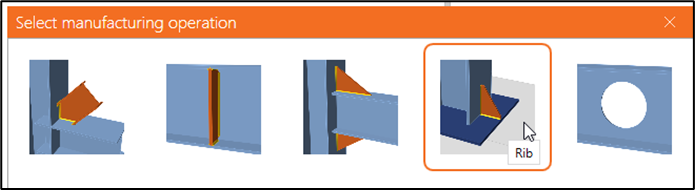
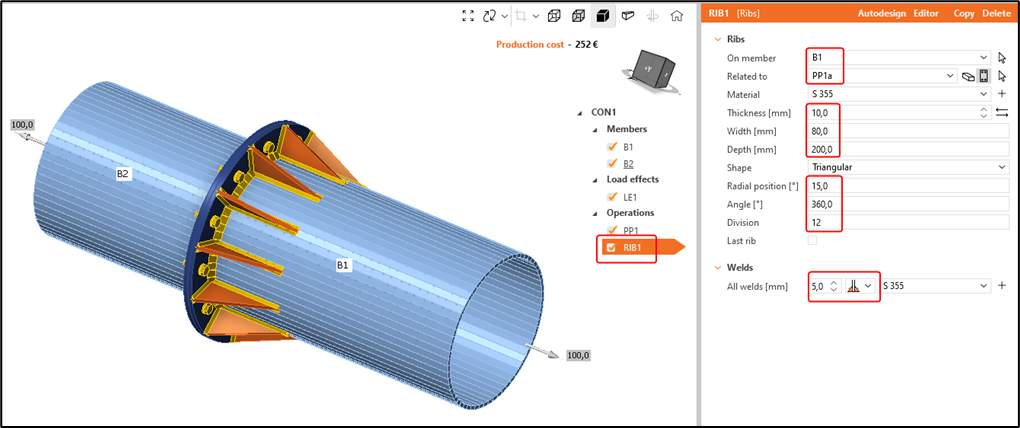
Add a new Rib operation member B1 and PP1a:
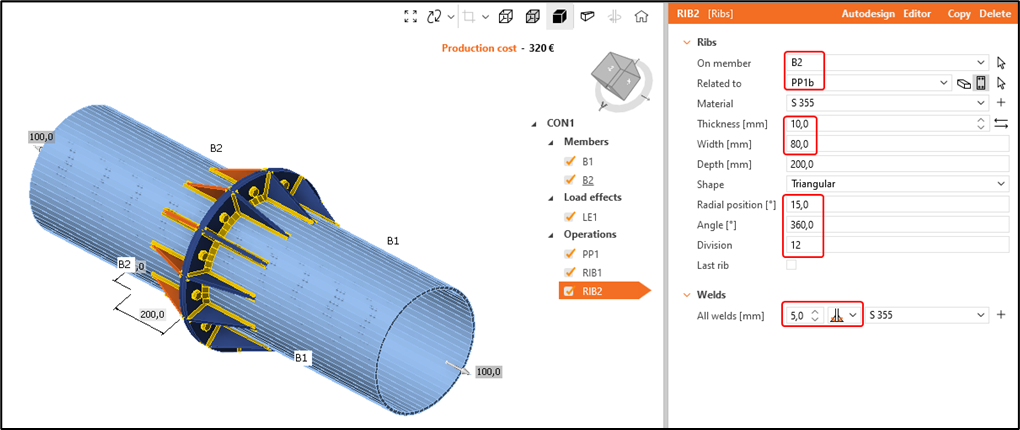
Copy operation RIB1 to create RIB2 and apply it to B2 and PP1b:
The initial model is finished now. It looks like quite a simple model with few operations and there is nothing wrong with it. However, see how long it takes to create a different variant of the connection where:
- Diameter tube = 350 mm
- Number of bolts = 8
- Length of ribs = 175 mm (half of the tube diameter)
Inner radius of the circular flange should match with inner radius of the tube while the outer radius should remain 80 mm larger than the outer radius of the tubes. The ribs should always be positioned in the middle between the bolts.
As you might have noticed, even though it seems like a quick modification, it can take a few minutes to model 1 new variant. If you want to model many variants more quickly, this approach can cost too much time.
Developer tab
To speed things up we shall make the model parametric and create a parametric template. To do this, go to:
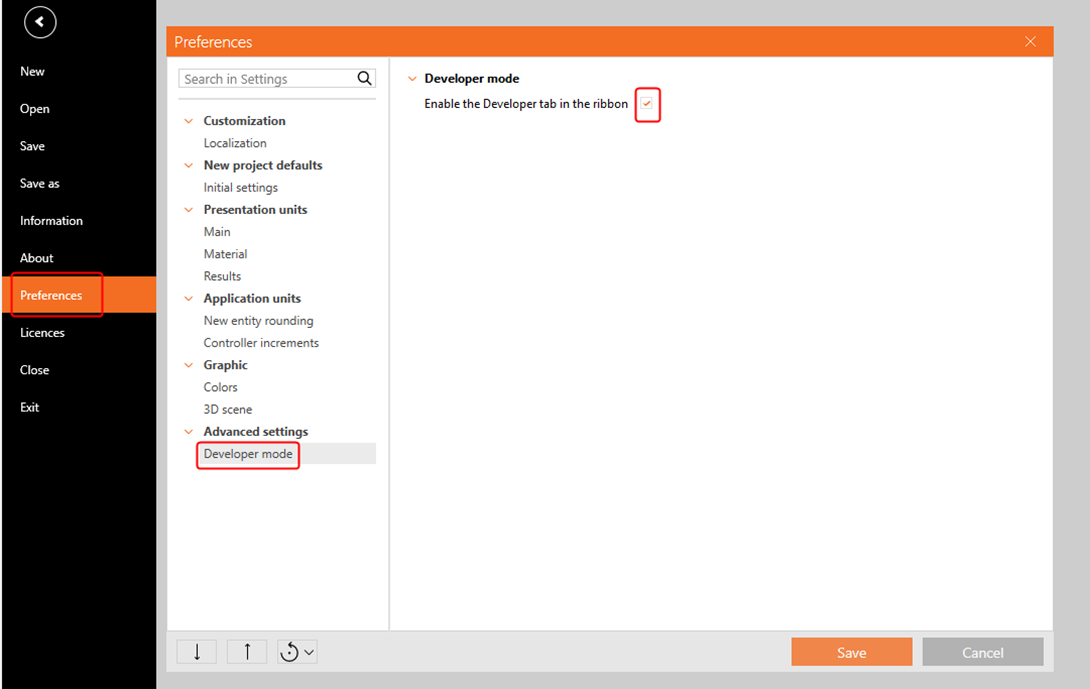
Project tab -> Preferences -> Advanced settings -> Developer mode and enable the Developer tab:
Create parameters and parametric template
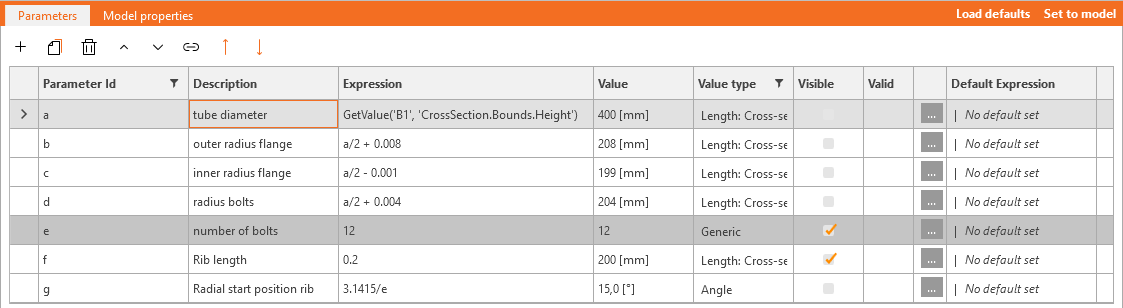
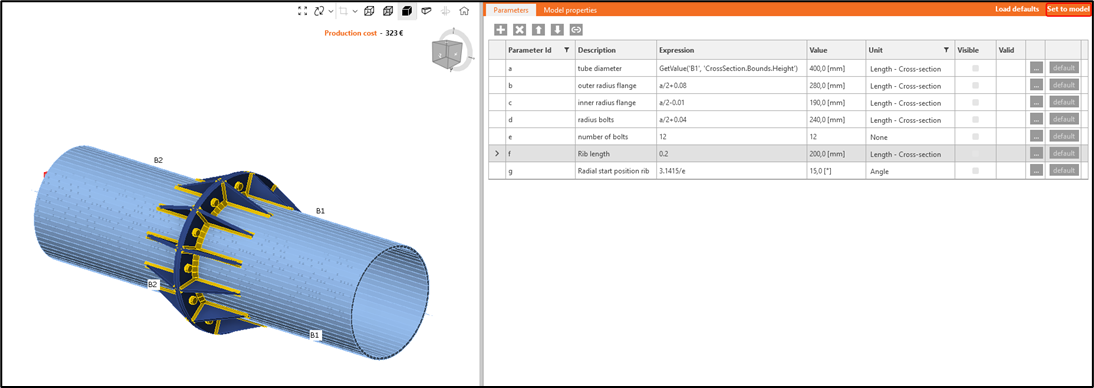
Go to the Developer tab and create 7 new parameters, assign them a parameter Id from “a” to “g”. Each parameter can be given a description and expression. This way, certain parameters can be made dependent on each other. Set the right unit for each parameter:
| a | tube diameter | GetValue('B1', 'CrossSection.Bounds.Height') |
| b | outer radius flange | a/2 + 0.08 |
| c | inner radius flange | a/2 - 0.01 |
| d | radius bolts | a/2 + 0.04 |
| e | number of bolts | 12 |
| f | Rib length | 0.2 |
| g | Radial start position rib | 3.1415/e |
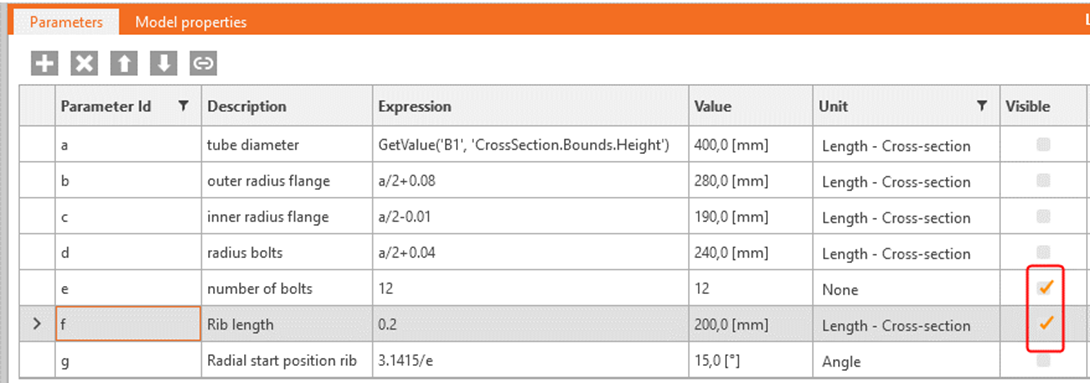
To make a parametric template, choose those parameters that you want to be user defined (a and e) and set them to Visible:
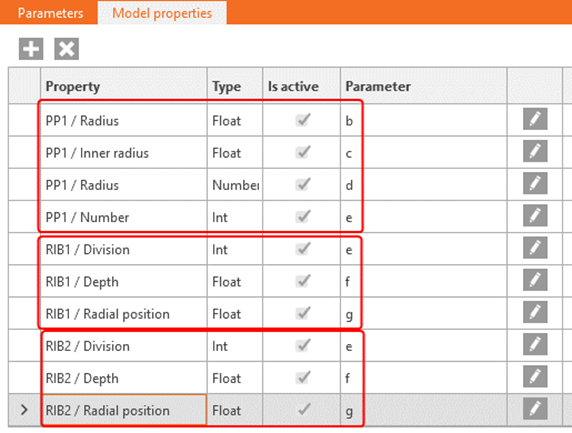
Now assign the relevant parameters to specific model properties:
Click “Set to model” and see how the Connection changes based on the input parameters:
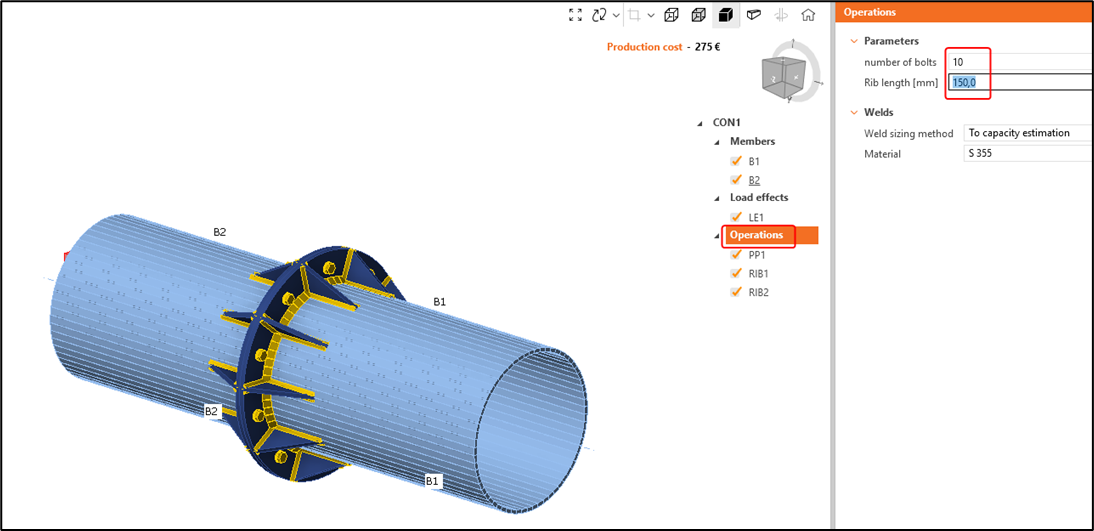
Go back to the Design tab and click on Operations. There you will find the parameters that were set to visible. You can change the parameters and press enter and now the model will change accordingly.
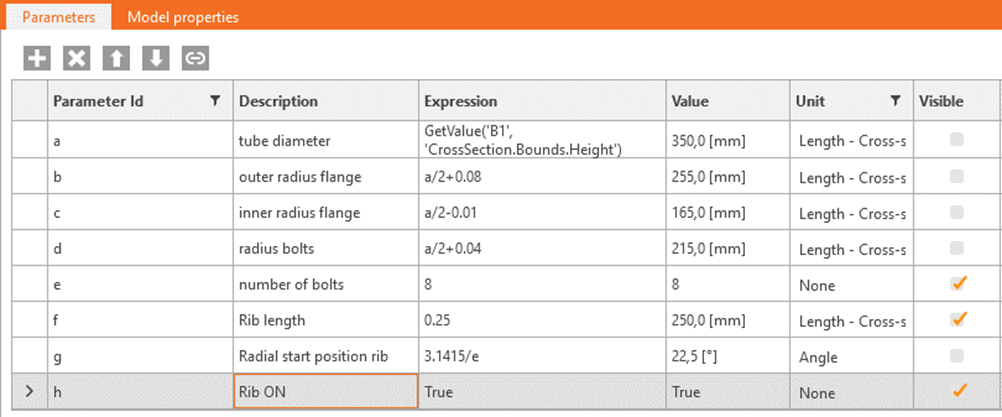
You can also use Boolean operators. Create a new parameter h with description “Rib ON” and give it as expression “True”. Set it also to Visible:
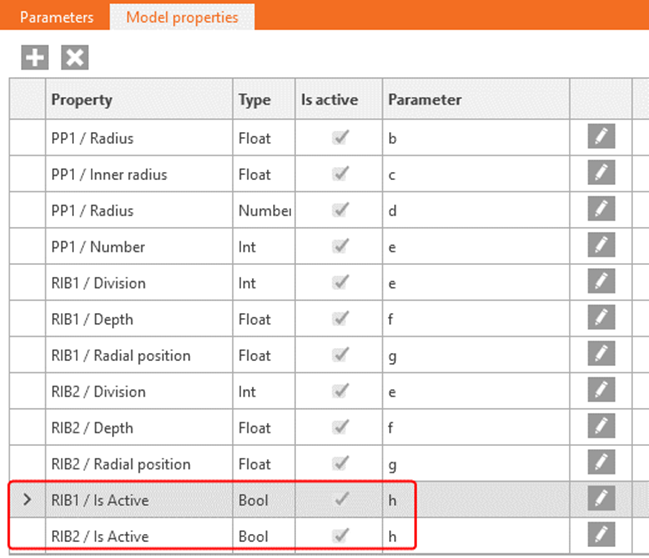
Link this parameter to model property RIB1 / Is Active and RIB2 / Is Active:
See the difference when switching on and off in the parametric template:
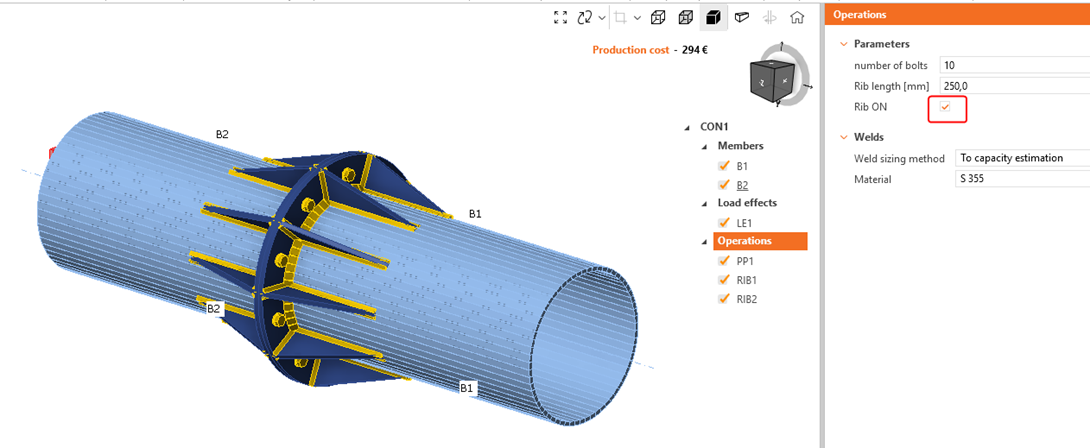
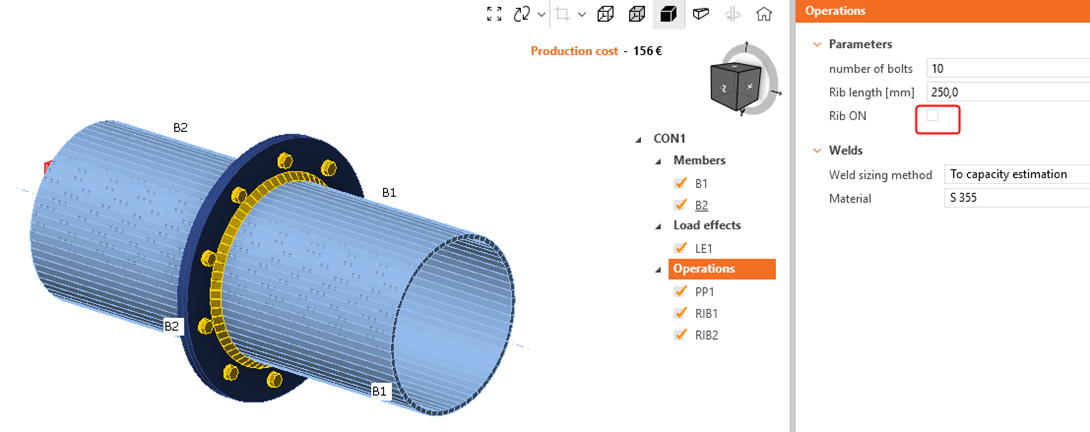
An alternative is to use if/then statements in the expression:
| h | Rib ON | if(a>0.3,True,False) |
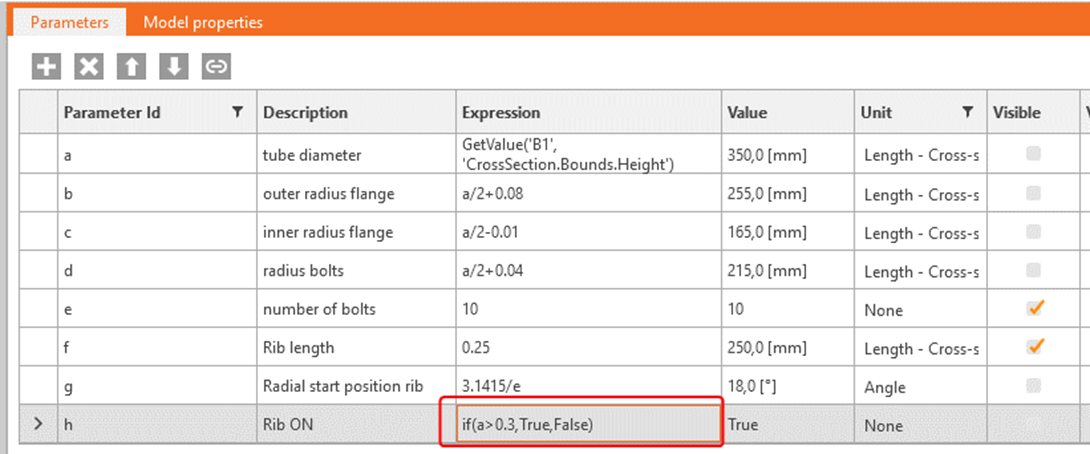
Choosing a smaller diameter for the tube < 300 mm should deactivate the ribs:
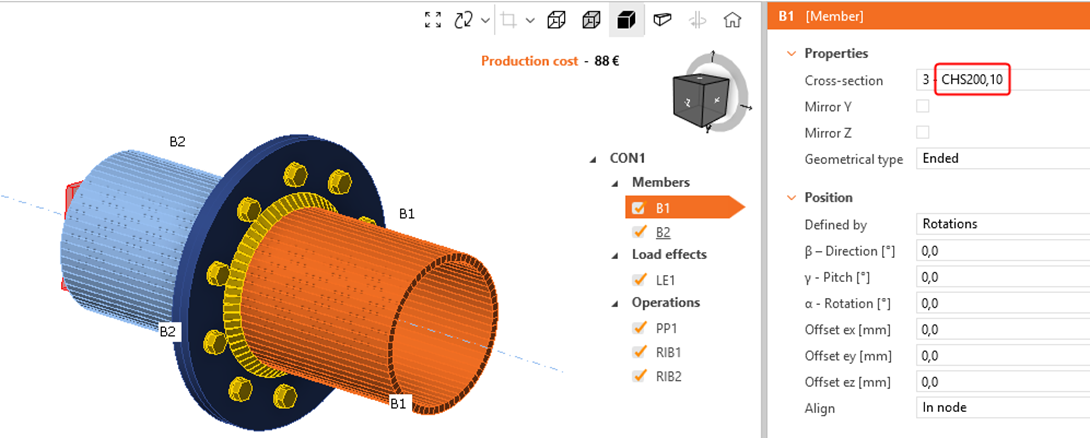
See below the finished model.
With this tutorial, you have acquired the skills to utilize parameters and undertake fundamental parameter-related tasks.