

1 New project
Start by launching the IDEA StatiCa Connection. Create a new project by selecting the blank template, filling in the name, and choosing AISC design code and default steel grade – A992.
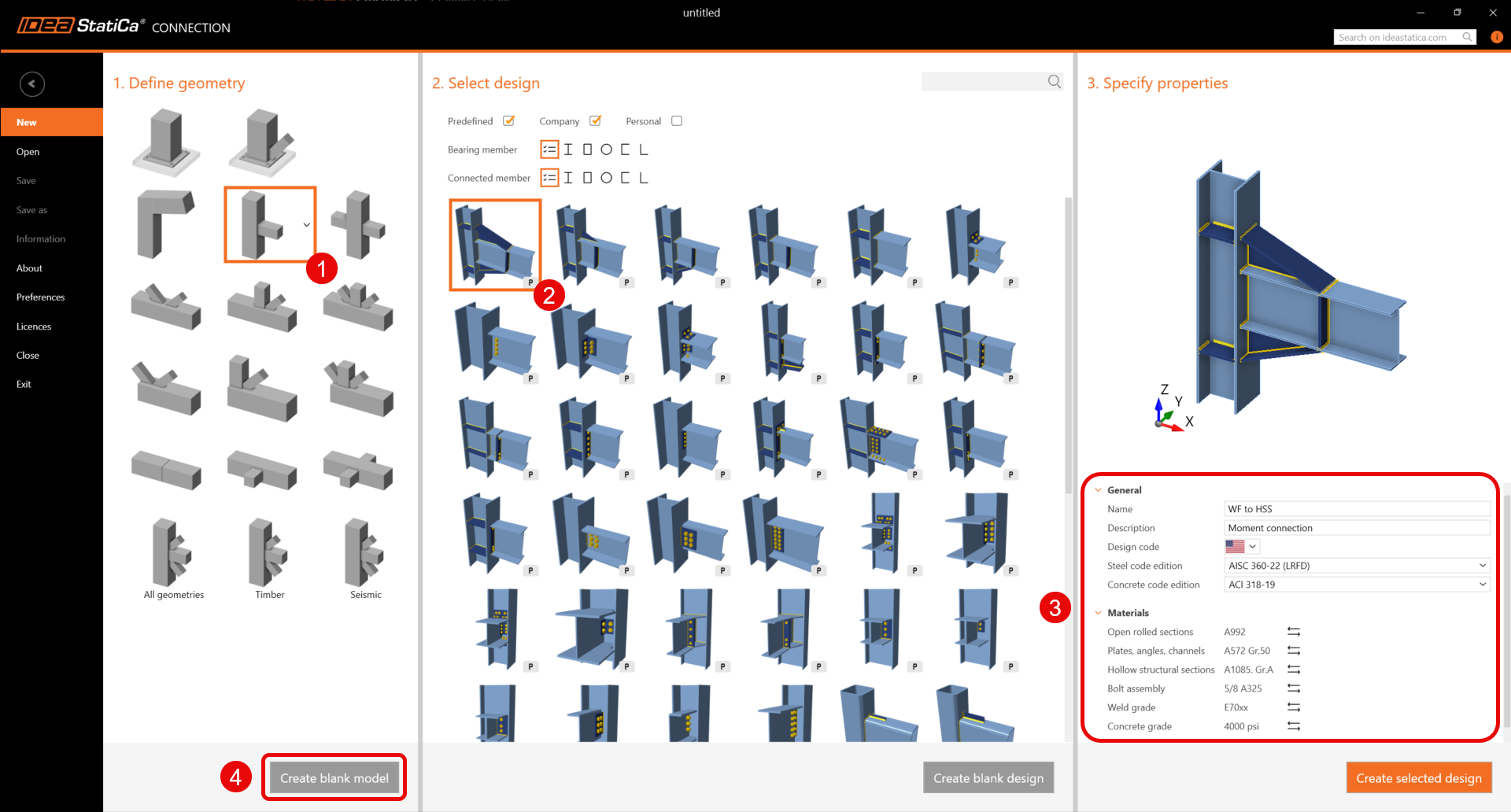
Since you are working under the AISC code, it is best to set the imperial units (see How to change the system of units).
2 Geometry
Add a new member by clicking on the New member icon. Select a Wide flange profile, then click the three dots icon to select the size. Search under W (AISC 15.0) for a W18x55 and click OK.
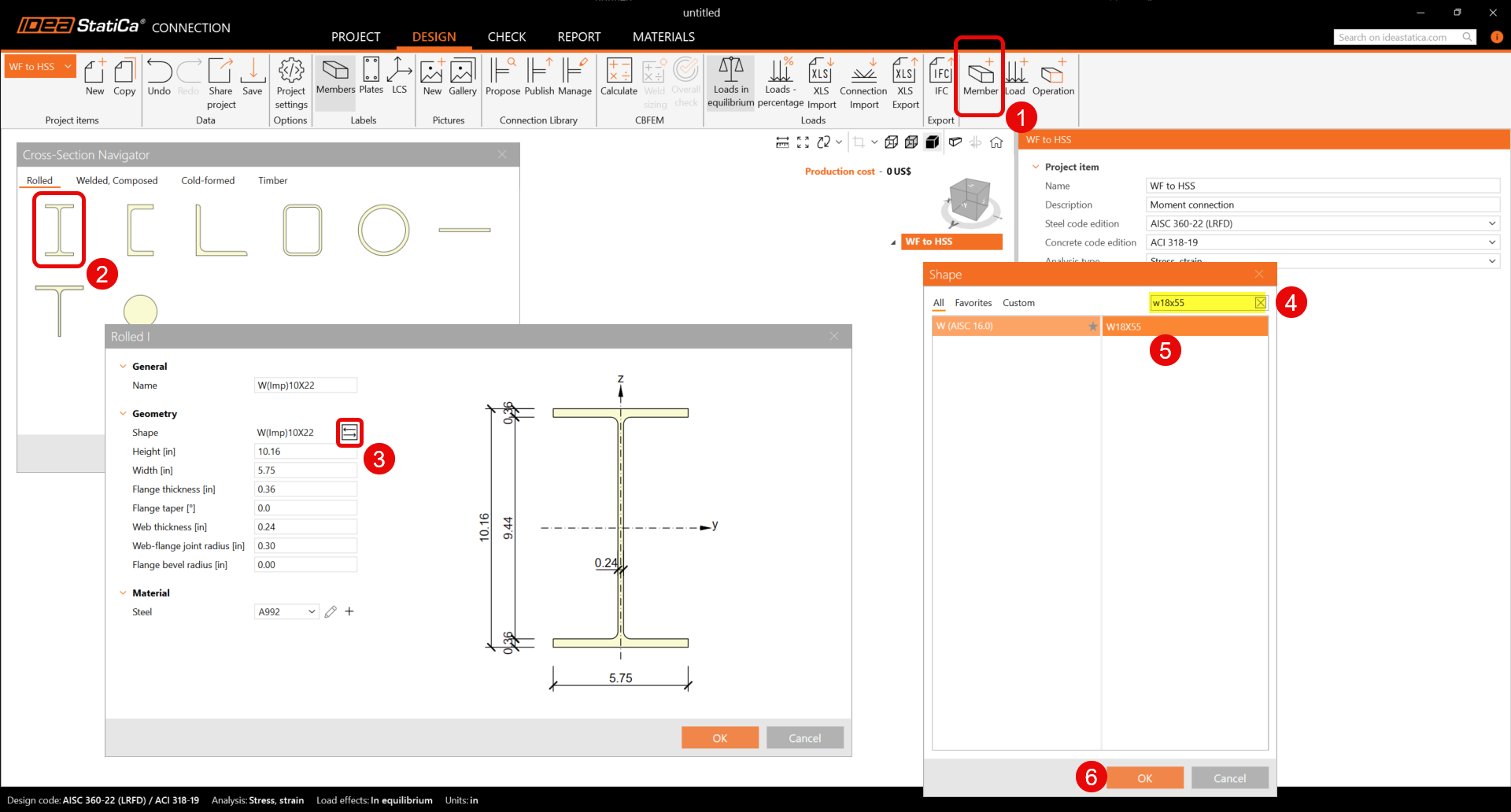
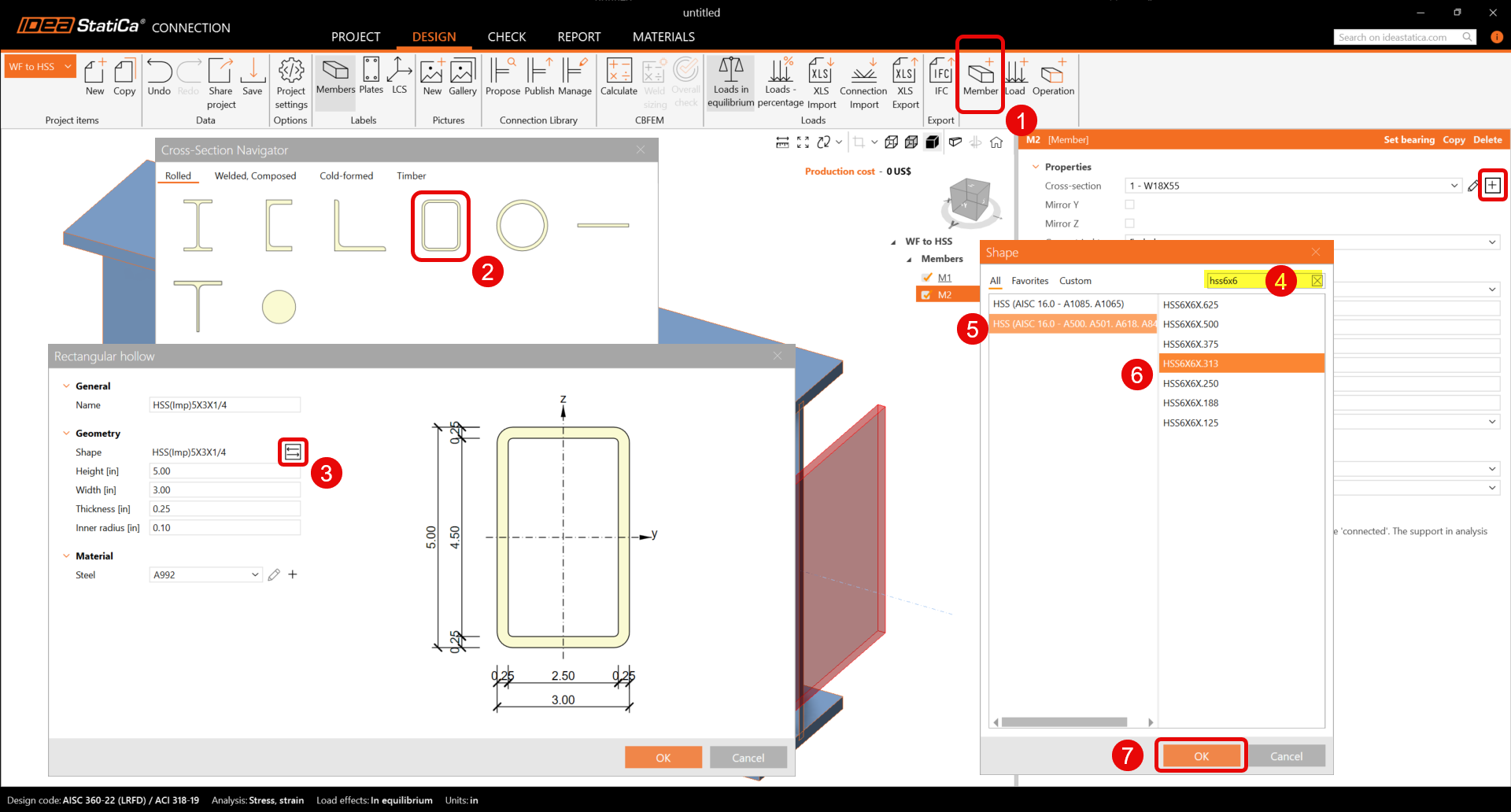
Add another member to model the column by clicking on the New member icon and then click the plus icon. Now select HSS profile, click the tree dots icon to select a HSS 6X6X0.313 within the HSS AISC 15.0 A500 database. Change the material of the HSS to A500 Grade C.
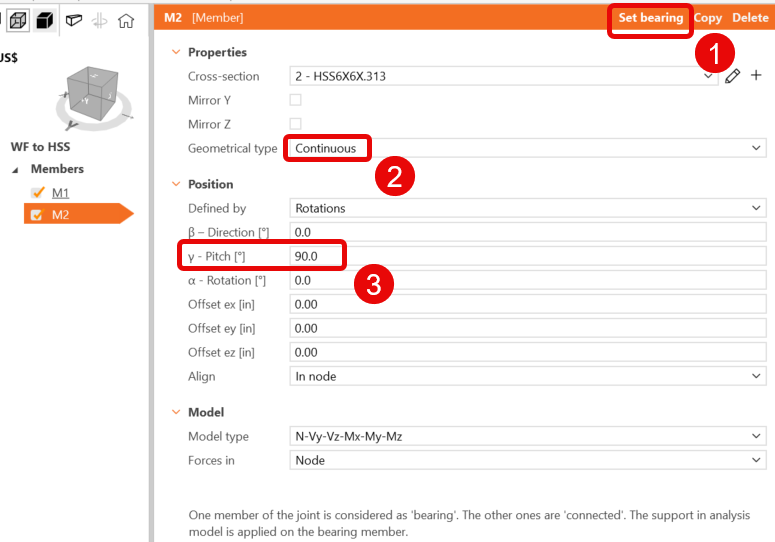
Click on the HSS member and, modify its properties to make it vertical, continuous and the bearing member.
3 Load Effects
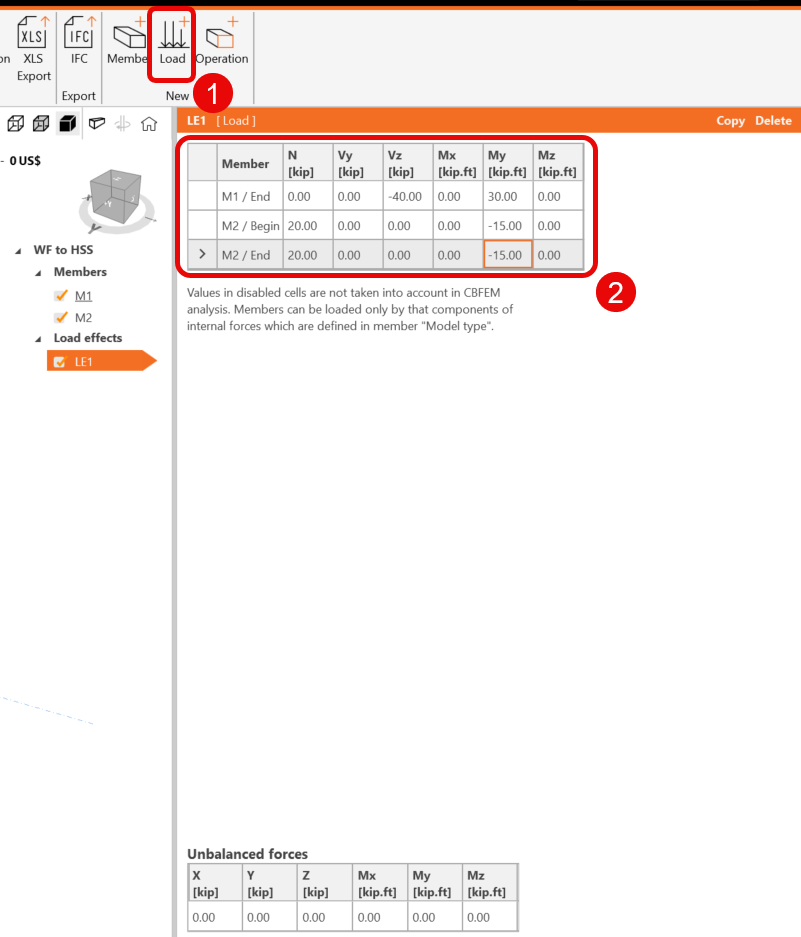
Add a new load effect by clicking in the new load icon, then input the values as shown:
4 Model the connection
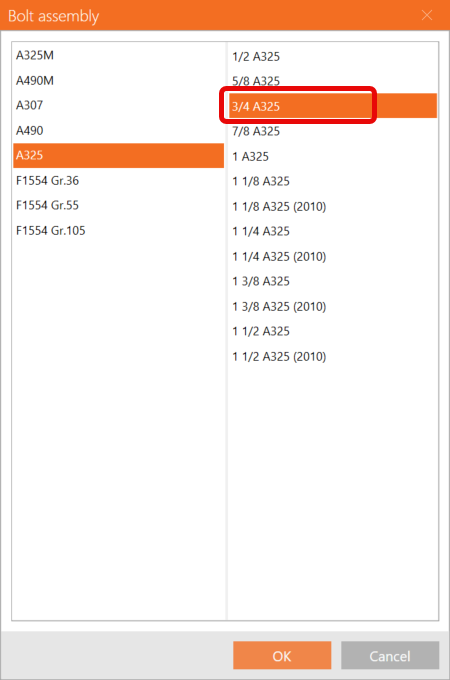
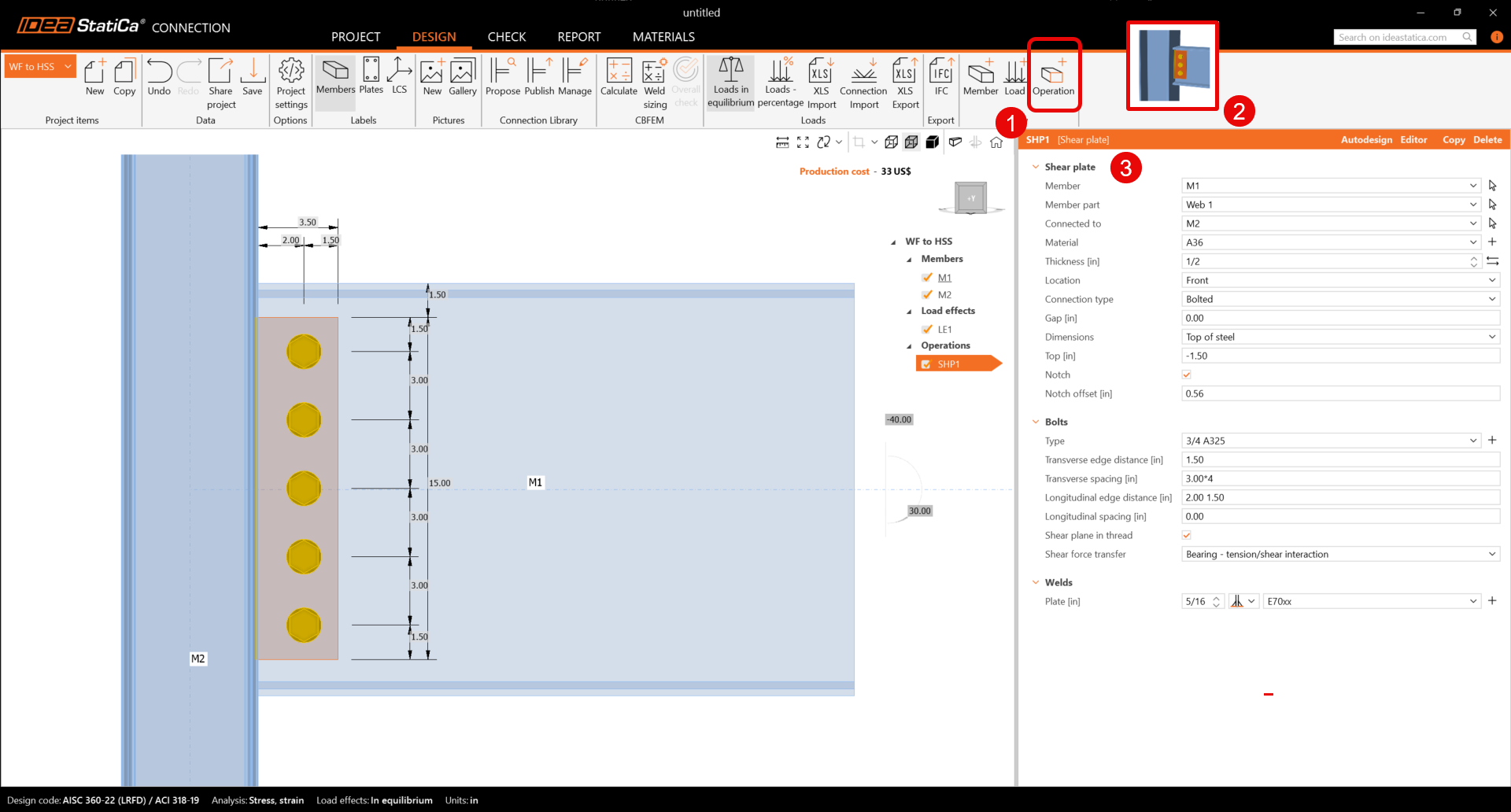
Click on the New operation icon and select Shear plate. Input the values as shown:
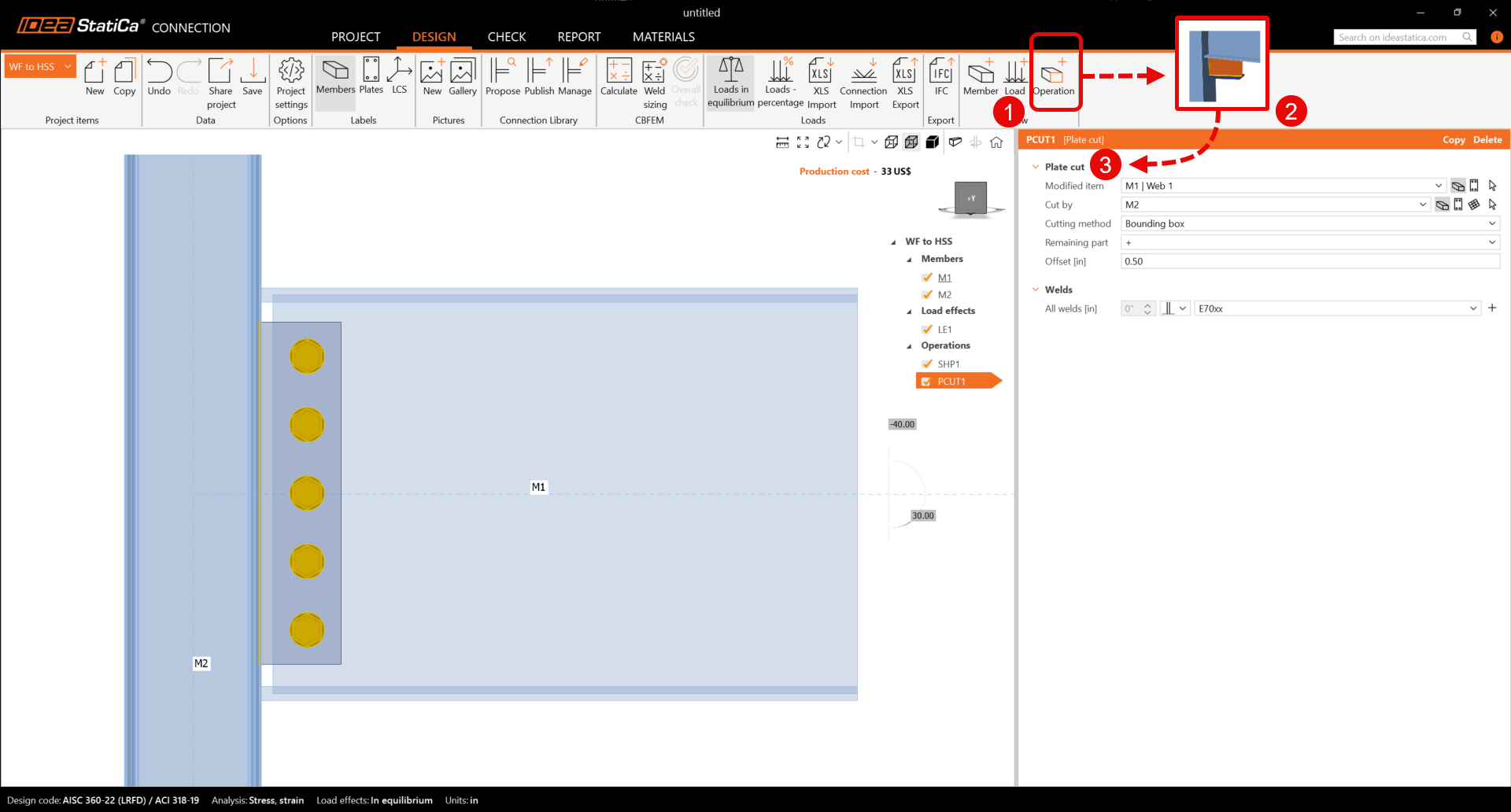
Click on the New operation icon and select Plate cut. Input the values as shown:
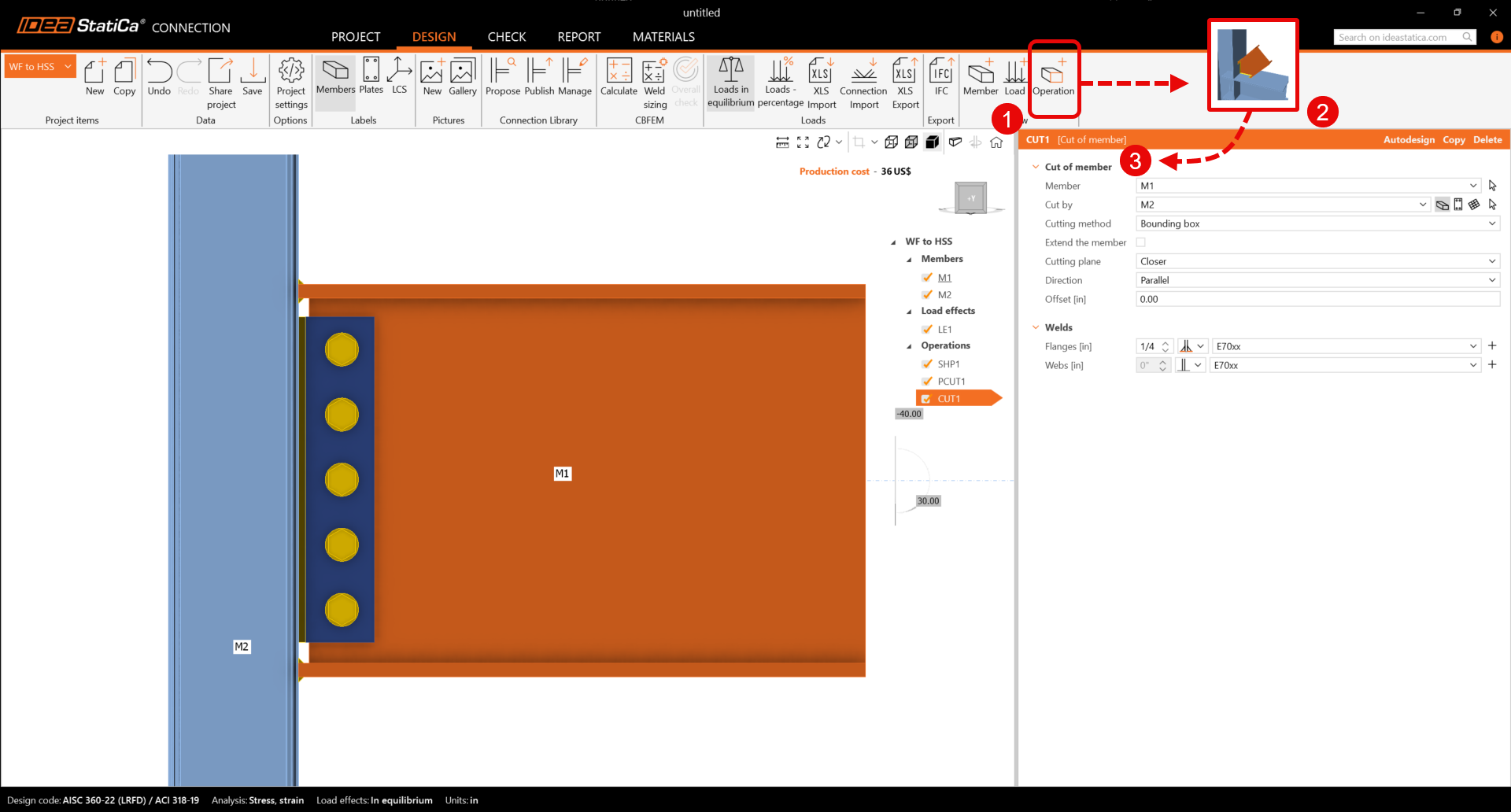
Add a Cut of member operation. Input the values as shown, consider that only welds at the flanges are selected.
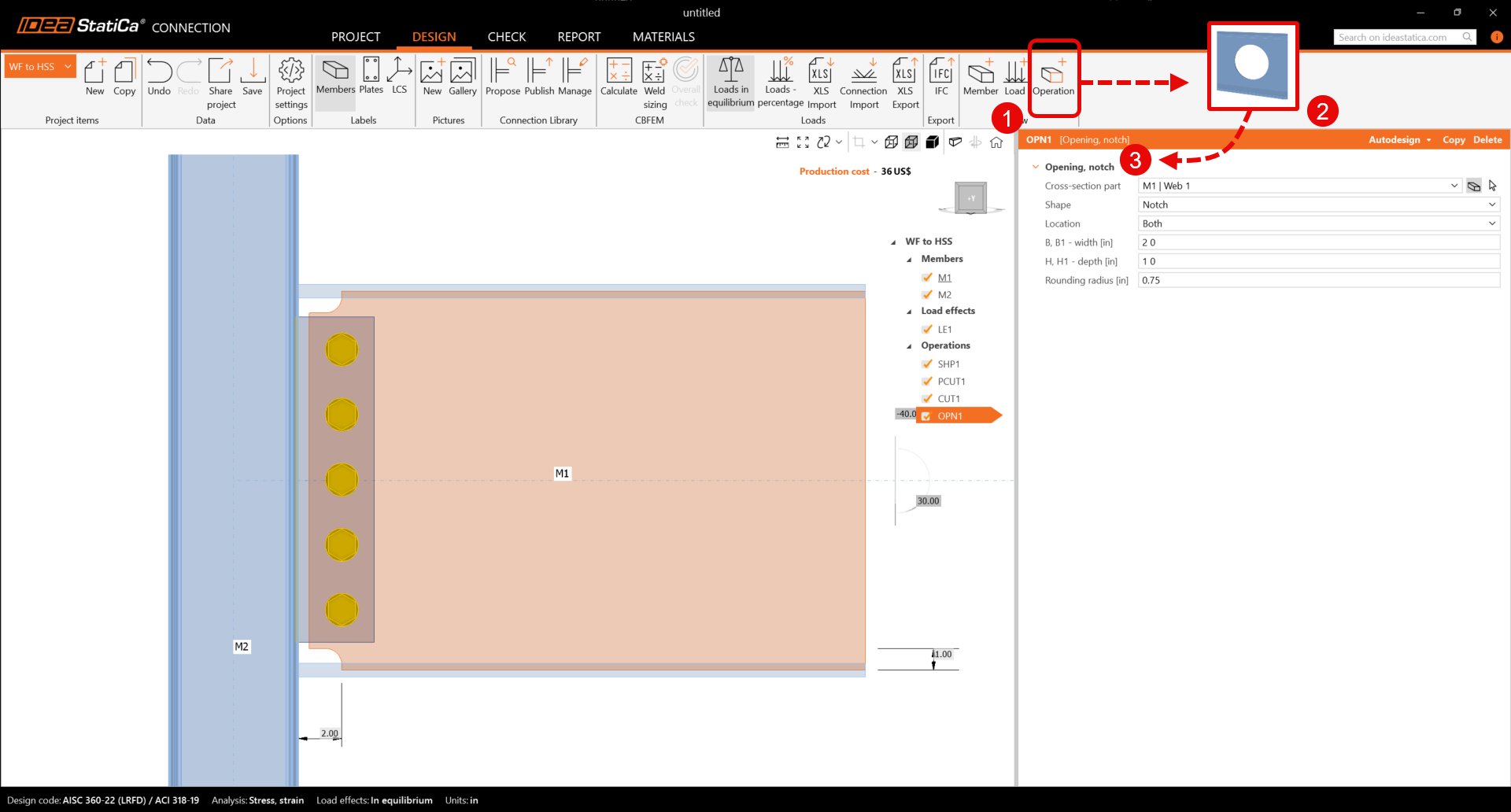
Finally, add an opening operation and input the values as shown:
5 Analysis and report
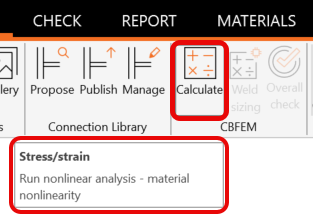
Now that the connection is modeled click the Calculate icon:
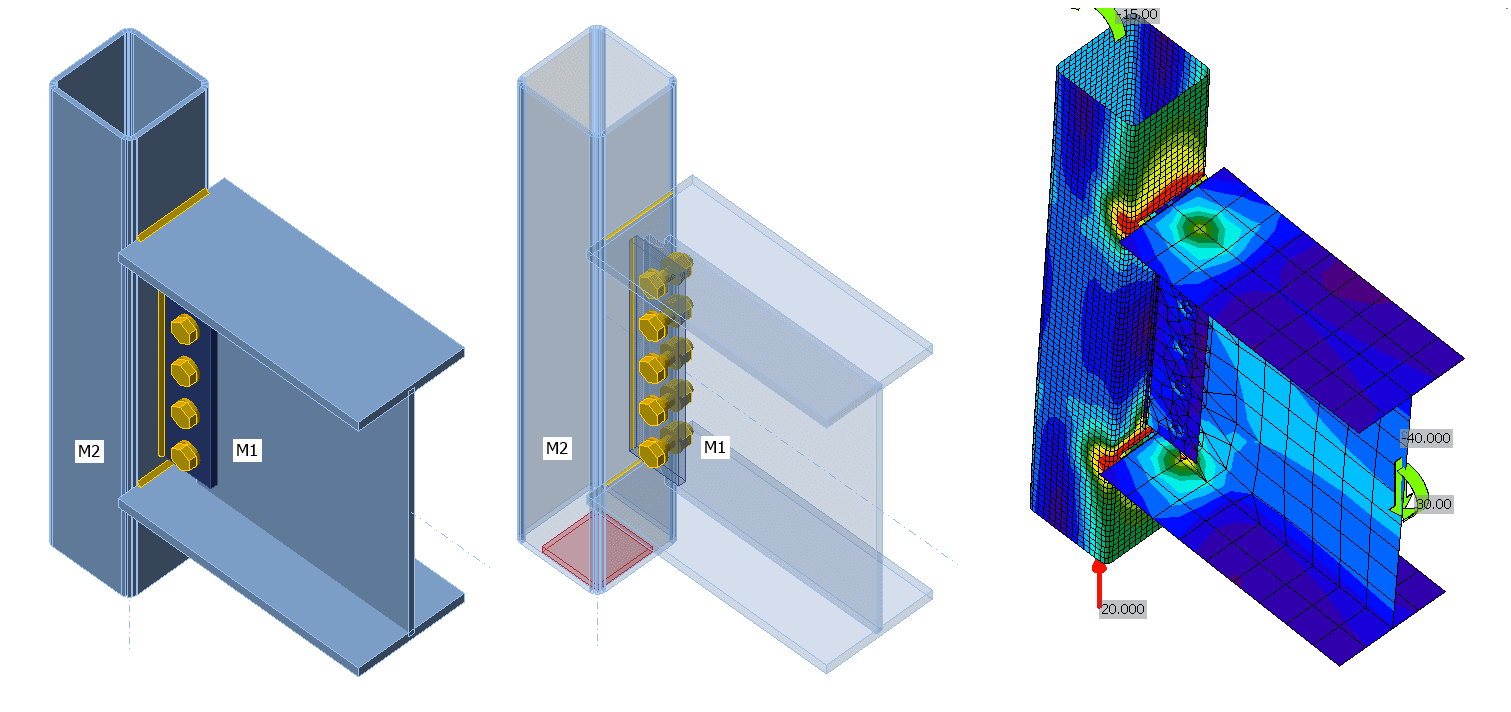
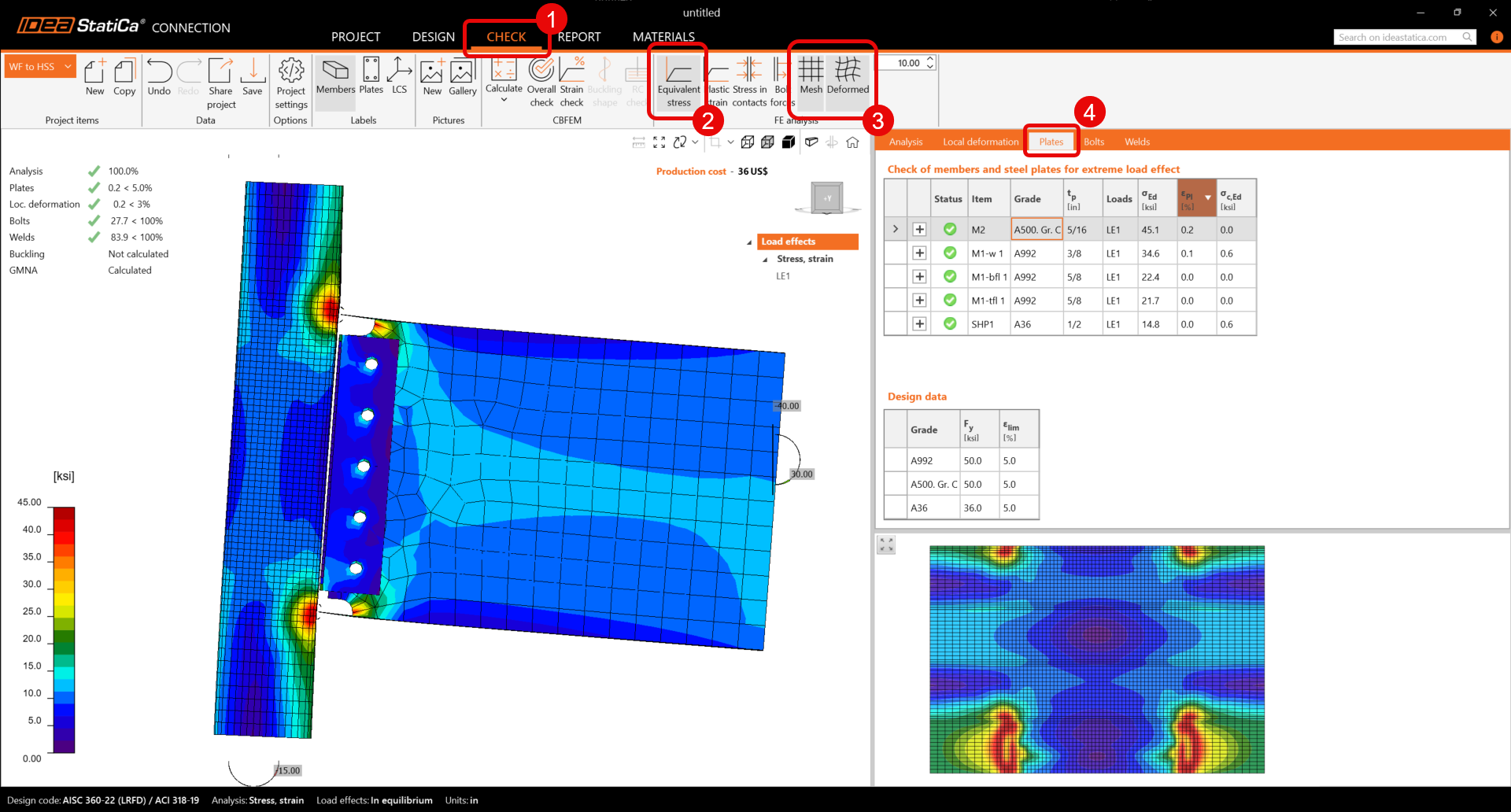
When the analysis finishes, go to the Check tab and click on Equivalent stresses and deformed shape. The first check is the deformed shape to review if the deformation is logical. Also, you can see the summary of checks and confirm that the connection complies with AISC checks.
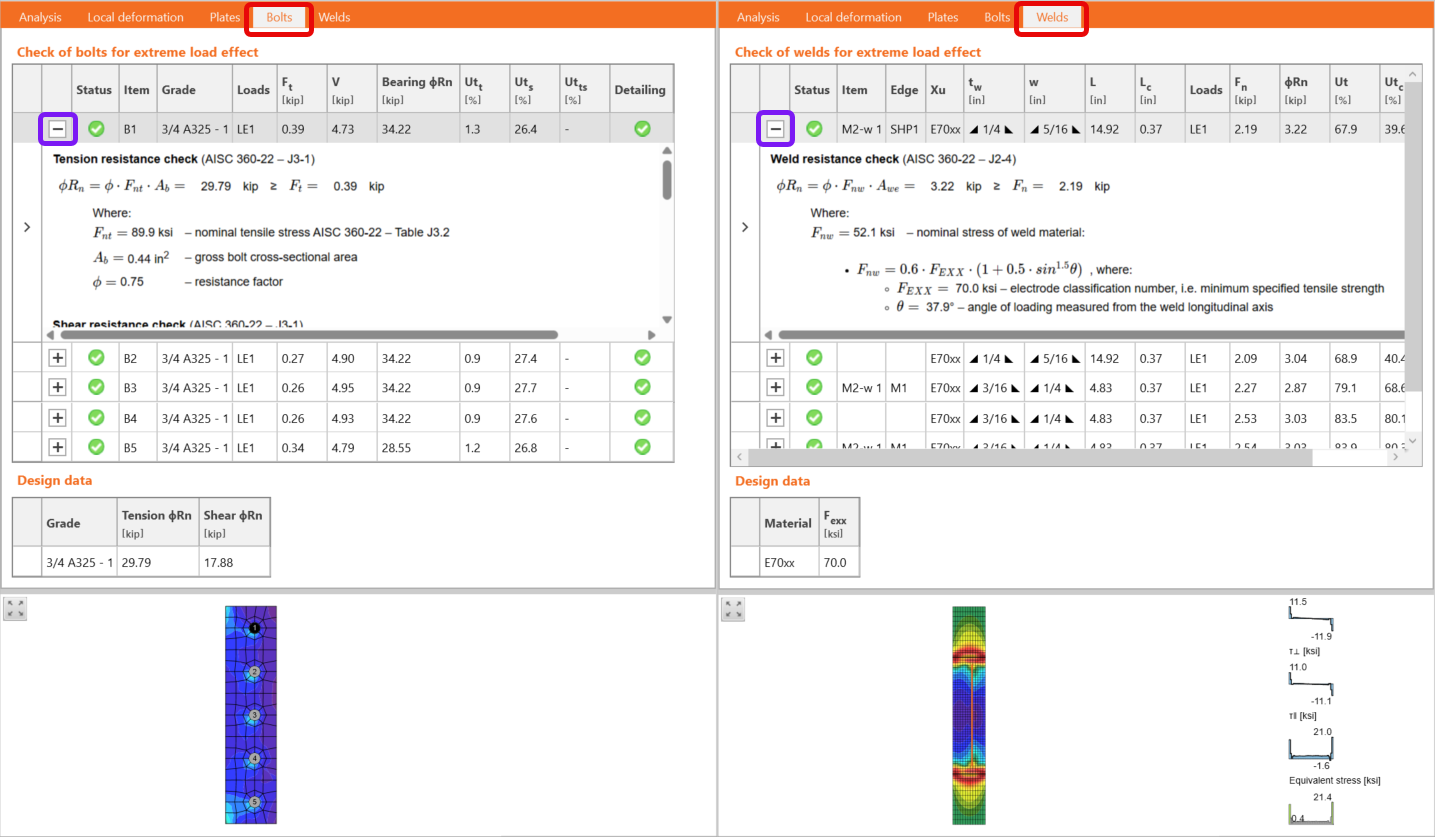
To review the calculations, go through the next tabs and click on the plus icon to get the calculations of every bolt and weld:
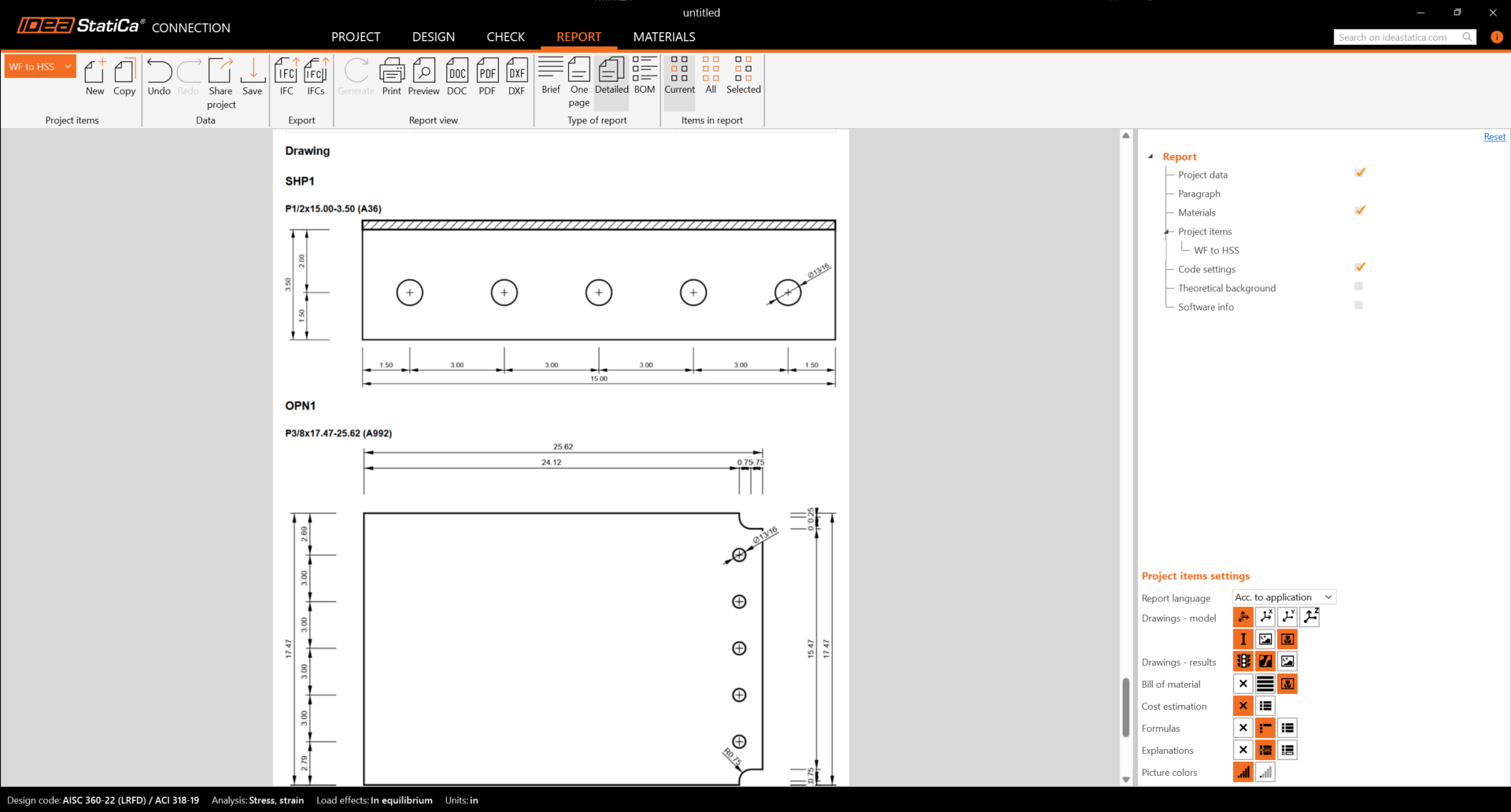
Finally, click on the report and activate the following items to get detailed checks and drawings. A PDF version of the report is available when clicking on the PDF icon: