

First steps
We recommend going through the tutorial How to get started with API - Basics 01, which teaches you about the API and how to set up the environment.
Connection file
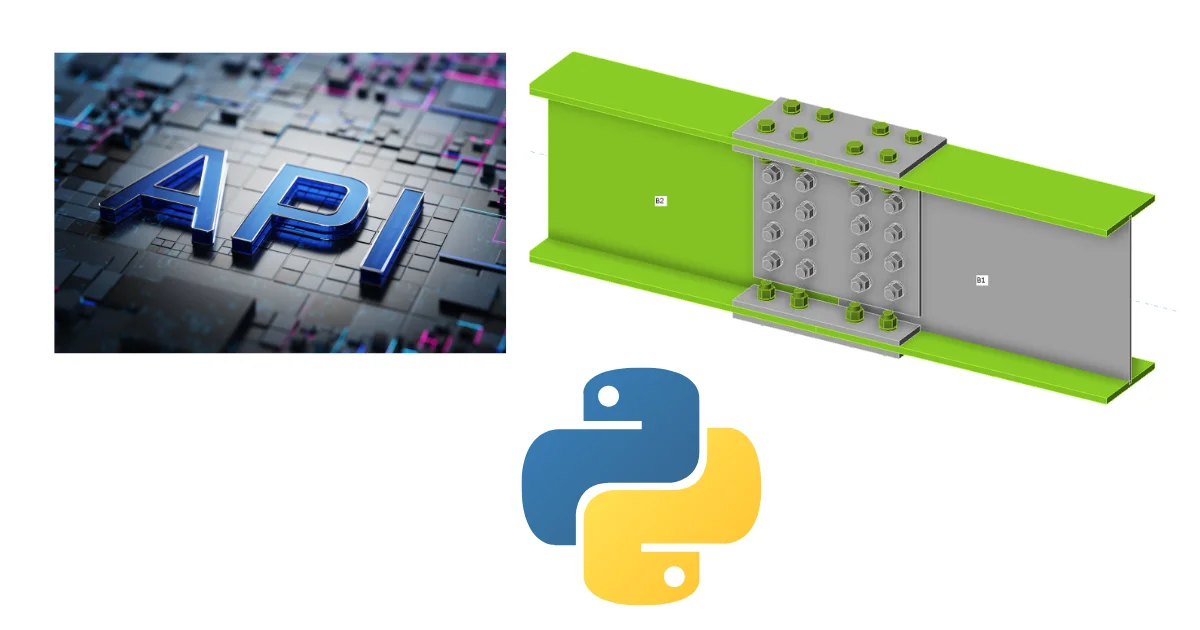
First, create a joint of two hollow cross-sections RHS 300/200/8 and change the parameters according to the following pictures.
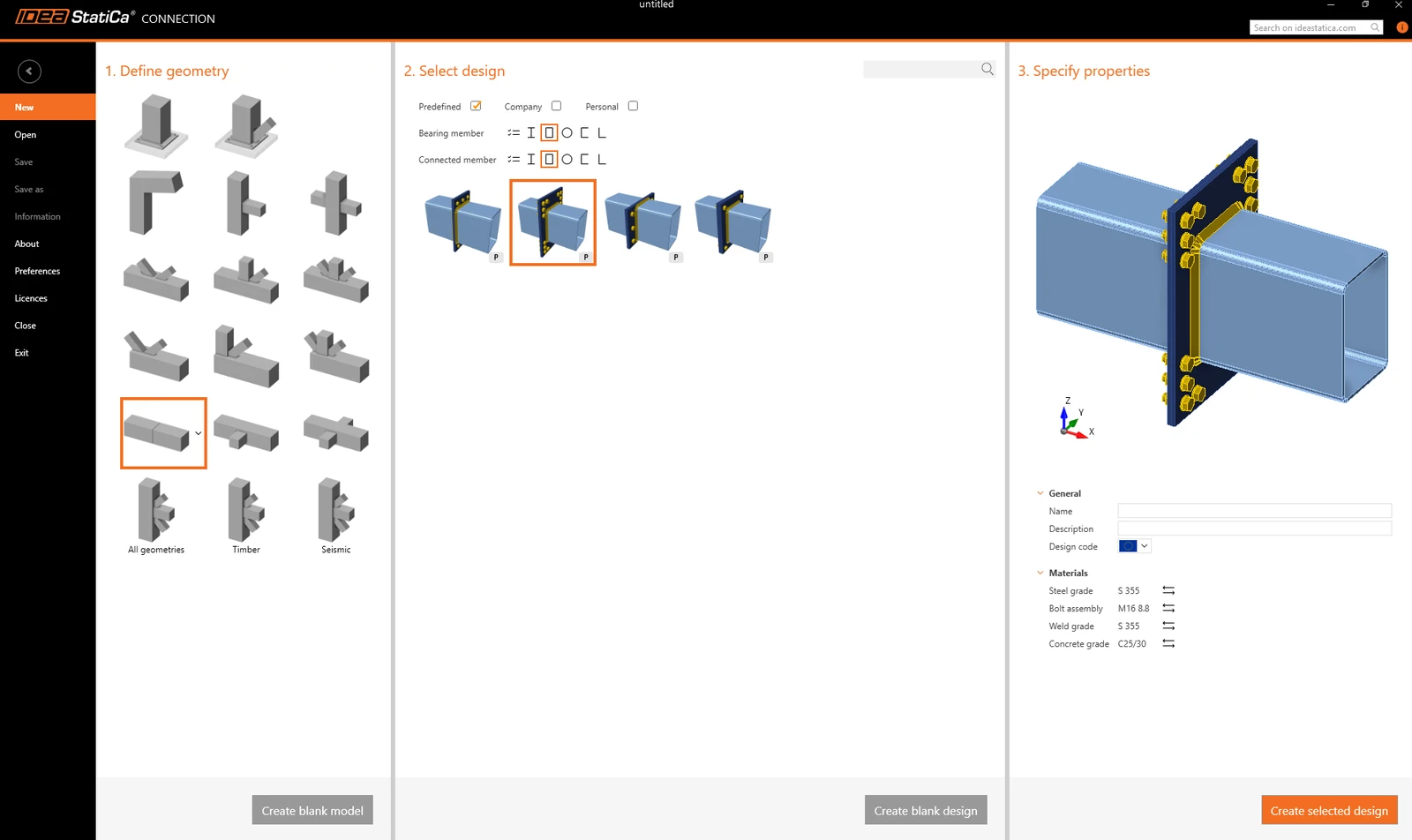
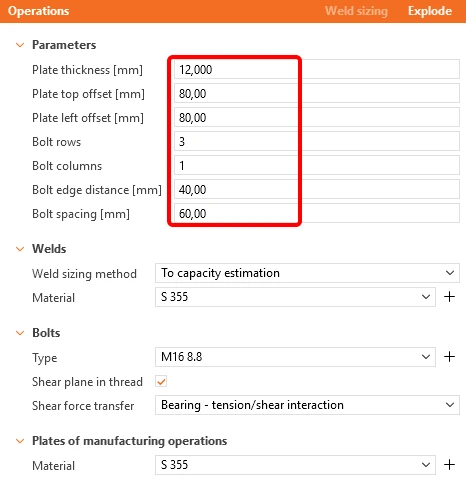
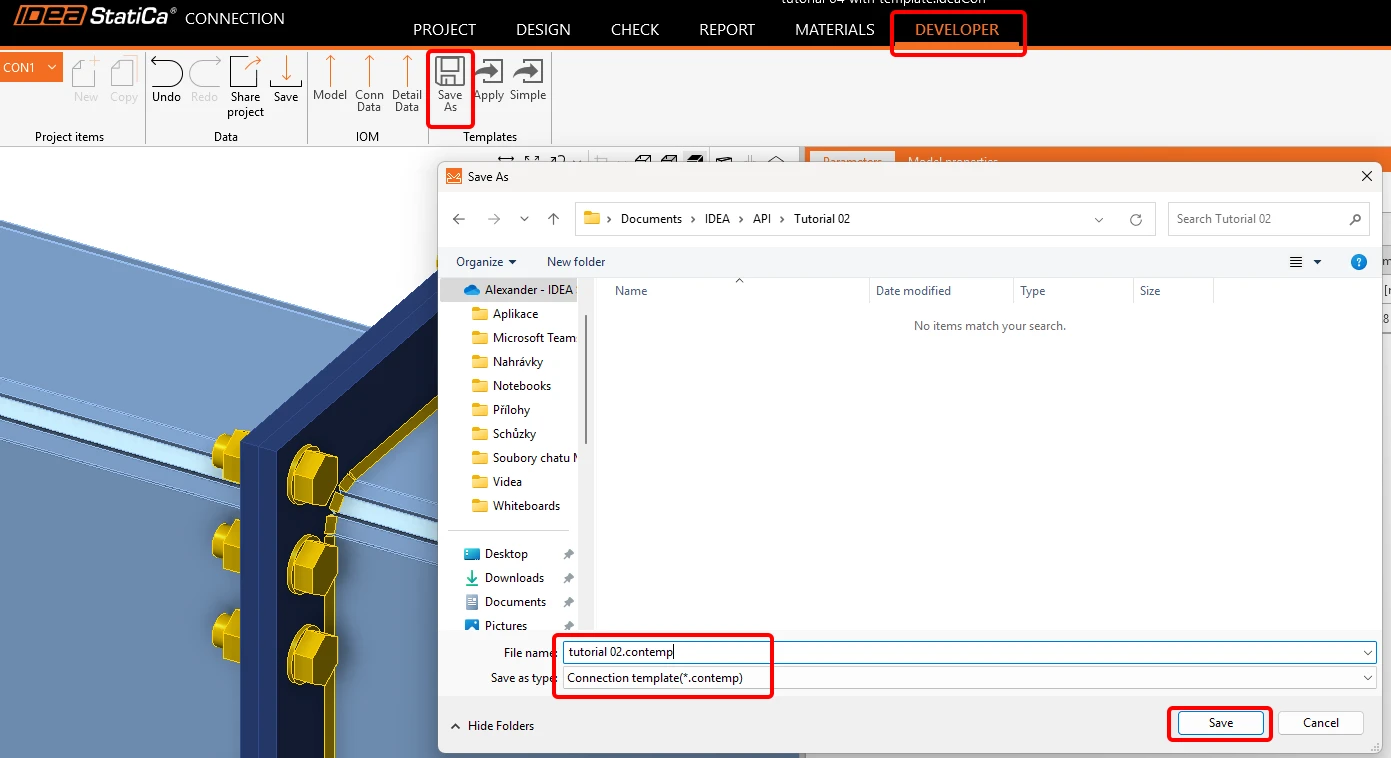
Now, go to the Developer tab and save it as a template with the name tutorial 02.contemp. We will use it in the next tutorial.
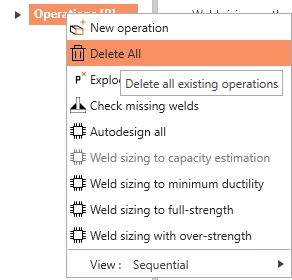
Go back to the Design tab, right-click on Operations / Delete All, and store this empty file under tutorial 02 - empty.ideaCon.
Excel sheet with load combinations
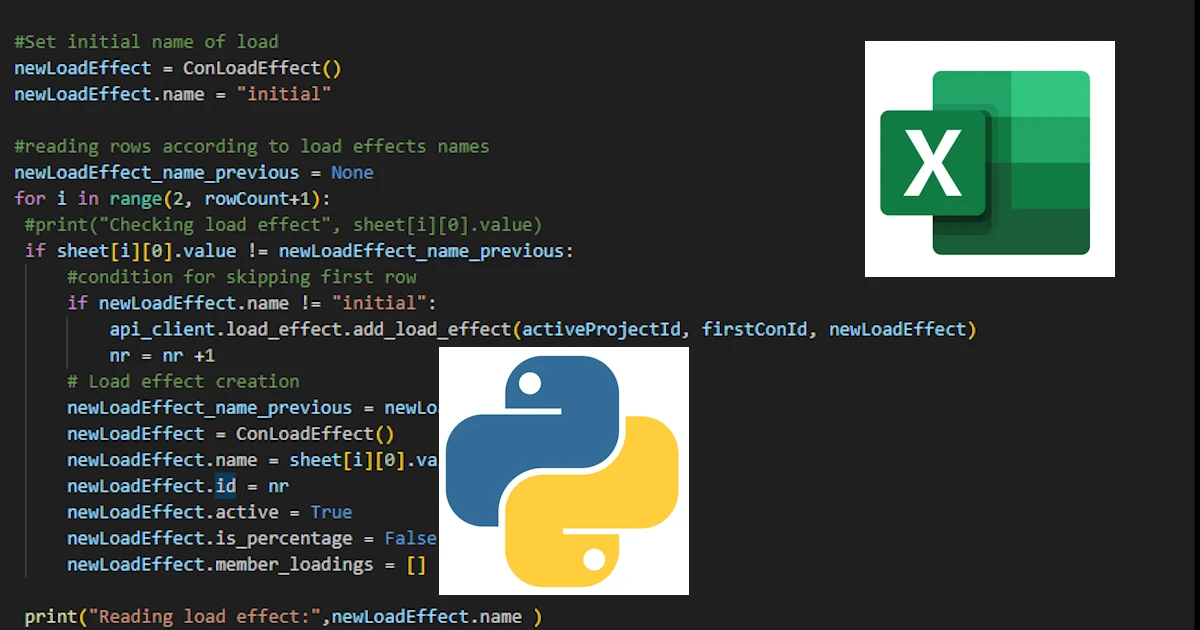
As a next step, prepare an Excel sheet with loads we want to import into the .ideaCon file. You can download it at the bottom of this page.
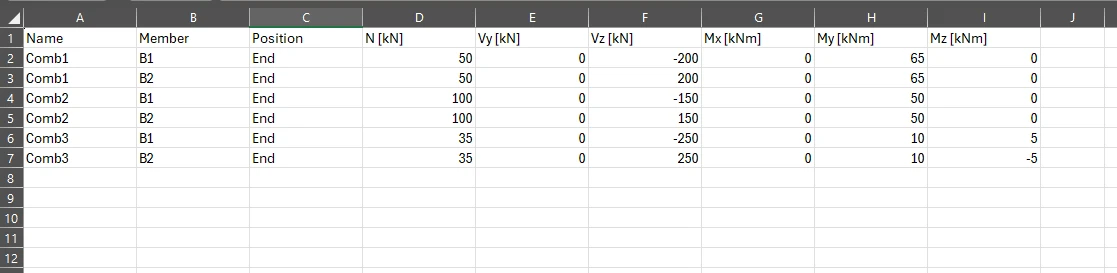
Please use the exact names of the columns as they are used in the Python script.
Python client
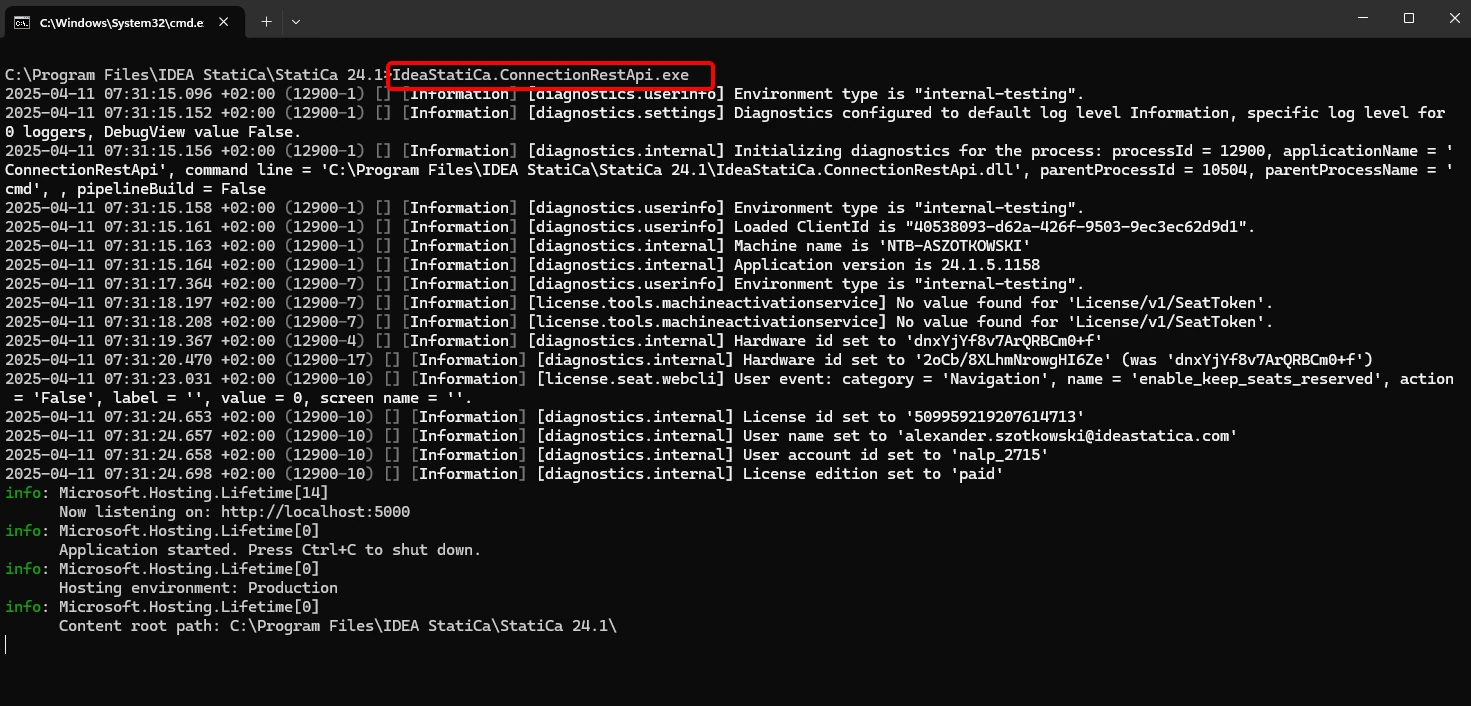
Run the "IdeaStatiCa.ConnectionRestApi.exe," in CMD within the proper IDEA StatiCa folder and open the IDE tool of your choice.
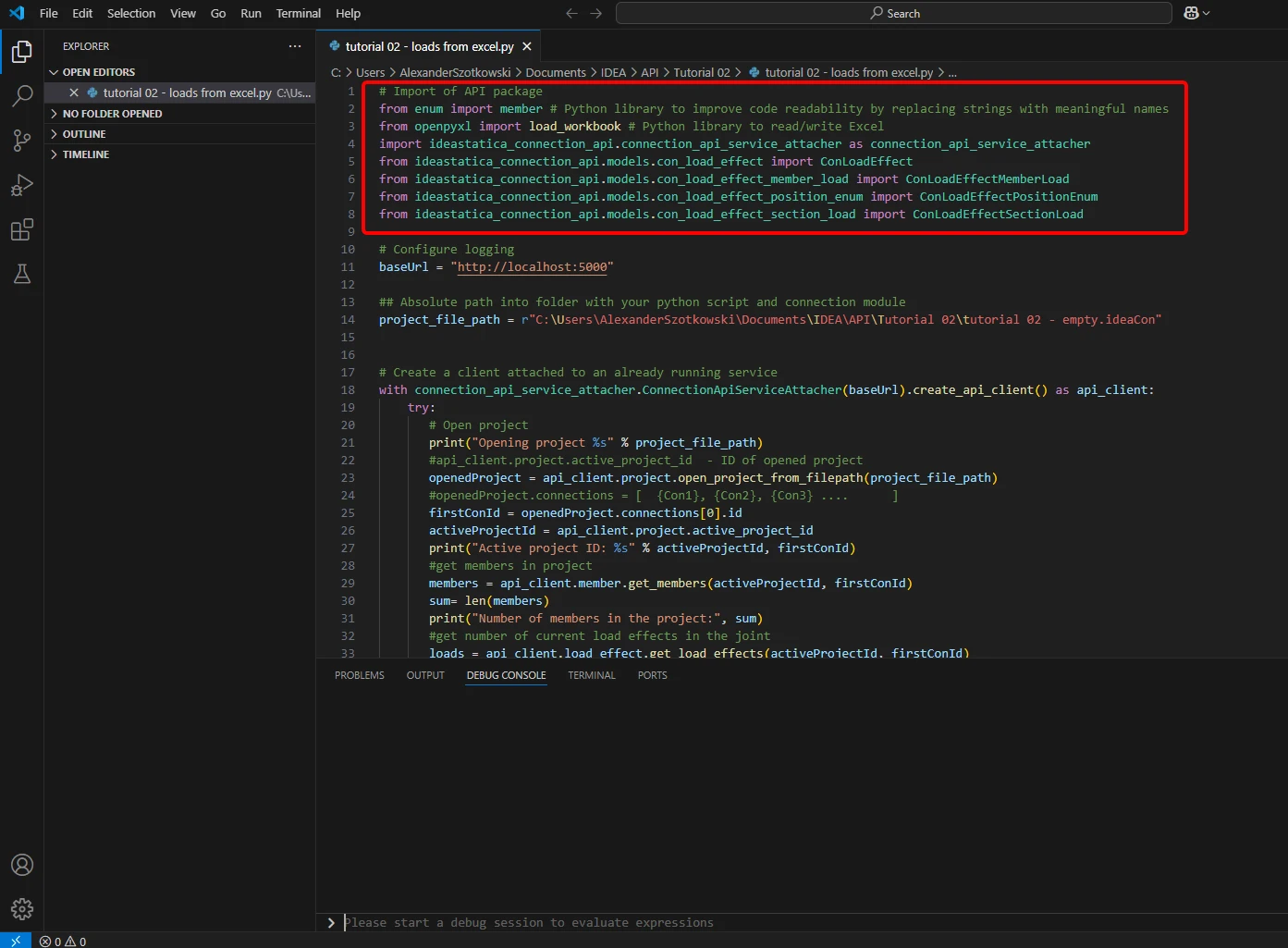
- Create a new file and import the packages that will enable the use of calculation and link with the localhost URL.
Source code:
## Import of API package
from enum import member # Python library to improve code readability by replacing strings with meaningful names
from openpyxl import load_workbook # Python library to read/write Excel
import ideastatica_connection_api.connection_api_service_attacher as connection_api_service_attacher
from ideastatica_connection_api.models.con_load_effect import ConLoadEffect
from ideastatica_connection_api.models.con_load_effect_member_load import ConLoadEffectMemberLoad
from ideastatica_connection_api.models.con_load_effect_position_enum import ConLoadEffectPositionEnum
from ideastatica_connection_api.models.con_load_effect_section_load import ConLoadEffectSectionLoad
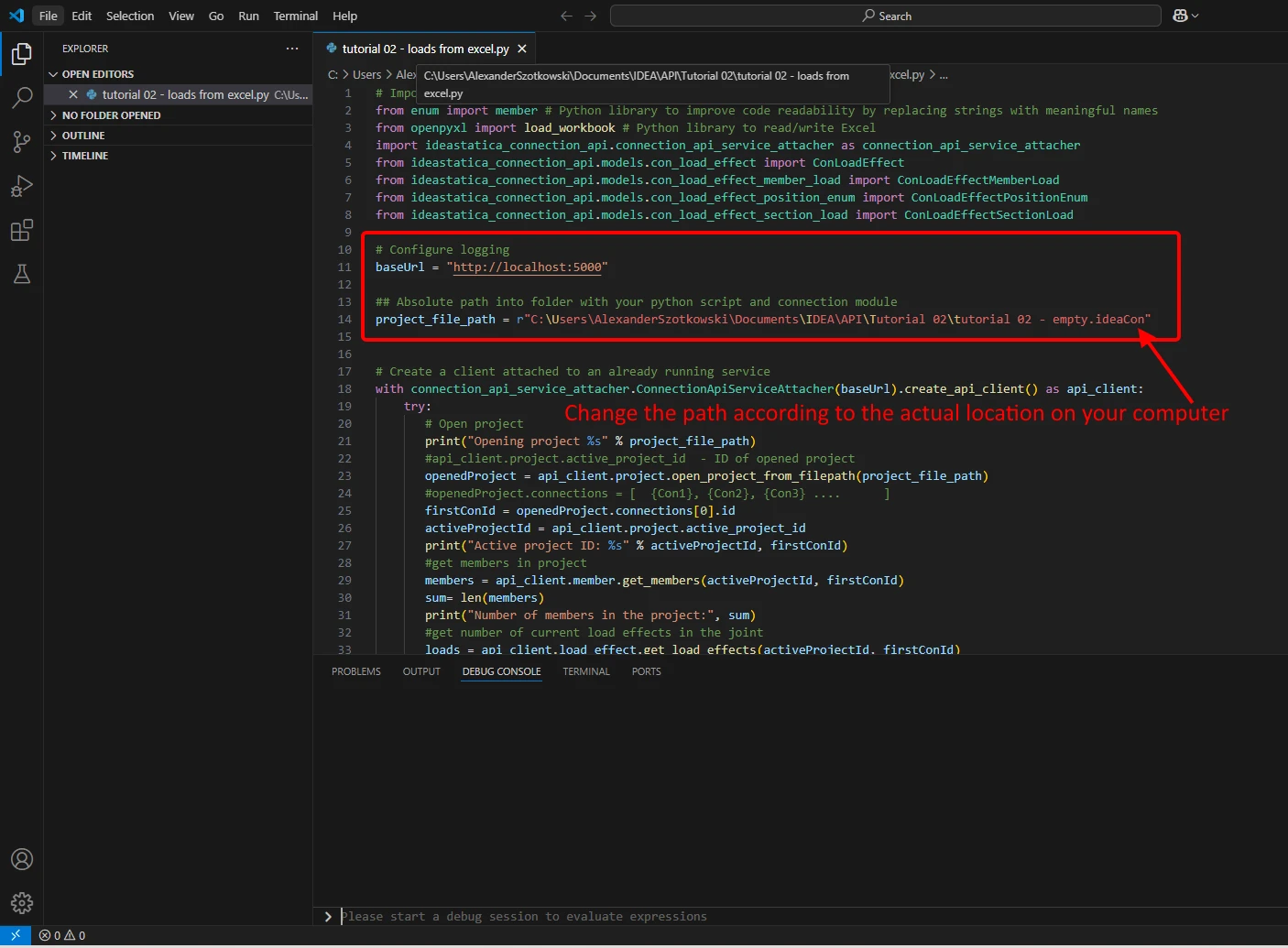
- Configure the logging via the variable "baseUrl," which will pull up your localhost. In the second step, pair the absolute path of your IDEA StatiCa Connection file.
Source code:
## Configure logging
baseUrl = "http://localhost:5000"
## Absolute path into a folder with your python script and connection module
project_file_path = r"C:\Users\*username*\Documents\IDEA\API\Tutorial 02\tutorial 02 - empty.ideaCon"
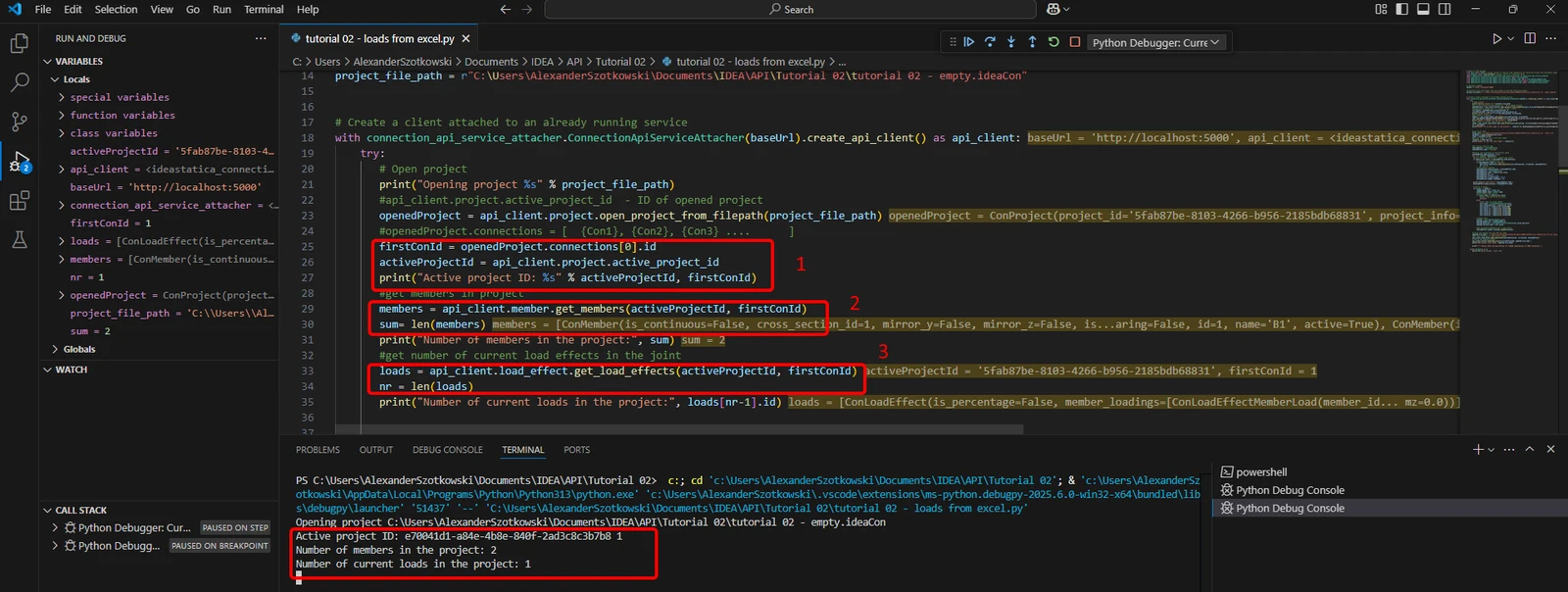
- Pair the client with an already running service. Use the block try/except - since the try block raises an error, the except block will be executed. In the first phase, it is necessary to open up the project and find the project ID of your project that is unique for every IDEA StatiCa project. If you run the script, you can read out the printed path, unique ID(1), number of attached members(2), and current number of loads(3).
Source code:
# Create a client attached to an already running service
with connection_api_service_attacher.ConnectionApiServiceAttacher(baseUrl).create_api_client() as api_client:
try:
## Open the project
print("Opening project %s" % project_file_path)
#api_client.project.active_project_id - ID of opened project
openedProject = api_client.project.open_project_from_filepath(project_file_path)
#openedProject.connections = [ {Con1}, {Con2}, {Con3} .... ]
firstConId = openedProject.connections[0].id
activeProjectId = api_client.project.active_project_id
print("Active project ID: %s" % activeProjectId, firstConId)
#get members in project
members = api_client.member.get_members(activeProjectId, firstConId)
sum= len(members)
print("Number of members in the project:", sum)
#get number of current load effects in the joint
loads = api_client.load_effect.get_load_effects(activeProjectId, firstConId)
nr = len(loads)
print("Number of current loads in the project:", loads[nr-1].id)
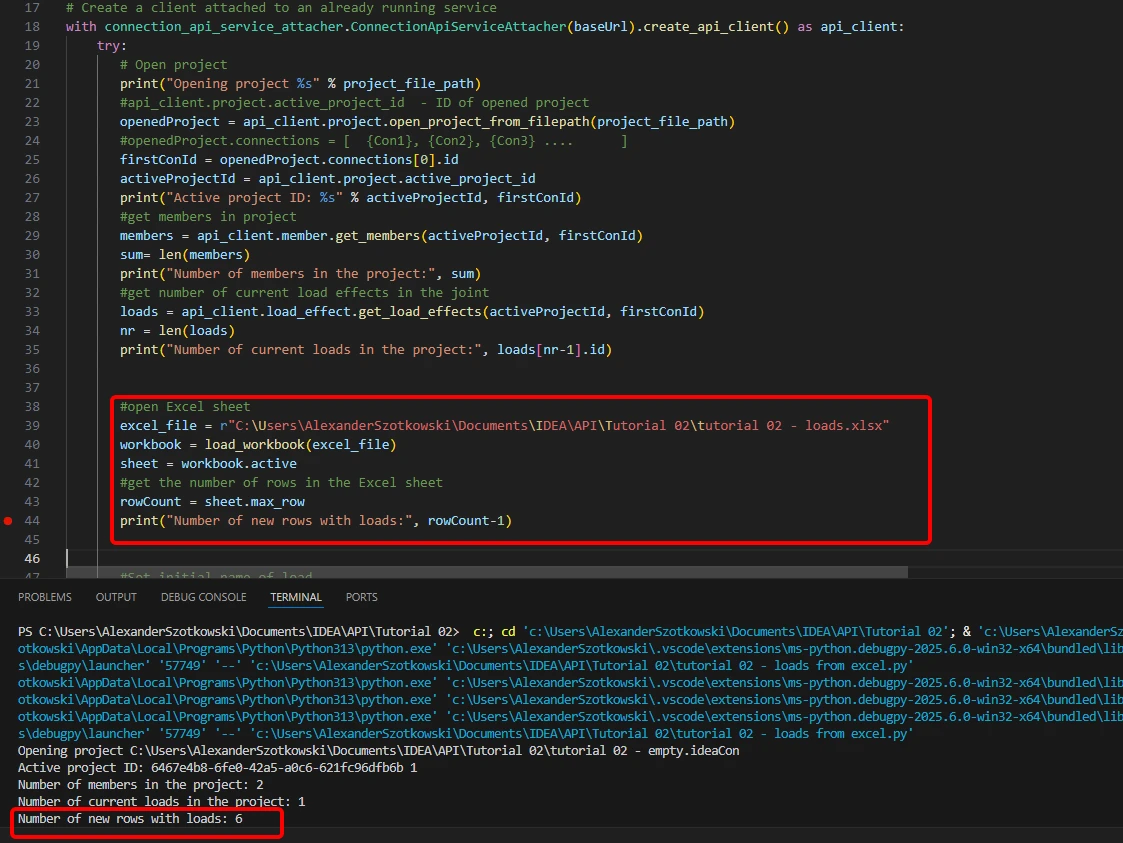
- Open the Excel sheet, and read the number of rows with loads.
Source code:
#open Excel sheet
excel_file = r"C:\Users\*username*\Documents\IDEA\API\Tutorial 02\tutorial 02 - loads.xlsx"
workbook = load_workbook(excel_file)
sheet = workbook.active
#get the number of rows in the Excel sheet
rowCount = sheet.max_row
print("Number of new rows with loads:", rowCount-1)
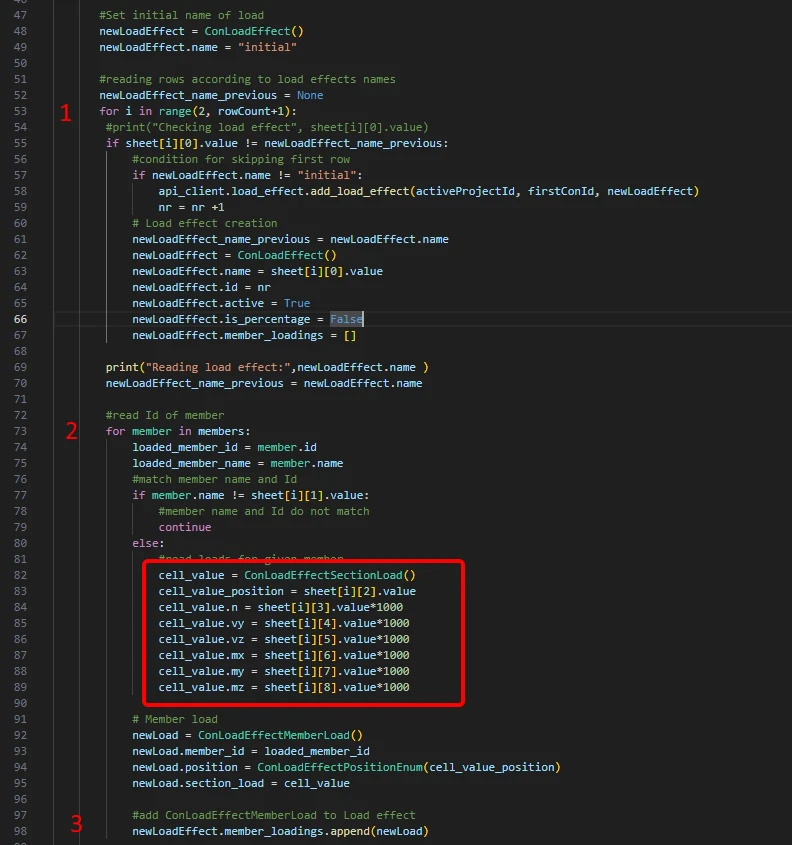
- Start a loop to detect the rows with the same load combination name(1). Within this loop, another loop adding loads to each member is started(2). After each loop, one line with the loads is added(3).
#Set initial name of load
newLoadEffect = ConLoadEffect()
newLoadEffect.name = "initial"
#reading rows according to load effects names
newLoadEffect_name_previous = None
for i in range(2, rowCount+1):
#print("Checking load effect", sheet[i][0].value)
if sheet[i][0].value != newLoadEffect_name_previous:
#condition for skipping first row
if newLoadEffect.name != "initial":
api_client.load_effect.add_load_effect(activeProjectId, firstConId, newLoadEffect)
nr = nr +1
# Load effect creation
newLoadEffect_name_previous = newLoadEffect.name
newLoadEffect = ConLoadEffect()
newLoadEffect.name = sheet[i][0].value
newLoadEffect.id = nr
newLoadEffect.active = True
newLoadEffect.is_percentage = False
newLoadEffect.member_loadings = []
print("Reading load effect:",newLoadEffect.name )
newLoadEffect_name_previous = newLoadEffect.name
#read Id of member
for member in members:
loaded_member_id = member.id
loaded_member_name = member.name
#match member name and Id
if member.name != sheet[i][1].value:
#member name and Id do not match
continue
else:
#read loads for given member
cell_value = ConLoadEffectSectionLoad()
cell_value_position = sheet[i][2].value
cell_value.n = sheet[i][3].value*1000
cell_value.vy = sheet[i][4].value*1000
cell_value.vz = sheet[i][5].value*1000
cell_value.mx = sheet[i][6].value*1000
cell_value.my = sheet[i][7].value*1000
cell_value.mz = sheet[i][8].value*1000
# Member load
newLoad = ConLoadEffectMemberLoad()
newLoad.member_id = loaded_member_id
newLoad.position = ConLoadEffectPositionEnum(cell_value_position)
newLoad.section_load = cell_value
#add ConLoadEffectMemberLoad to Load effect
newLoadEffect.member_loadings.append(newLoad)
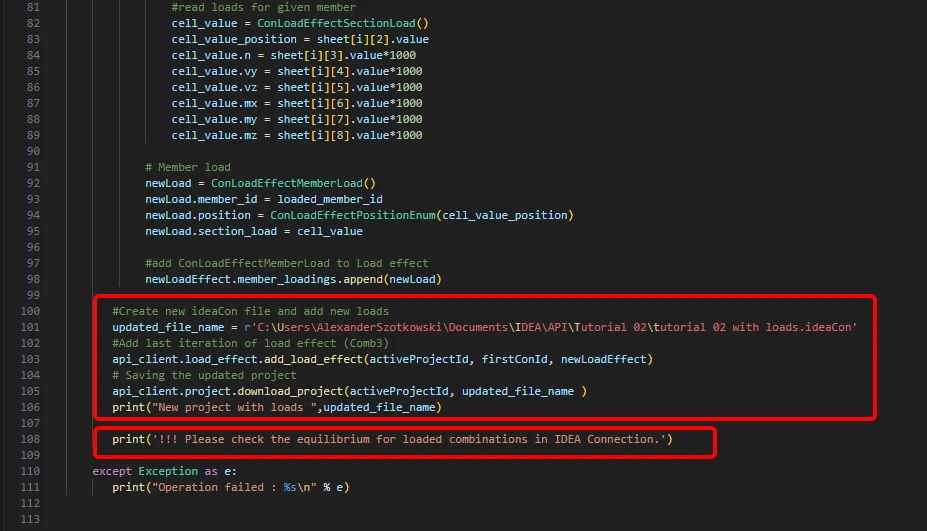
- Create a new file and store the updated project with the newly added combinations. A remark about checking equilibrium is added.
Source code:
#Create new ideaCon file and add new loads
updated_file_name = r'C:\Users\AlexanderSzotkowski\Documents\IDEA\API\Tutorial 02\tutorial 02 with loads.ideaCon'
#Add last iteration of load effect (Comb3)
api_client.load_effect.add_load_effect(activeProjectId, firstConId, newLoadEffect)
# Saving the updated project
api_client.project.download_project(activeProjectId, updated_file_name )
print("New project with loads ",updated_file_name)
print('!!! Please check the equilibrium for loaded combinations in IDEA Connection.')
except Exception as e:
print("Operation failed : %s\n" % e)
Now, you can check the new file to see whether you were successful.