
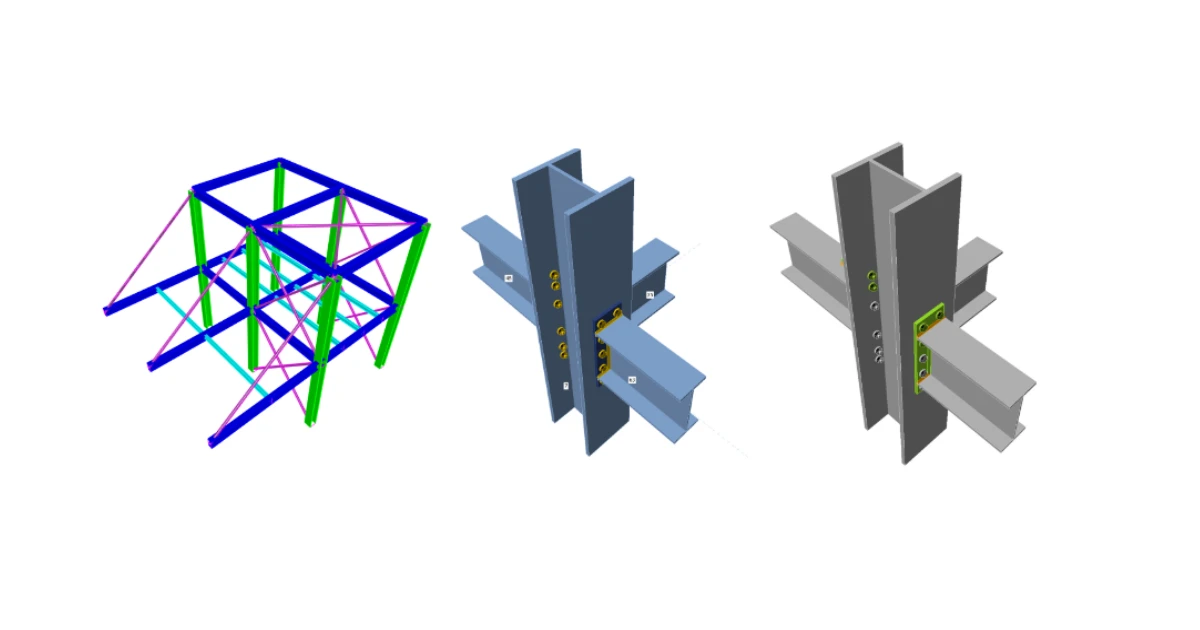
1 How to activate the link
BIM link activation for SAP2000 (v23 and newer)
BIM link activation for SAP2000 (v22 and older)
2 How to use the link
Open the attached project in SAP2000 v22 and run the analysis to get results.
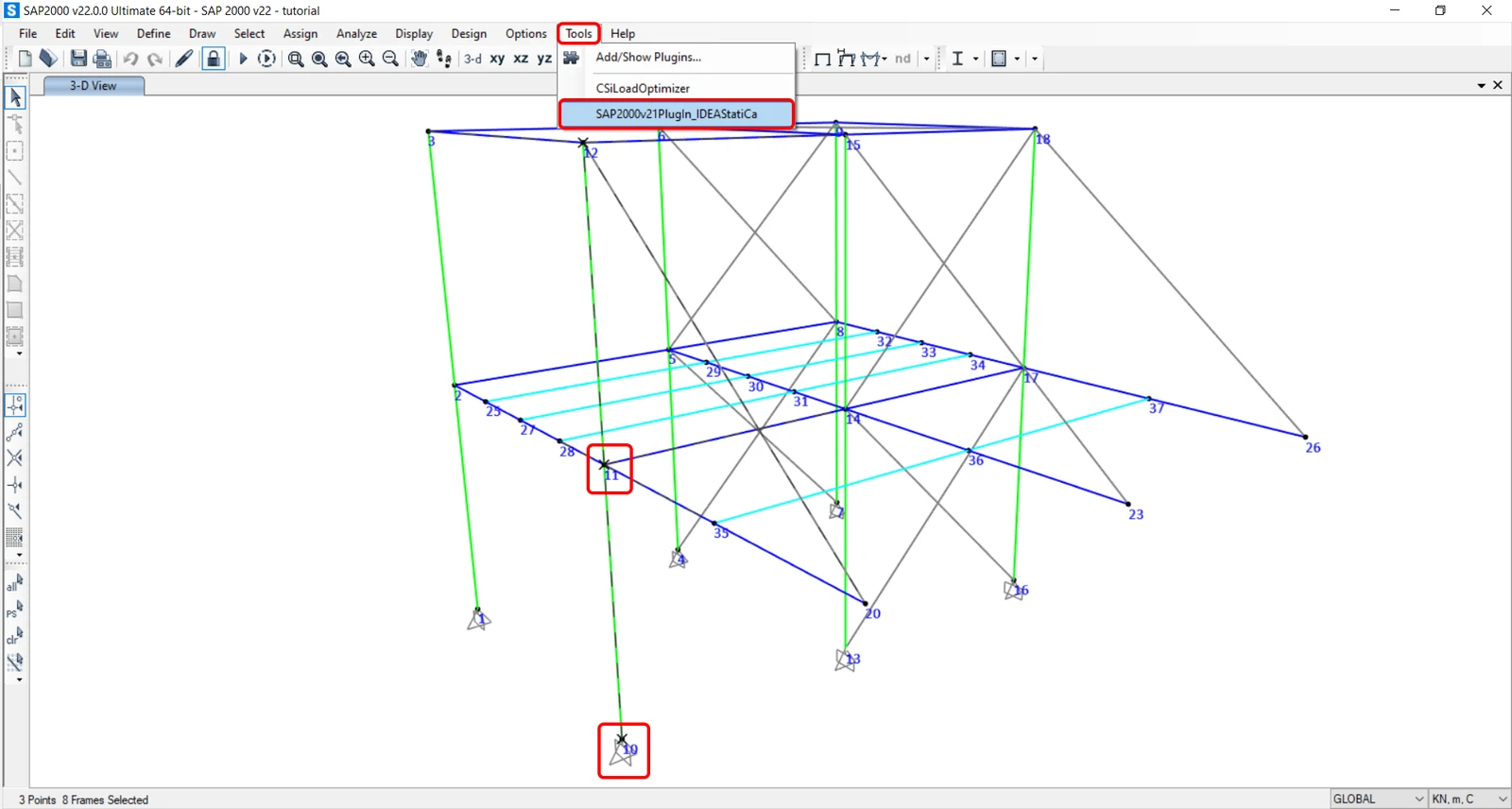
Go to menu item Tools and choose the IDEA StatiCa plugin.
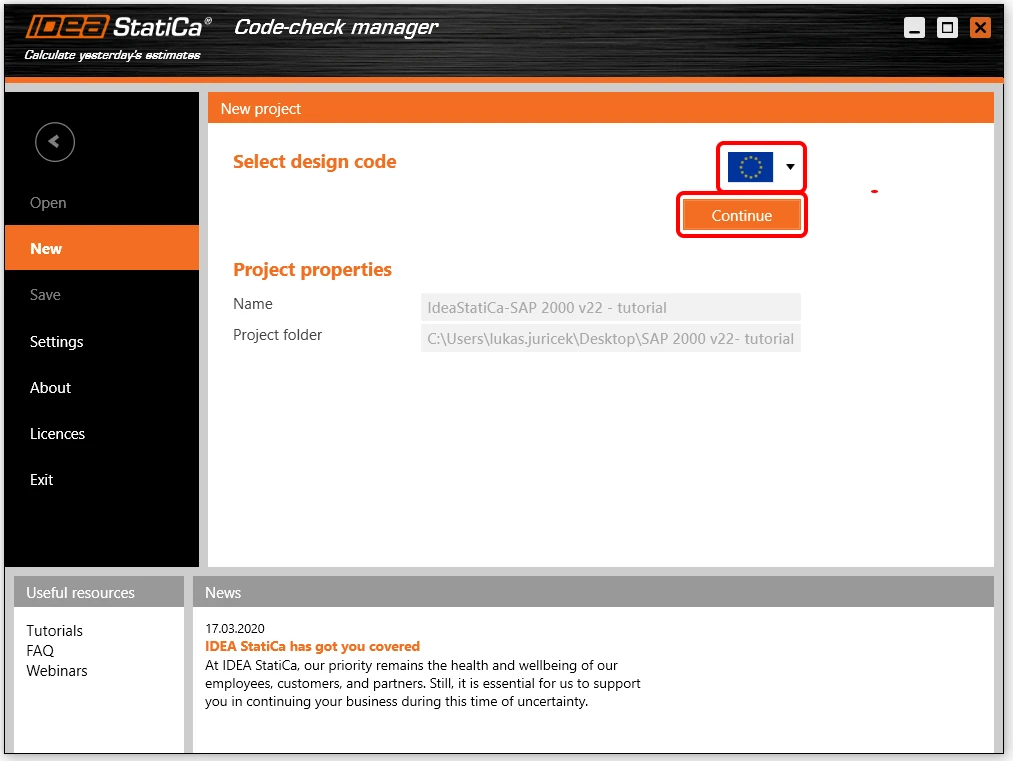
The code check manager pops up and you select the desired Design code (EN).
Confirm the selection by pushing Connection item.
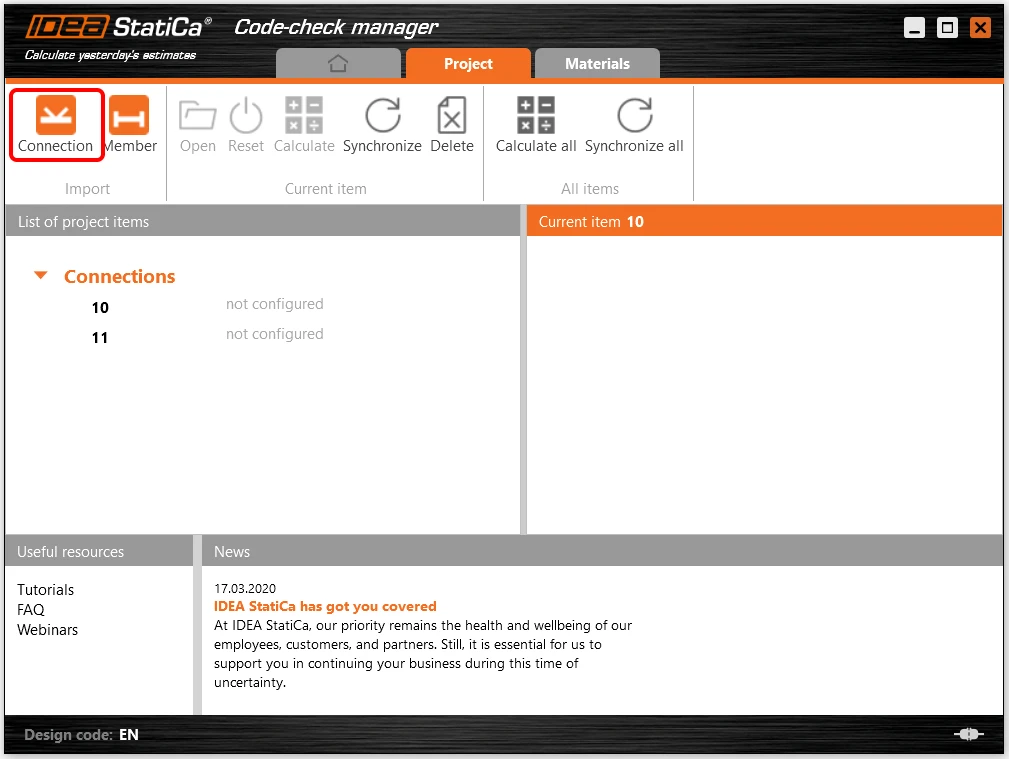
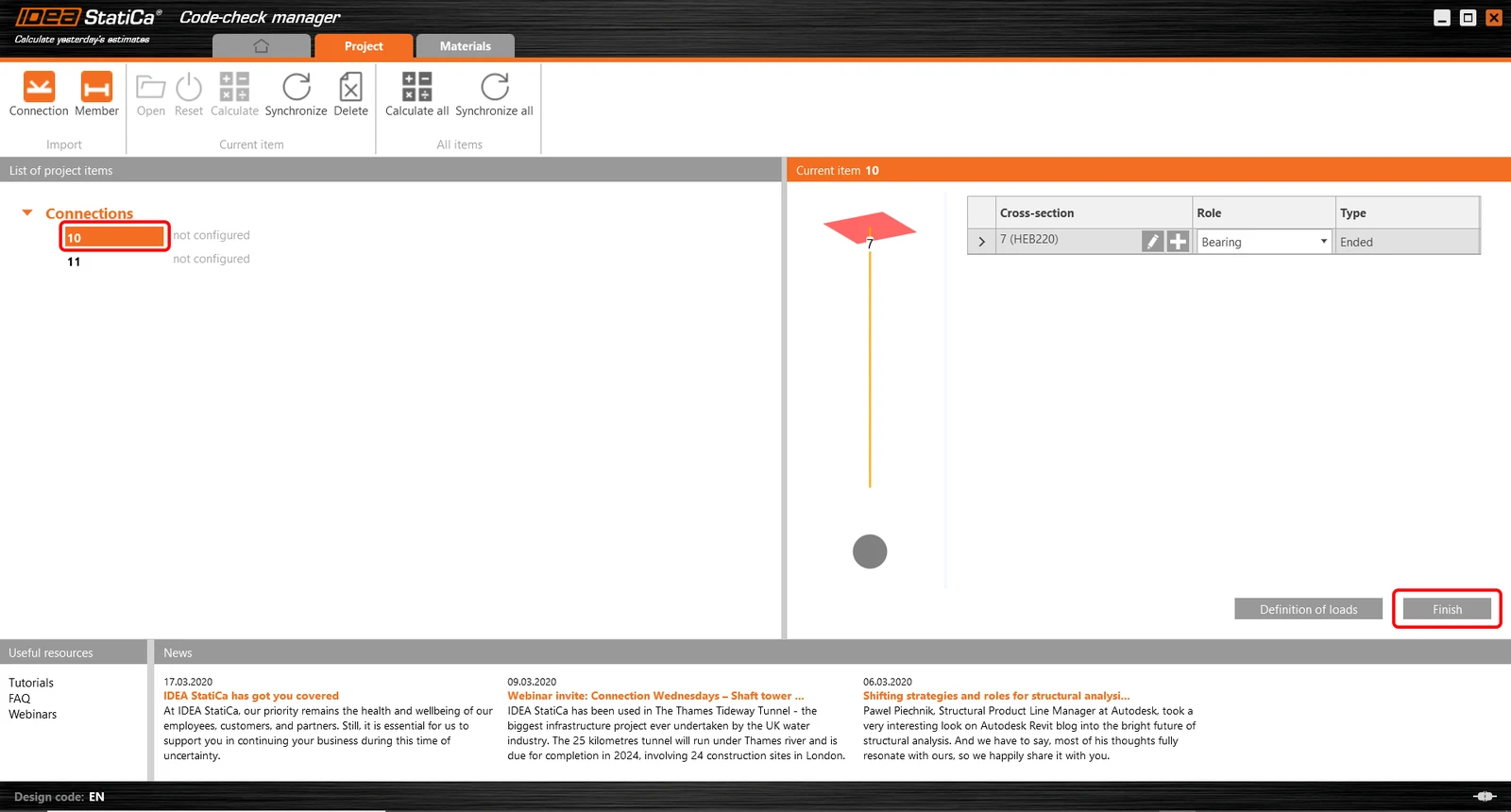
You can start with the selection of Connection 10 and confirm it by Finish item.
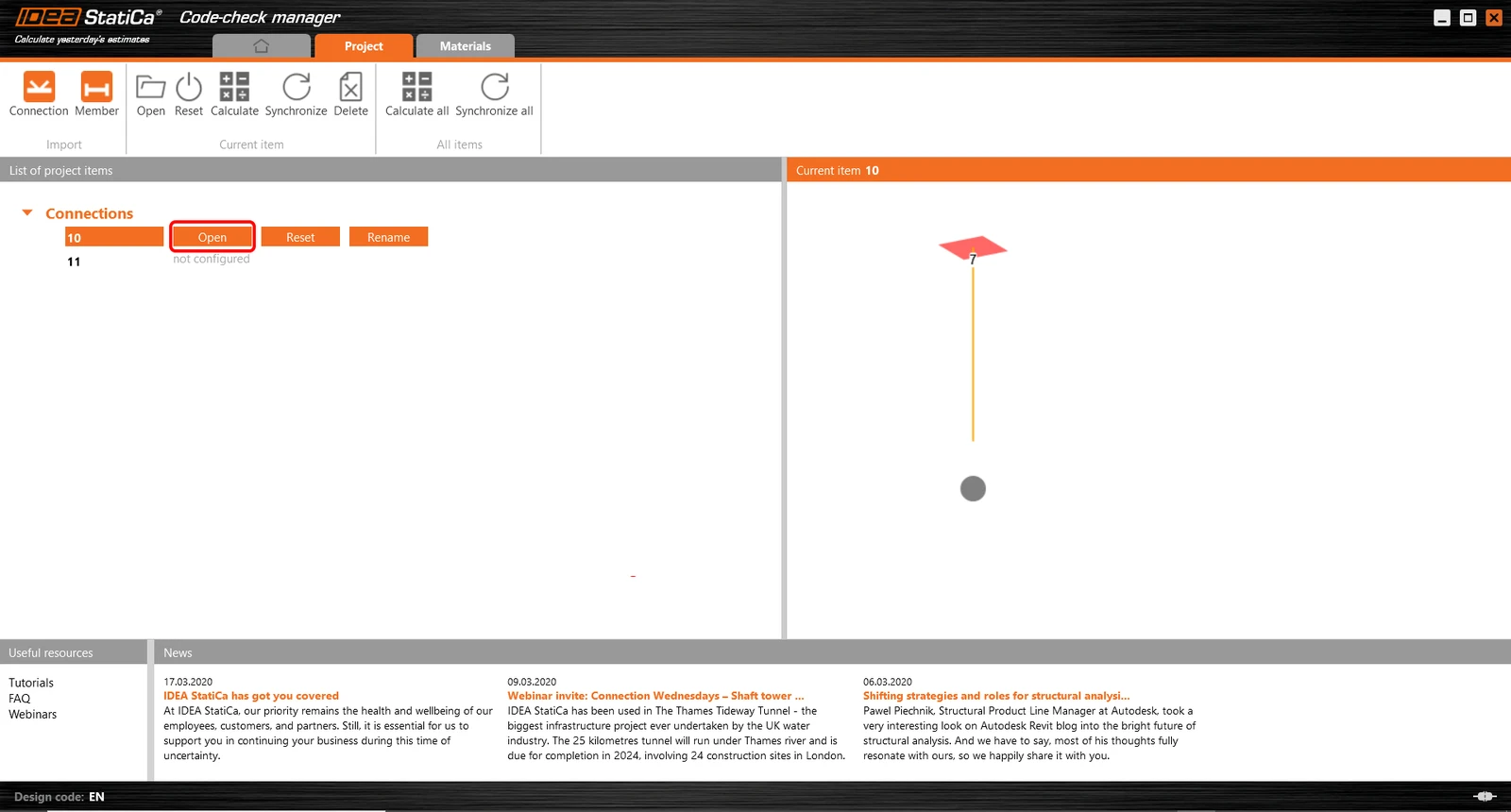
Open the IDEA StatiCa Connection.
3 Design
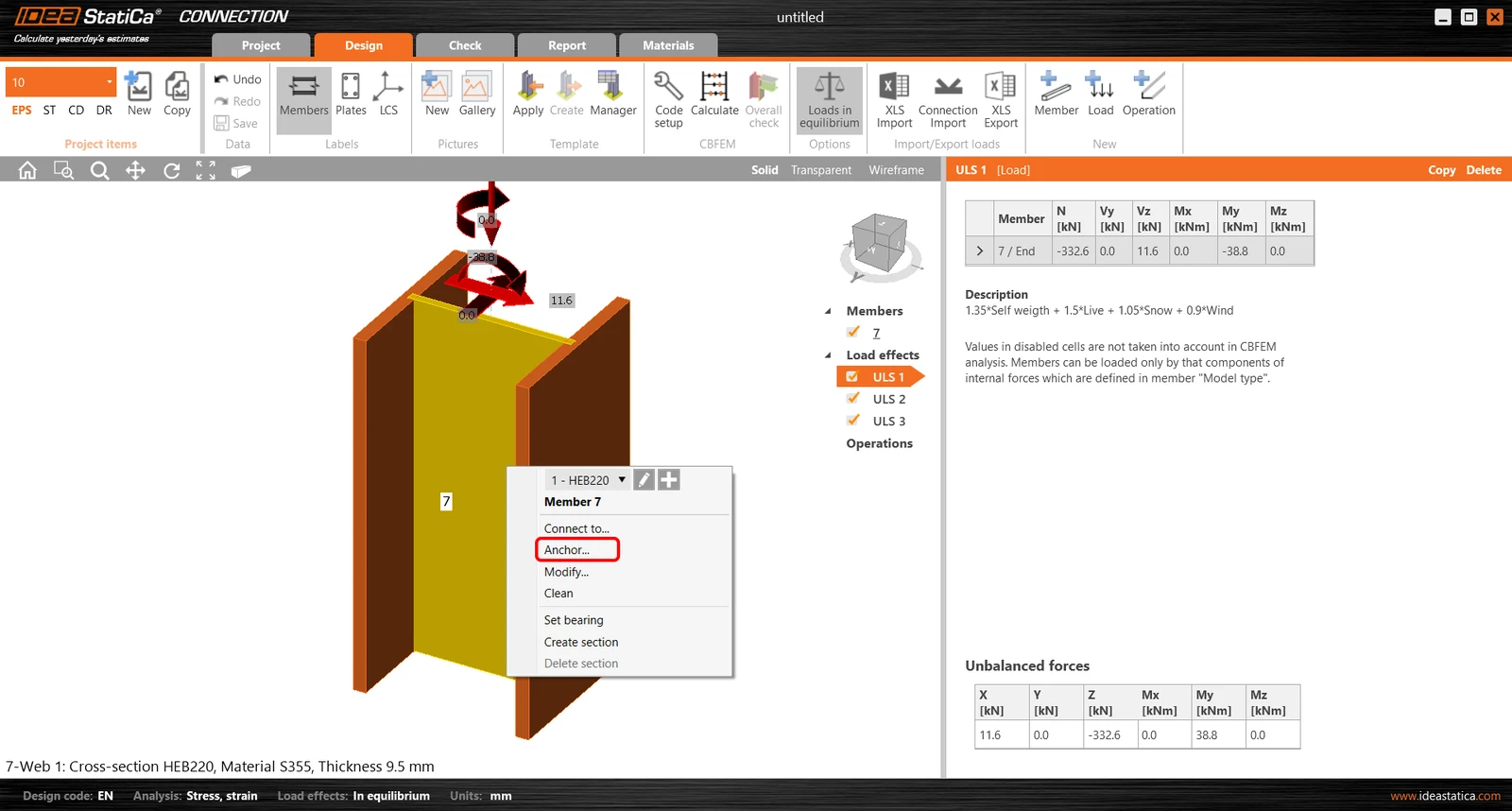
For modeling use the right mouse button on the selected member. You select the Anchor item.
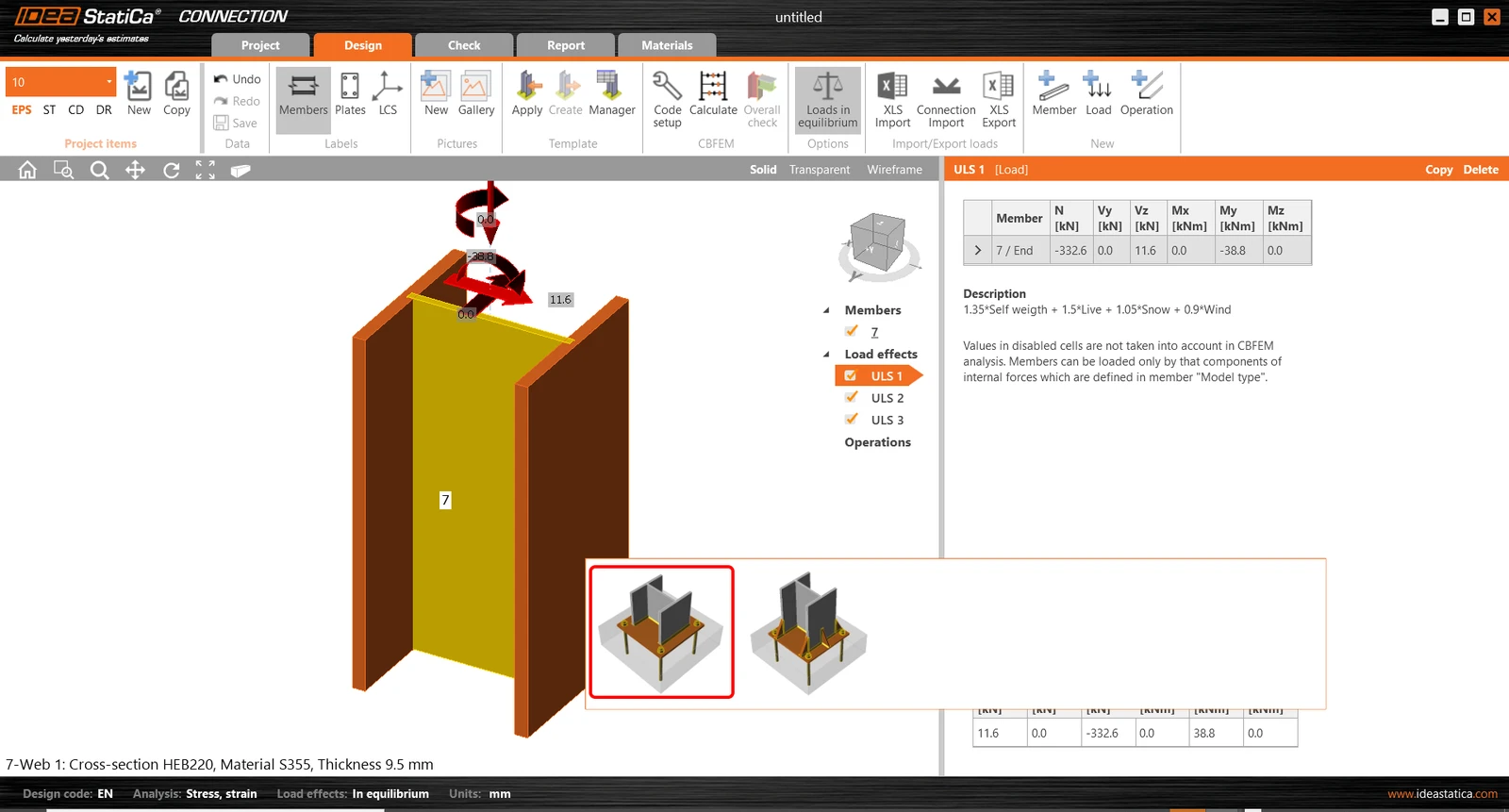
You have the option to select from both anchoring types which are suitable for this member. Select the first one - Baseplate.
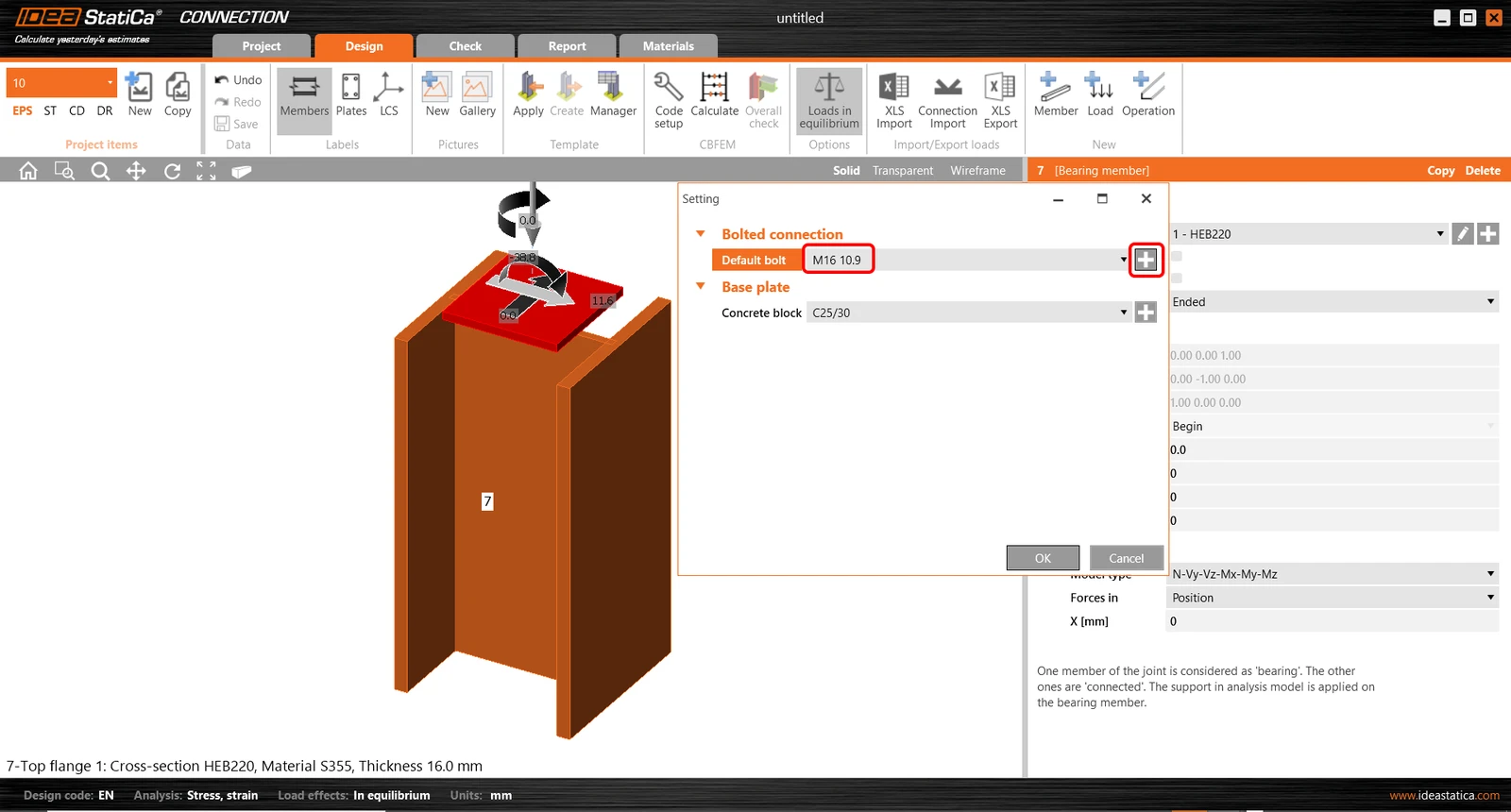
Change the default grade of the anchors into the M16 10.9.
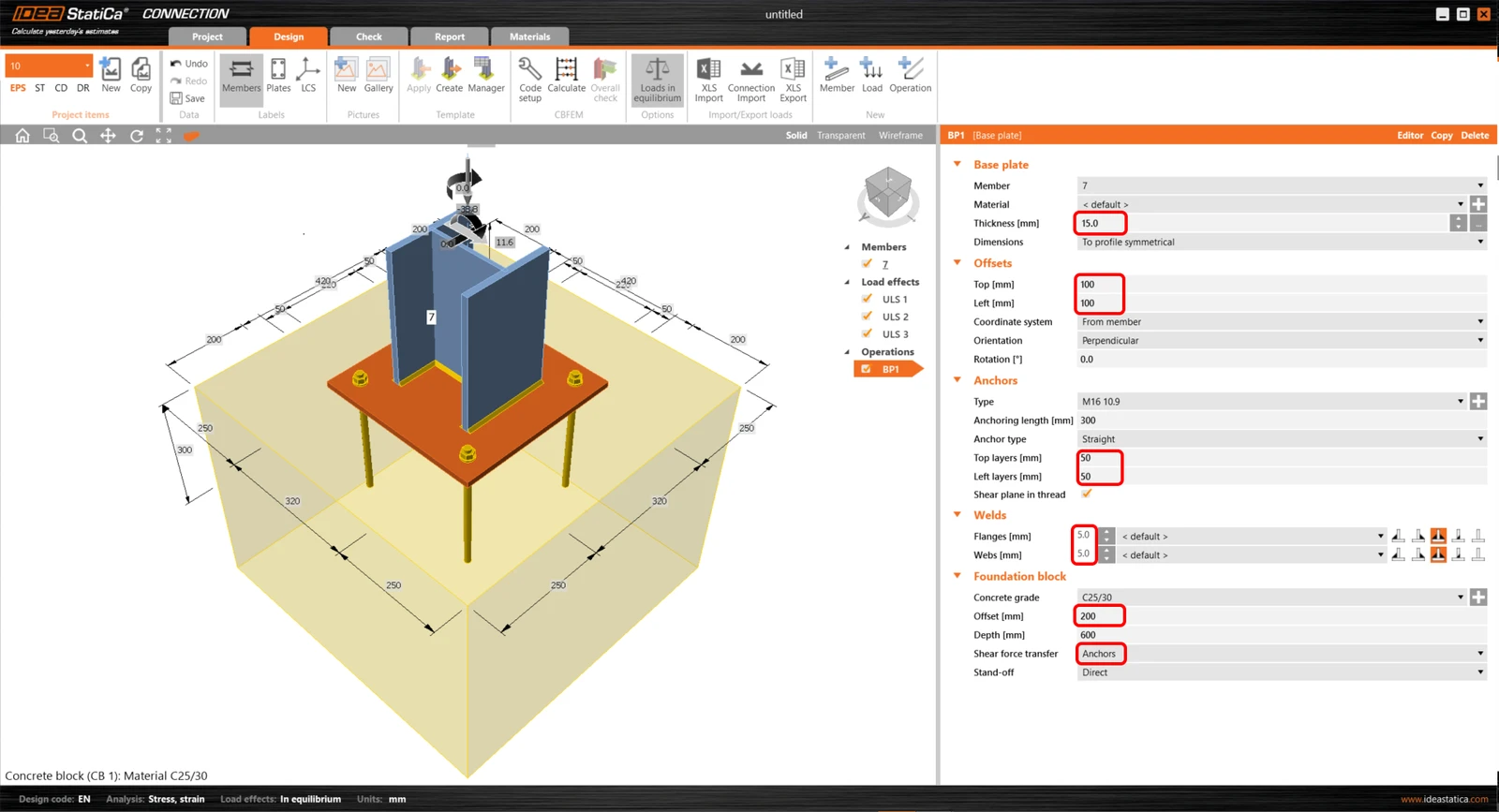
All base plate, offsets, anchors, welds and foundation block parameters fit according to the attached image.
4 Check
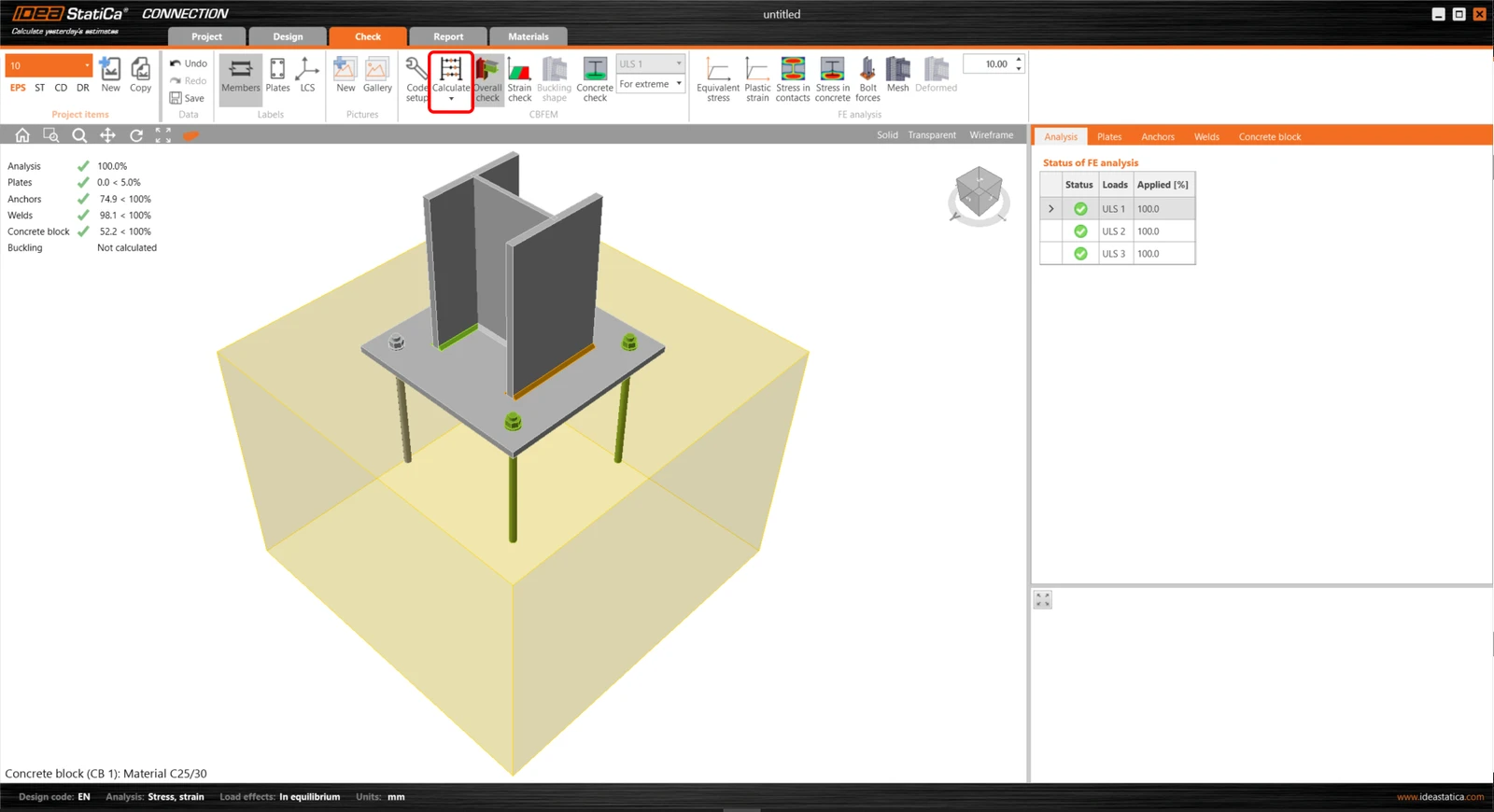
Nonlinear analysis is started by icon Calculate from the top ribbon. The analysis model is automatically generated, the calculation is performed and you can check results.
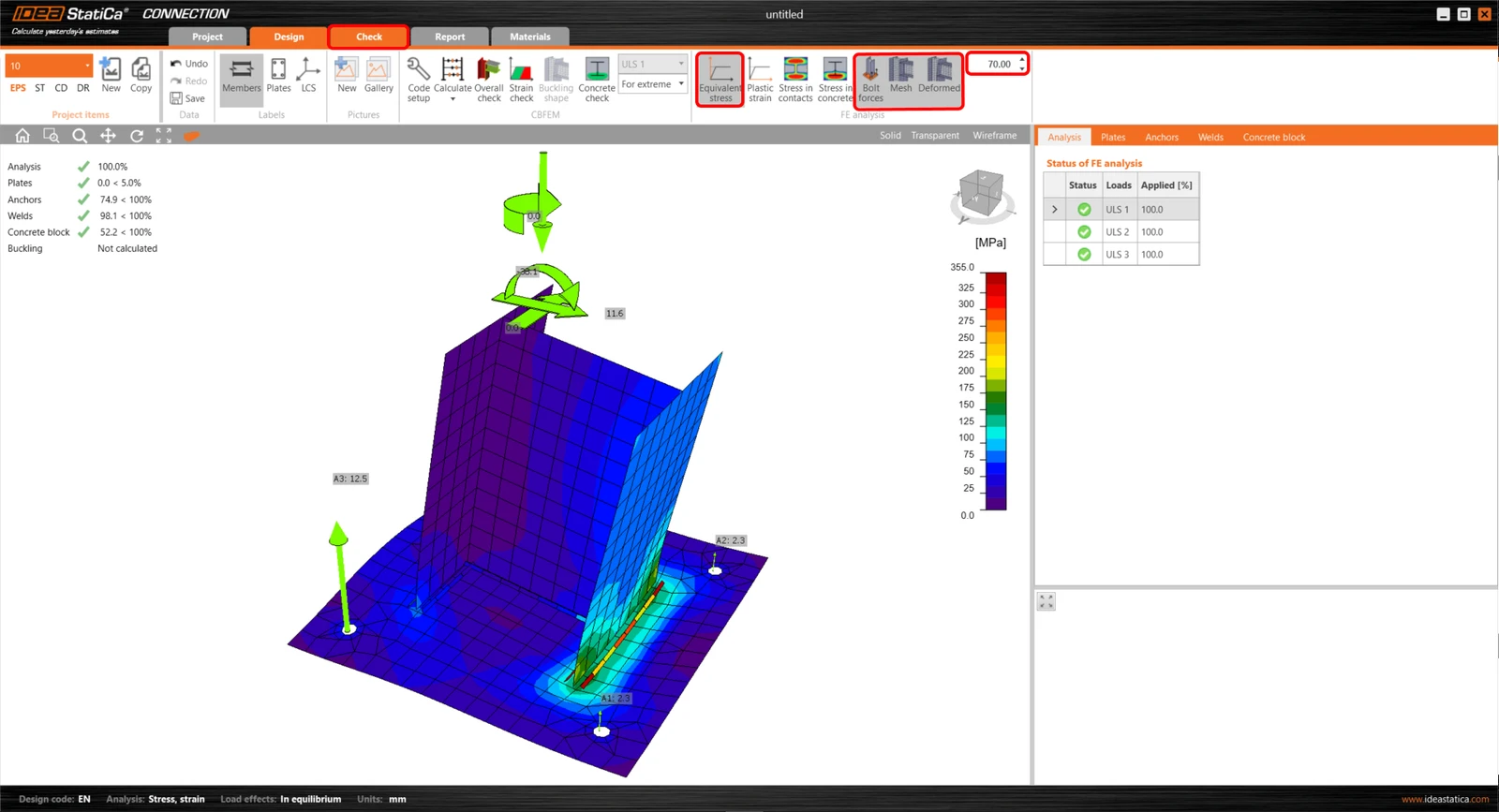
Activate Equivalent stress, Bolts, Mesh and Deformed from the ribbon to get a full picture of what is happening in the joint. Everything is displayed in the 3D window.
All values can be reviewed in detail in the tables and the 2D window. For example to display the check of the foundation block.
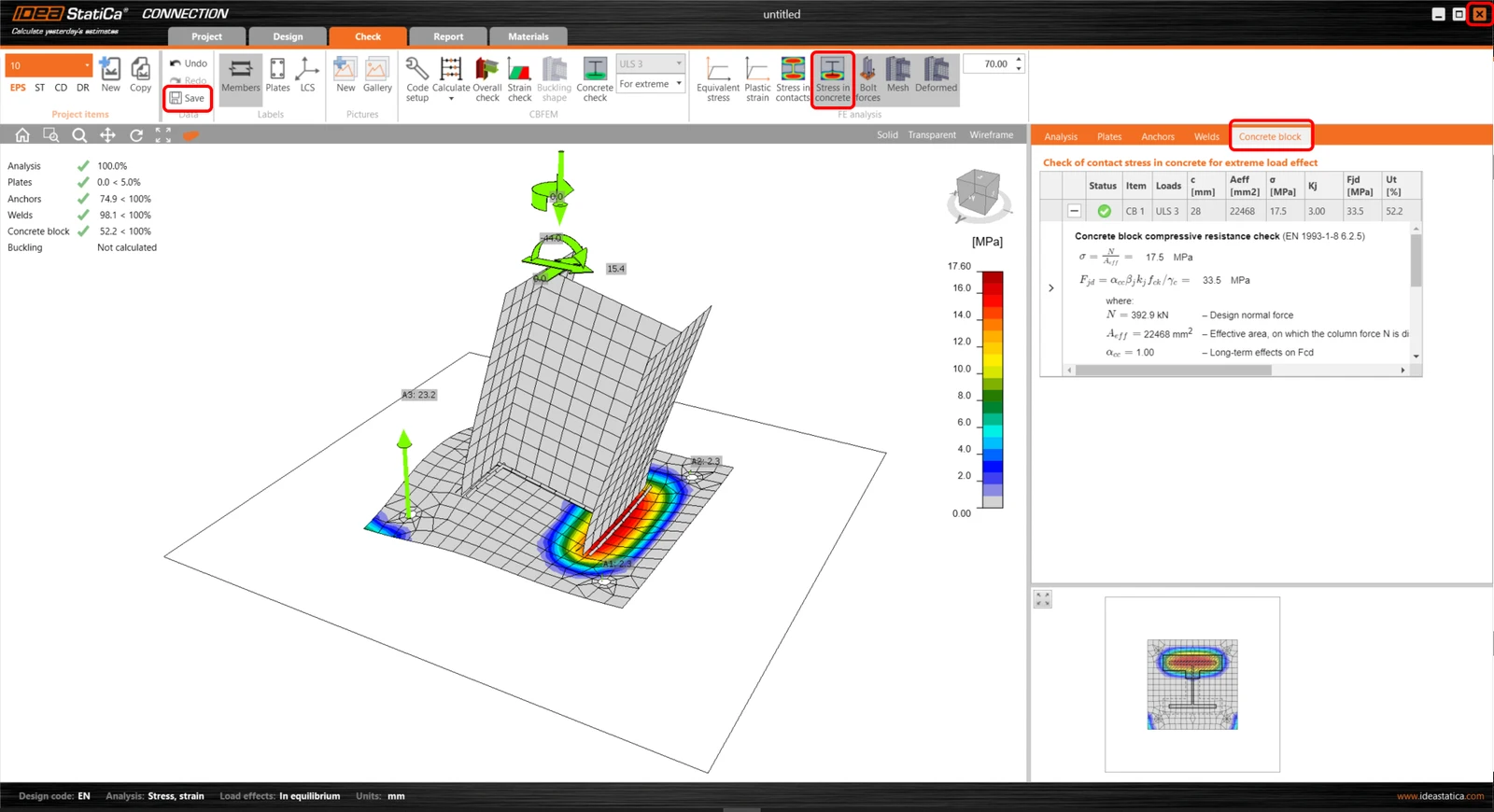
After analysis, Save the model and Close the window. You can come back to CCM where you can start with designing the second joint 11 and make the same procedure from the chapter How to use the link.
5 Report
At last, go to the tab Report. IDEA StatiCa offers a fully customizable report to print out or save in an editable format.
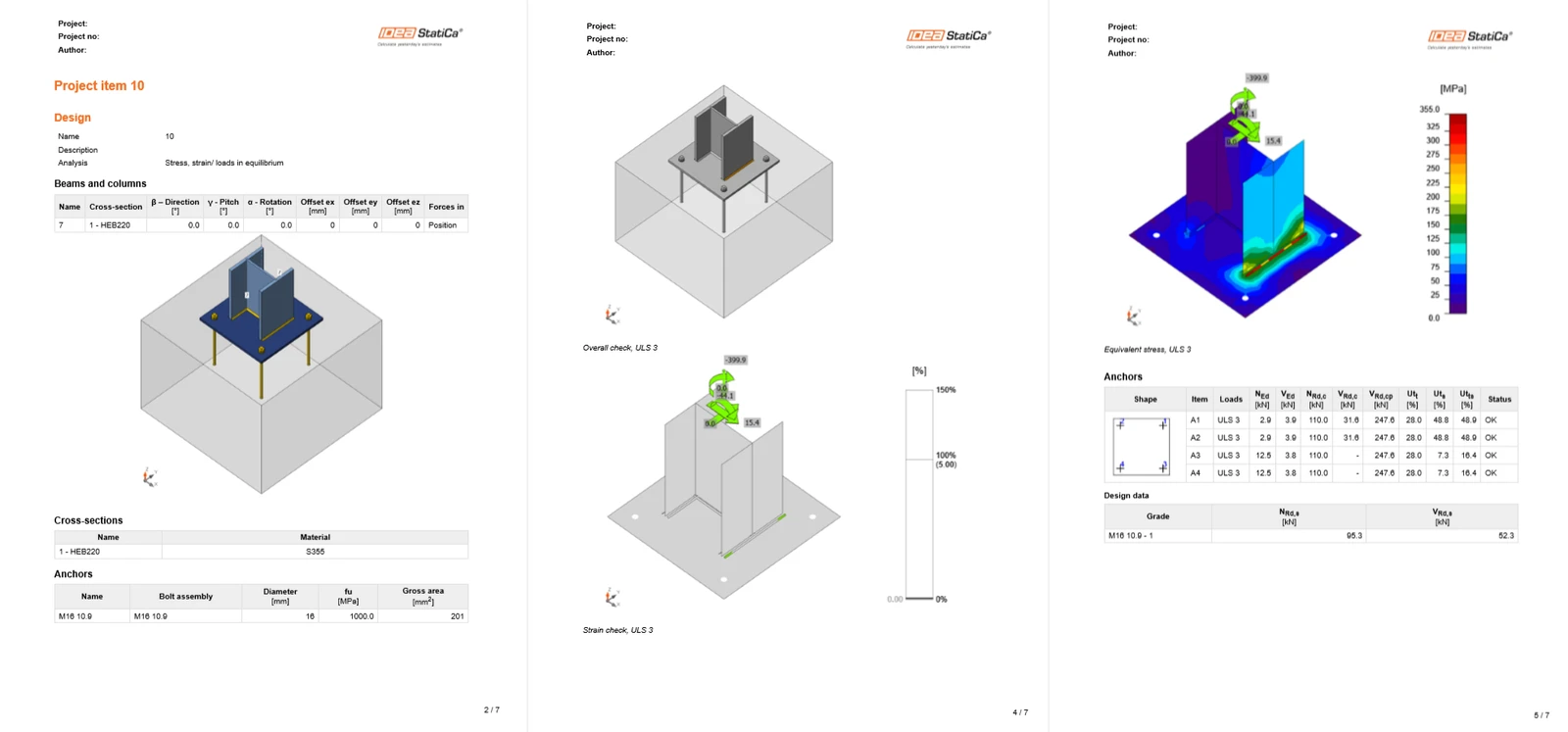
Now you have imported the joints from SAP2000 v22 and designed and code-checked it according to Eurocode.
6 Synchronize models
The code-check manager is a BIM tool to export and synchronize connections from other programs. It is launched directly in the 3rd party applications via a command/icon.
Synchronize - IDEA StatiCa detects changes in already imported entities (changes in thickness, changes in cross-section, modification of properties of welds, bolts, etc.) and updates the project in IDEA StatiCa Connection.
Calculate - Synchronize and calculate the current item and provide a new set of results.
Calculate all - Synchronize and calculate all items and provide a new set of results.
Note:
Kindly be aware that IDEA StatiCa syncs with a model of the 3rd party application, not the other way around. If you add operations in IDEA StatiCa and then use the options described above (Synchronize; Calculate; Calculate all), the additionally added operations will be preserved.
You save the project in IDEA StatiCa and close the application Connection. All joints exported from SAP2000 project to IDEA StatiCa are kept on the list inside SAP2000 v22.
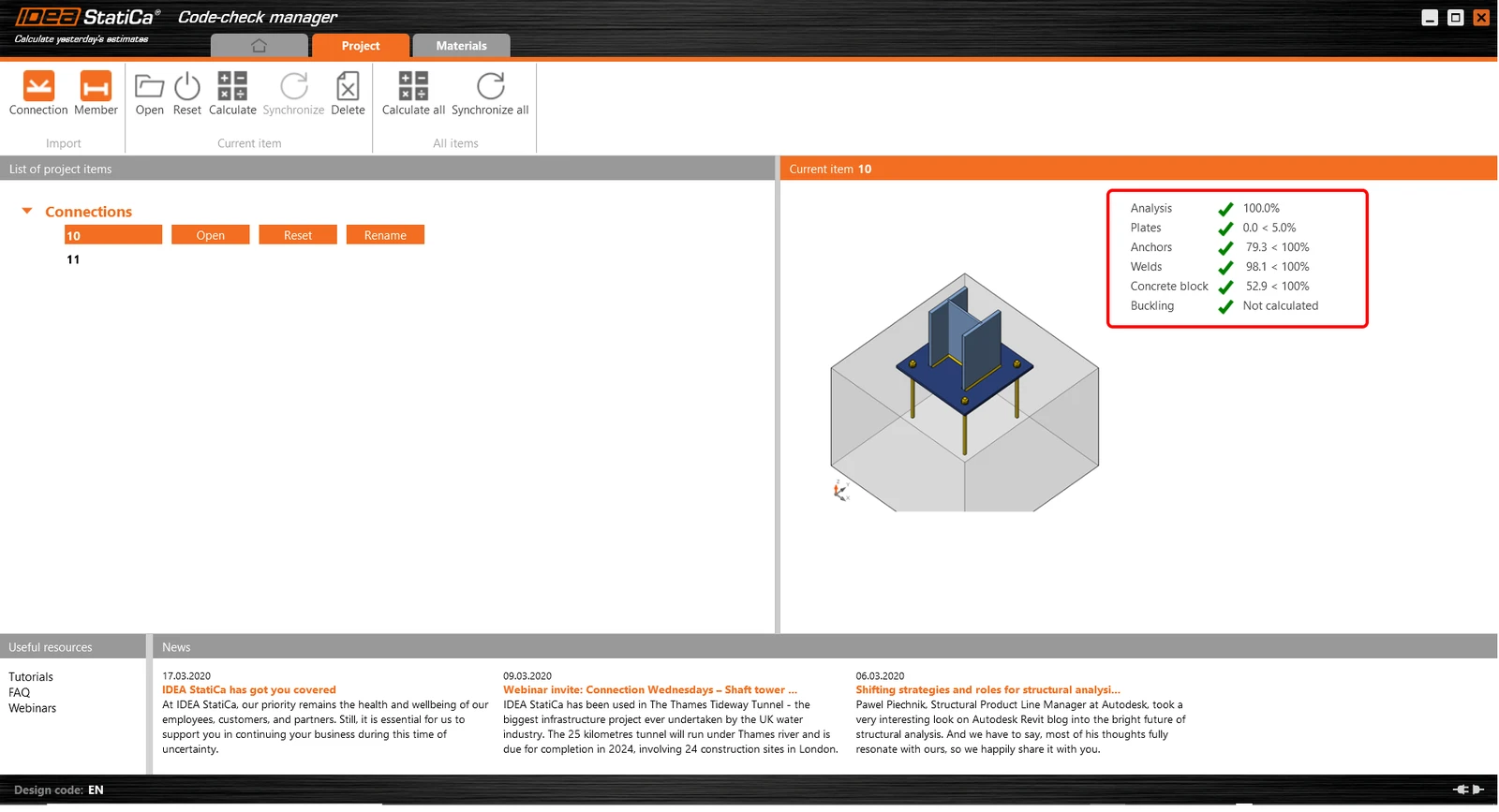
If you modify the project in SAP2000 (e.g. change cross-section of any member or add other loads) we can simply update the project in IDEA StatiCa without modeling it all again. Let’s increase the line load for the load case Live.
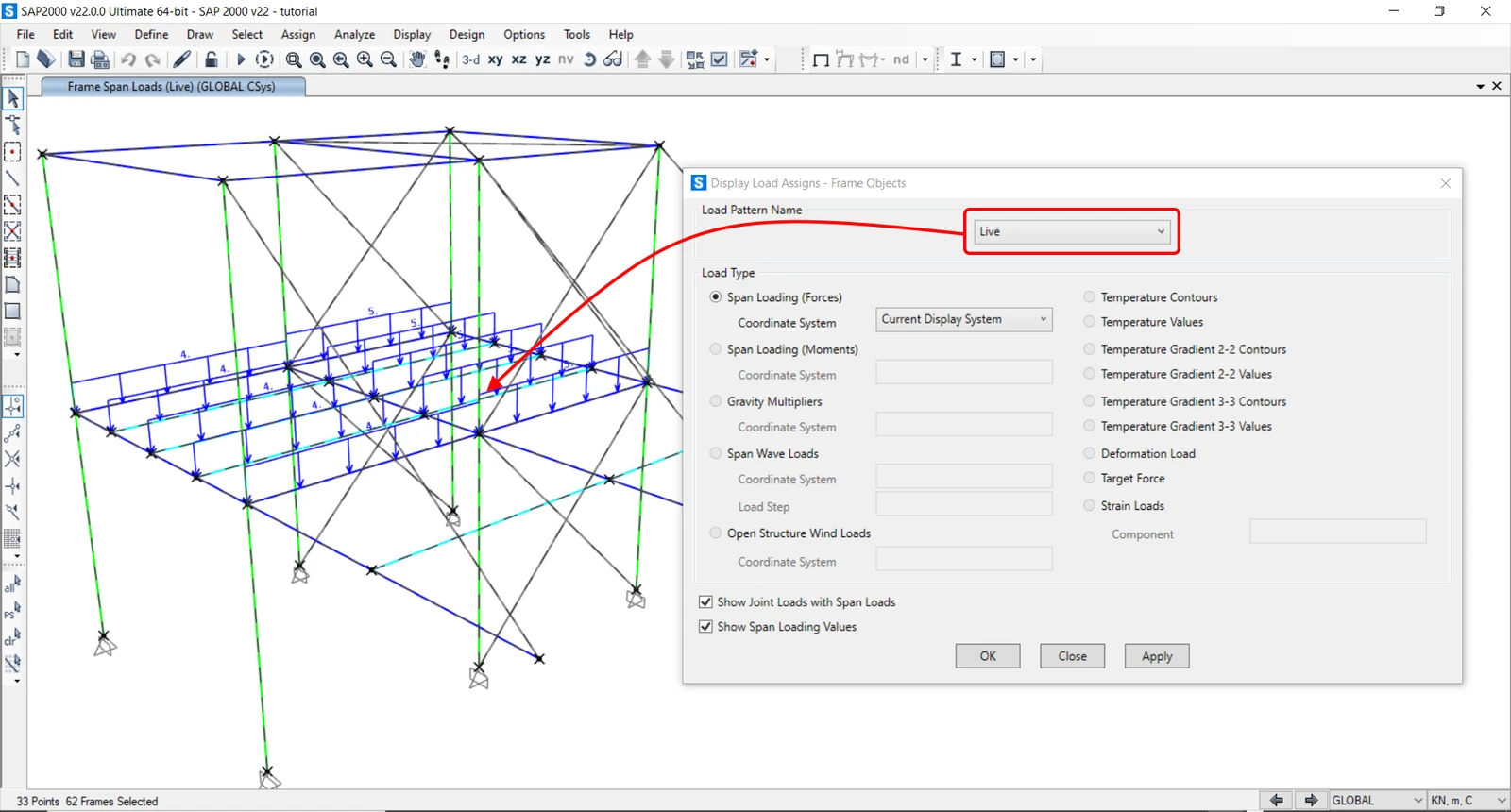
First, unlock the project in SAP2000.
You pass-through the ribbon items Assign - Frame loads - Distributed and finally is revealed the relevant tab. Select the load case Live and indicate the member where will be adjusted the existing line load for the new one with value 15 kN/m.
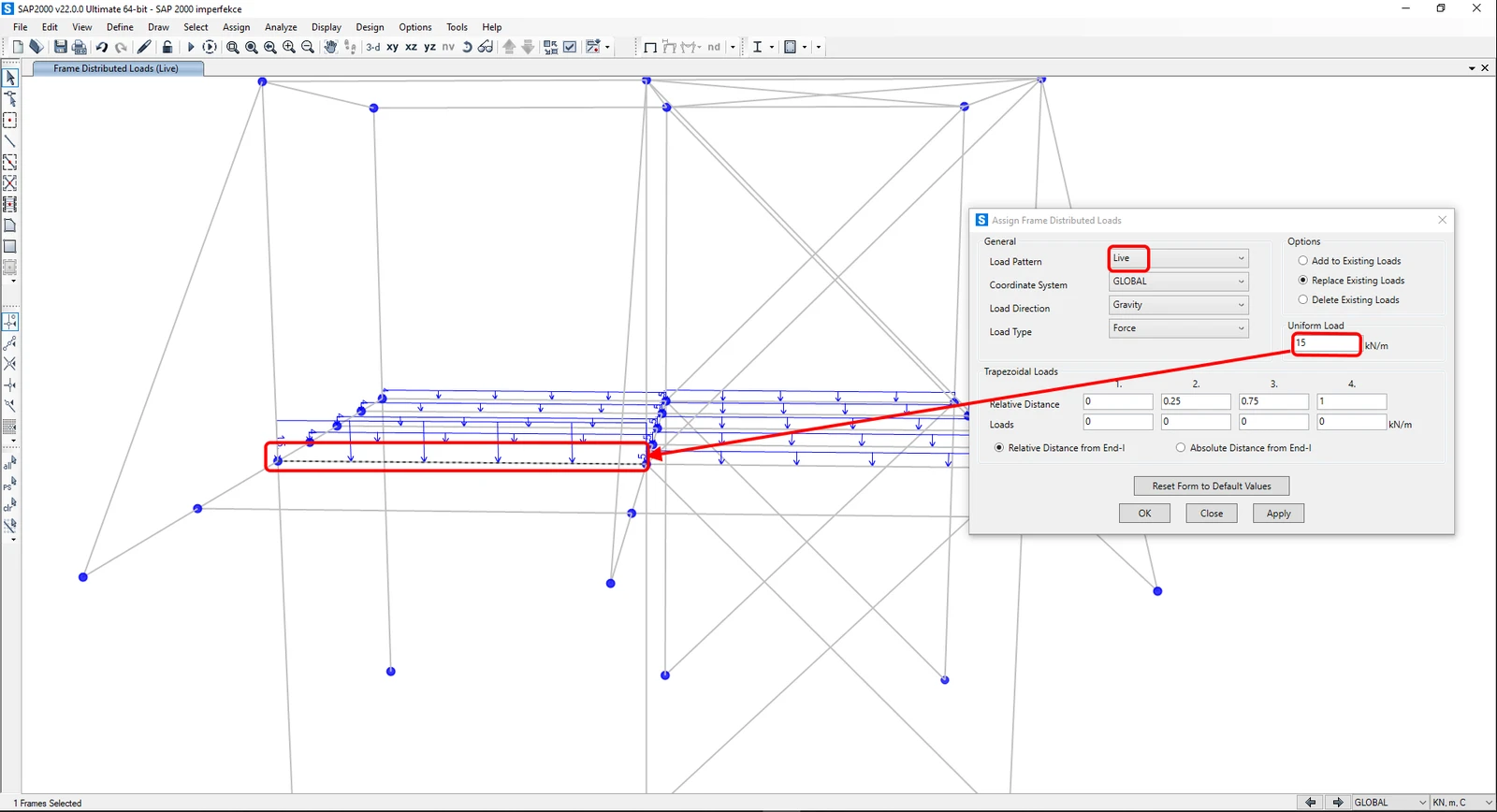
Now you can Run the Analysis in SAP 2000 v22 and come back to CCM in the same way as in the chapter How to use the link.
Start with Synchronize all (1) item to all internal forces or cross-sections were correctly uploaded. After that, you can Calculate all (2)to received appropriate results.
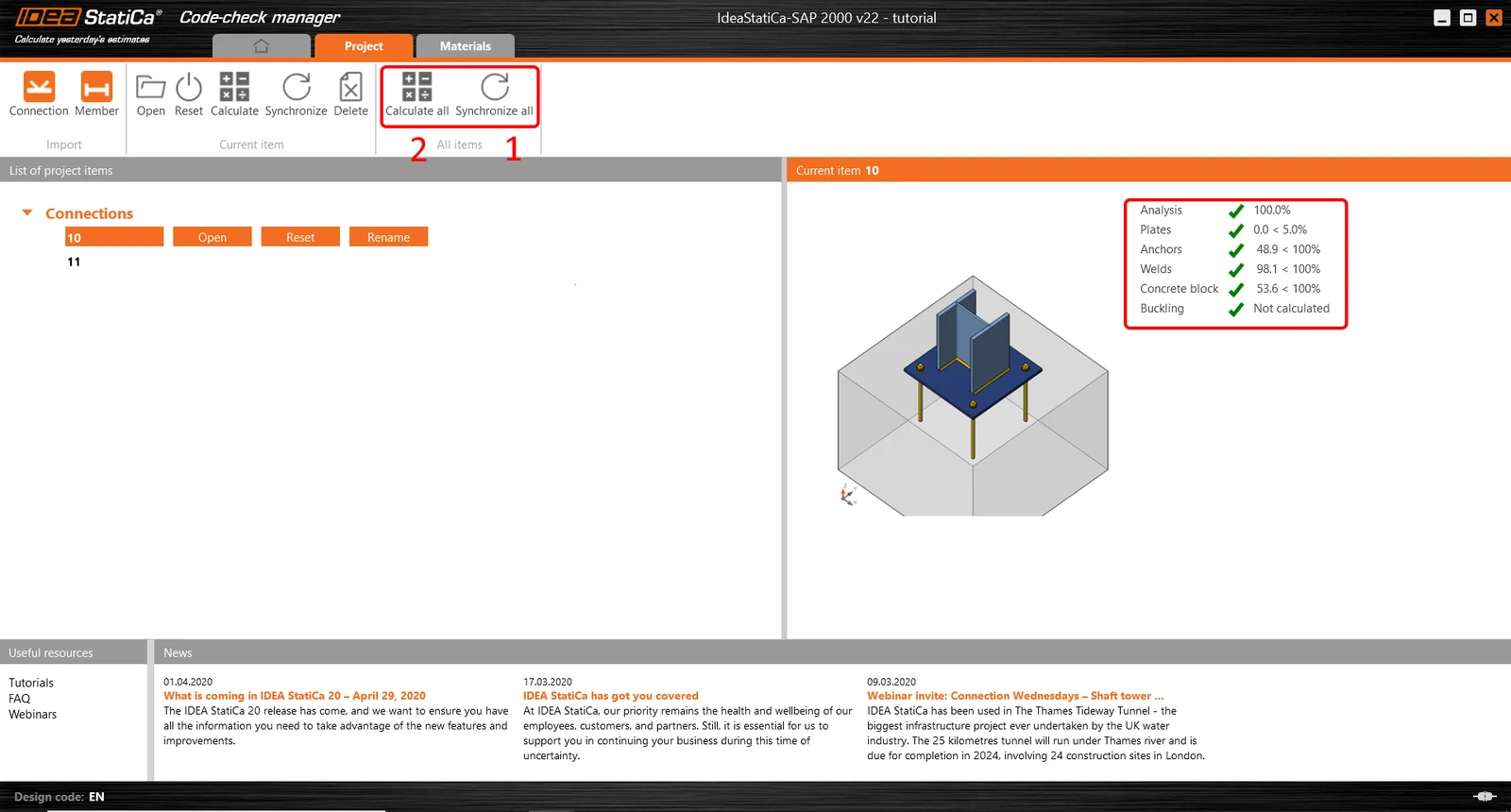
You can see that the results in the 3D scene are recalculated.