

RAM Structural System to IDEA StatiCa workflow
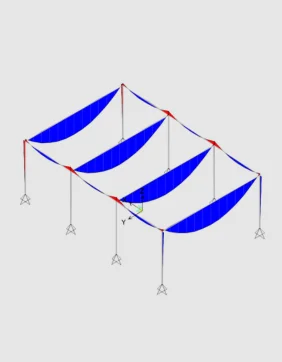
Perform global analysis in your FEA
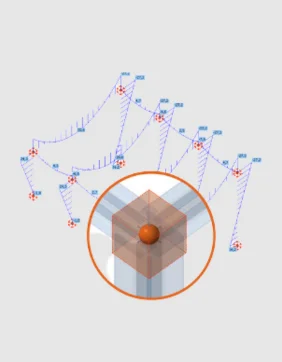
Share structure and forces with IDEA StatiCa
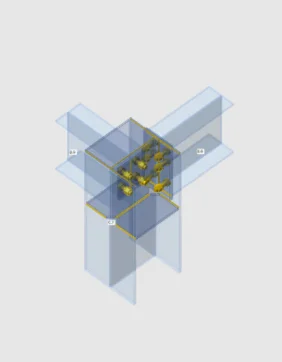
Design selected connections
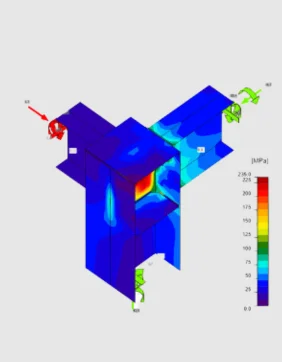
Code-check and optimize connections
Perform global analysis in your FEA
Share structure and forces with IDEA StatiCa
Design selected connections
Code-check and optimize connections
About the RAM Structural System plugin
You can connect your structural models created in RAM SS, with IDEA StatiCa apps. Simply save your RAM model as a .rss file and import it following the process described below. It means you can start designing steel connections on your RAM model as not only does the geometry of the structure get imported, but also materials, cross-sections, and internal forces.

After importing, your structural model is displayed directly in the 3D graphic scene where you can select which structural joints and members you would like to design and code-check. IDEA StatiCa and Bentley RAM Structural System give you an efficient workflow for your structural steel design that saves time, minimizes errors, helps with optimization, and makes the data available to your colleagues or subcontractors doing detailing and fabrication.
The BIM link is managed by IDEA StatiCa Checkbot, an application for managing BIM workflows. This means for you:
- Import your RAM structure easily
- Complete control over all of your created connections and members
- A clear list of all created items, including status checked/not-checked
- 3D visualization of imported members and loads
- Conversion table for materials and cross-sections
- Load combinations management
Read more about How Checkbot works.
RAM Structural System to IDEA StatiCa video
How to get started
Getting started is easy!
- Go to the IDEA StatiCa main application and click on the BIM links icon
- The Activate BIM link window will pop up, scroll down to RAM Structural system, and click on Install. Note: RAM Structural System should be installed on the computer.
- The Installation will create a desktop shortcut "RAM to IDEA StatiCa".
- Double-click the "RAM to IDEA StatiCa" icon, browse to the *.rss file location, and select it.
- Create the project in the Checkbot app.
- Once the Checkbot file is open, click on Connection to import the model.
- The RAM Structural File is imported to Checkbot, and you can start working on the joints.

Please note that like with most software, there is always a short delay when new versions are released and the BIM links are updated. Please check out the list of compatible versions before installing the plugin.